How to Connect Git with Power Platform Solutions

Microsoft has introduced a native Git integration in Power Apps solutions, making it much easier for makers and developers to connect their solutions directly to a Git repository without relying only on manual CLI commands.
This feature is a game-changer for Power Platform ALM (Application Lifecycle Management), as it simplifies source control and enables teams to adopt DevOps best practices faster.
Watch the video tutorial below to learn or scroll to read.
Why Git Integration in Power Apps Matters
- No manual export/unpack required – solutions can be synced directly to Git.
- Collaboration made simple – multiple makers can work on the same solution with version tracking.
- Version history – every solution change is stored in Git for auditing.
- Ready for CI/CD – connect Git to Azure DevOps or GitHub pipelines.
Prerequisites
Before you connect:
- A Power Platform environment with a solution.
- A GitHub or Azure DevOps Git repo (supports public/private repos).
- Appropriate permissions on the repo (read/write).
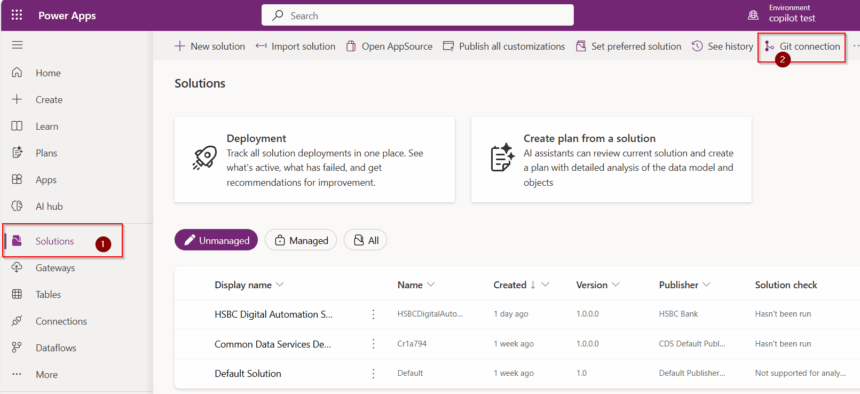
Step 1: Open Your Solution in Power Apps
- Go to Power Apps Maker Portal.
- Select your environment.
- Open the solutions area or single solution you want to connect to Git.
Step 2: Enable Git Integration
- In the solution menu, look for Git Connect.
- Click Set up Git connection.
- Enter the repository details:
- Git repo URL
- Branch (e.g.,
mainordev) - Folder path where solution files will be stored

Step 3: Authenticate
You’ll need to sign in with your Git provider:
- For GitHub → use a personal access token (PAT).
- For Azure DevOps → use an organization URL and PAT.
Once authenticated, Power Apps establishes the connection.
Step 4: Commit Solution Changes to Git
Now that the connection is set up, you can:
- Push changes – When you update your solution in Power Apps, commit and push changes directly to Git.
- Pull changes – Bring updates from Git back into your solution.
- Review version history – Git maintains commit history of your solution components.
Step 5: Collaborate & Automate
With the Git integration in place:
- Teams can branch, review, and merge solution changes.
- Set up CI/CD pipelines in Azure DevOps or GitHub Actions to automatically deploy solutions across environments (Dev → Test → Prod).
Best Practices
✔ Use feature branches for new changes, merge only after review.
✔ Commit often with clear messages (e.g., “Updated Dataverse table schema”).
✔ Avoid making direct edits in multiple environments without syncing back to Git.
✔ Keep sensitive configuration values outside of the solution repo.
Conclusion
The new Git integration in Power Apps solutions makes it easier than ever to bring professional source control and DevOps practices into the Power Platform world. Whether you’re a low-code maker or a pro developer, this feature bridges the gap between app building and modern software development practices.
Start small: connect a solution to a Git repo, commit changes, and explore how Git unlocks collaboration and automation for your Power Platform projects.
Hope It Helps.