Dynamics 365 CE Email Synchronization: Find Why Messages Don’t Appear
Introduction
A missing email can leave a customer conversation off a Dynamics 365 CE timeline, keep it out of a queue, or prevent it from appearing as a tracked activity. The cause may be in Exchange, a mailbox setting, or the way the message was expected to reach a record.
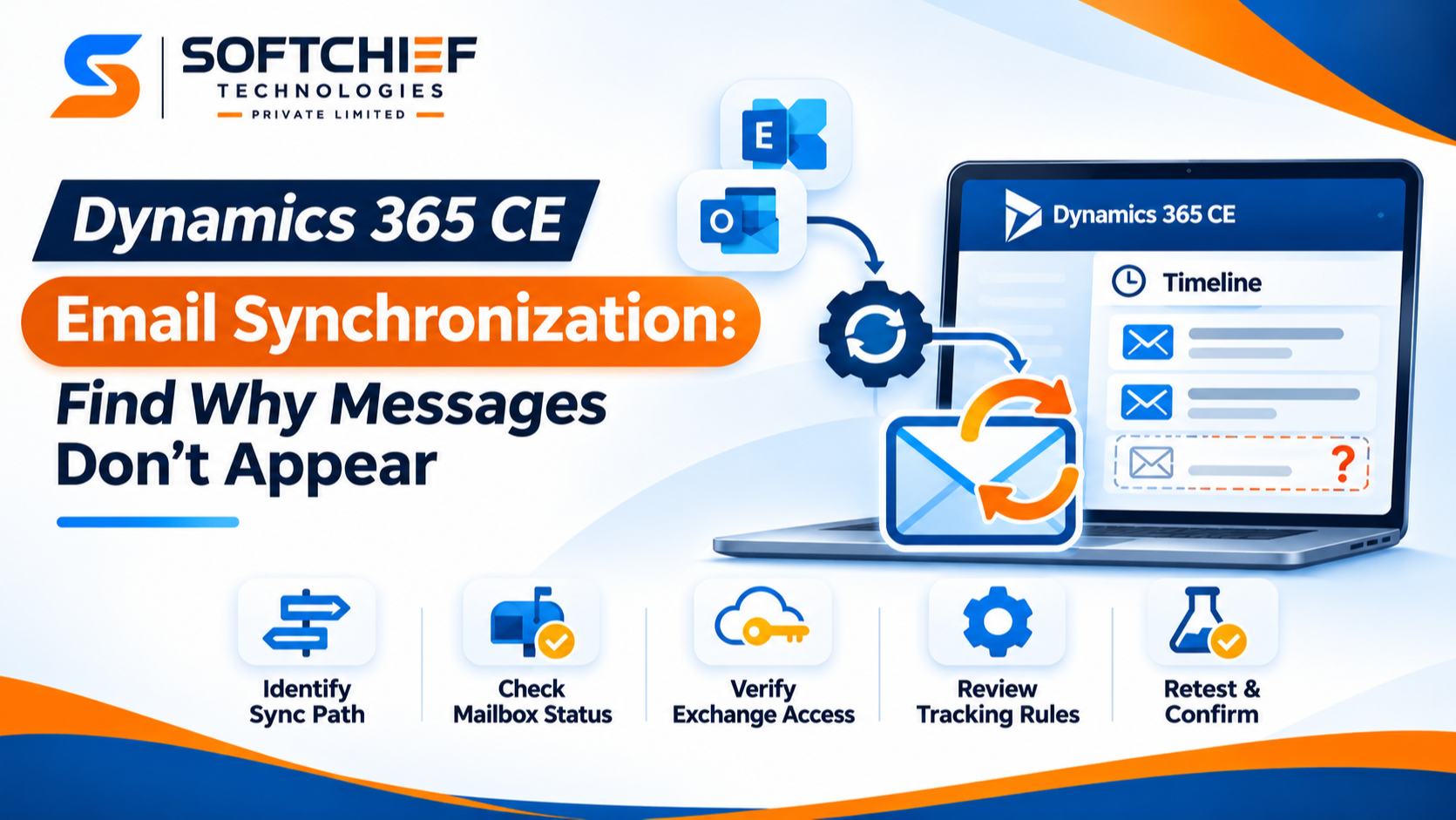
Email synchronization can use server-side synchronization with Exchange, while users may also track messages through Outlook. These paths handle messages differently, so first identify which one applies and whether incoming or outgoing mail is affected. Then check the mailbox, its alerts, and its tracking rules before changing settings or asking an admin to investigate.
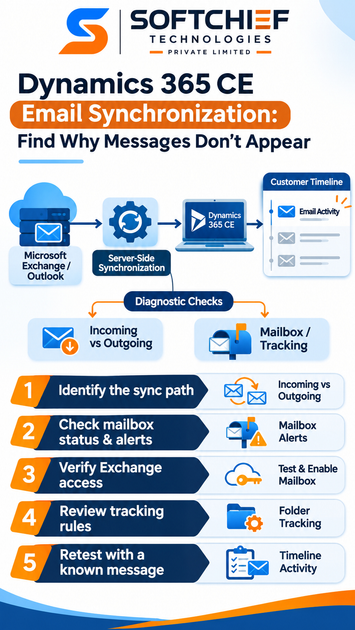
Troubleshoot Dynamics 365 CE email synchronization by narrowing the scope
Identify the affected synchronization path
Confirm whether the mailbox uses server-side synchronization, Dynamics 365 for Outlook, or an Outlook app tracking flow. Also note the email provider and mailbox type, such as a user mailbox or queue. Check Microsoft’s supported email synchronization configurations before changing settings, especially in hybrid or custom setups.
Compare affected and working messages
Check whether the problem affects incoming mail, outgoing mail, or both. Note if it happens for one user or queue, a certain sender, or messages from a particular time period. Compare a missing email in Exchange with the expected activity or timeline in Dynamics 365.
Check whether the email should have been tracked
An email arriving in Exchange doesn’t always create a Dynamics 365 activity. Automatic tracking depends on mailbox setup, recipient settings, and whether Dynamics can match a recipient to a user or queue. If a user expected to track it manually, check whether they used the intended Outlook tracking method and linked the message to the right record.
Check Dynamics 365 CE mailbox setup and status
Confirm the mailbox’s email settings
Open the affected mailbox record and check its incoming and outgoing email methods. Make sure the selected server profile and synchronization method match the organization’s email service. If only incoming or outgoing mail is missing, focus on that direction first rather than changing both settings.
Review approval and test results
Check whether the mailbox is approved and enabled for email processing as required by your organization. Then review Test & Enable Mailbox results and the incoming and outgoing status fields. Microsoft’s Exchange Online setup guidance explains mailbox setup and testing for that configuration.
Read mailbox alerts and sync errors
Open the mailbox’s Alerts area and record the full error text and time. Alerts may point to approval, access, authentication, or connection problems. If available, check the item-level synchronization monitoring view for a message-specific error; Microsoft’s server-side sync troubleshooting guidance describes monitoring and common alerts.
Separate Exchange problems from Dynamics 365 CE issues
Check Microsoft 365 or Exchange service health
Review Microsoft 365 service health for an Exchange Online incident that matches the time of the failure. Ask whether other users or mailboxes have the same problem. For on-premises or hybrid systems, involve the Exchange team to check server and network access.
Validate mailbox access and permissions
Confirm that the mailbox and the configured sync account have the access required by the chosen setup. Use Microsoft’s documented requirements for that email service and authentication method. Avoid broad permission changes; they can affect mailboxes that are working.
Look for sign-in, connection, or service limits
An alert may show failed authentication, an interrupted connection, or a mailbox disabled after repeated delivery errors. Save the exact alert before retrying, then follow the documented fix for that error. Repeated tests won’t resolve a bad credential or service issue and can make the timeline of events harder to read.
Review tracking rules for messages that remain missing
Check personal and organization tracking settings
Review the user’s email options, including which incoming messages Dynamics 365 should accept for automatic tracking. Check organization-level tracking settings as well. A change to either can affect which emails become activities, even when Exchange receives them normally.
Confirm folder tracking and record links
If users move messages into tracked folders, make sure folder tracking is enabled and the folder is mapped to the right record. Microsoft explains how to configure Exchange folder-level tracking. This feature requires server-side synchronization and tracks folders under the Inbox; it doesn’t support queue mailboxes.
Check filters and message handling
Compare a missing email with one that does appear. Look at the sender, recipients, folder, and whether the message was moved before processing. Microsoft’s email tracking troubleshooting guide notes that messages moved out of the root Inbox before processing may be missed. Distribution groups and BCC recipients can also affect automatic tracking if Dynamics can’t match a recipient to a user or queue.
Restore synchronization with a targeted test
Make only the change supported by the evidence
Match the fix to the error you found. Correct a mailbox method if it’s wrong, resolve an approval or access issue if the alert points there, or adjust tracking options if sync is healthy but the message isn’t accepted. Change one setting at a time and leave unrelated mailboxes alone.
Retest with a known message
Use an approved test mailbox and a clearly identified message. Verify that it exists in Exchange, then check whether it appears in the expected Dynamics 365 location. Treat delivery direction, tracking, and record association as separate checks; a message can pass one and fail another.
Escalate with useful details
If the message still doesn’t appear, share the affected mailbox, message direction, synchronization method, approximate time and time zone, and the exact alert or test result. Include whether other mailboxes are affected and any relevant service-health findings. These details help your Dynamics 365 or Microsoft 365 support team trace the failure.
Conclusion: Trace the point where email stops
To fix Dynamics 365 CE email synchronization, first define which messages are missing and which path should process them. Then check mailbox settings, approval, test results, and alerts before investigating Exchange access or tracking rules. Apply one evidence-based change and confirm it with a test message. If the issue persists, give your support team the error details and timing so they can focus on the right failure point.