Dynamics 365 F&O inventory values and transaction review
Introduction
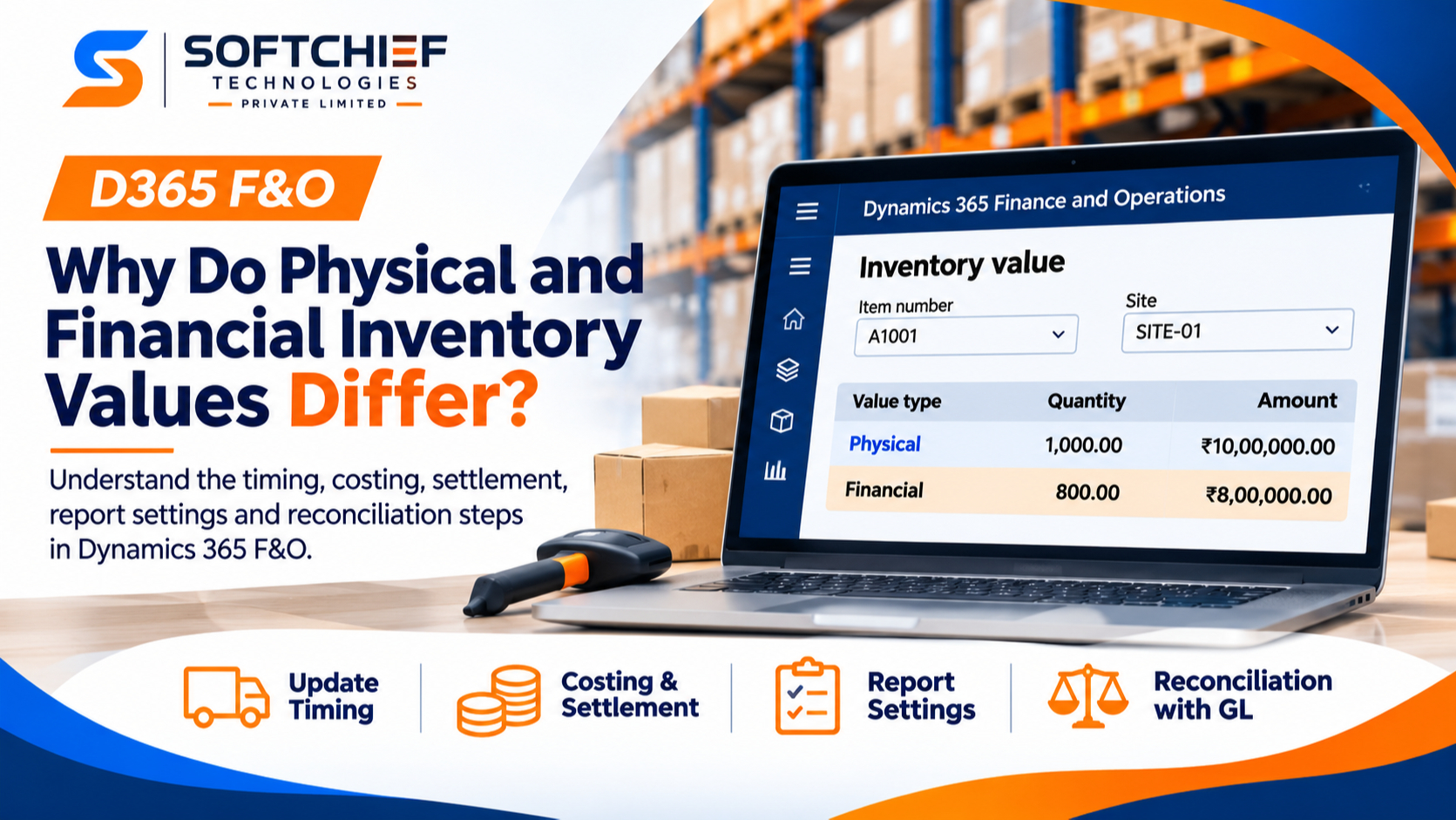
A purchase receipt can raise on-hand inventory today while its vendor invoice arrives later. In D365 F&O, that timing can leave physical inventory values different from financial inventory values, even when the transactions are correct.
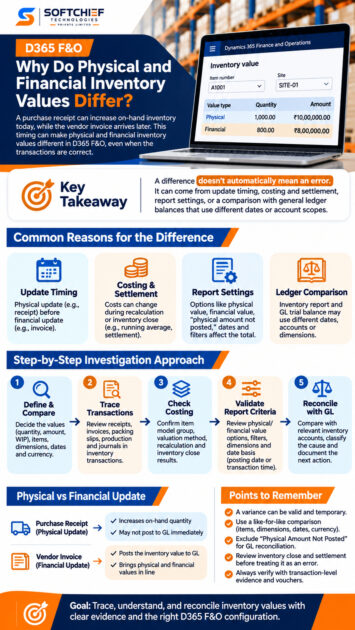
A difference doesn’t automatically mean an error. It may come from update timing, costing and settlement, report settings, or a comparison between inventory data and general ledger balances that use different dates or account scopes.
Start by defining the values you’re comparing. Then trace the related transactions, review costing activity, check the report parameters, and reconcile the result to the ledger. Use transactions and vouchers from your own environment to confirm the cause.
Clarify physical and financial inventory values in D365 F&O
Before investigating a variance, check what each report value includes. D365 F&O separates physical and financial transaction updates, but report options affect which quantities and amounts appear.
Distinguish physical updates from financial updates
A purchase order receipt can update inventory physically before the vendor invoice updates it financially. Likewise, a sales packing slip can record a shipment before the sales invoice posts. Microsoft’s physical and financial updates documentation explains how these updates affect transaction status.
That timing can create valid differences in reported quantities and amounts. Production has similar stages: picking materials or reporting an order as finished can be physical updates, while ending the production order is a financial update.
Identify the value fields and transaction statuses
The Inventory value report separates financial quantity and amount from physical quantity and amount. It can also show physical amounts that haven’t been posted to the ledger. Check the transaction status and the report columns together; a single total can hide whether a transaction is received, invoiced, shipped, or still unposted.
Pay close attention to “Physical Amount Not Posted” when reconciling to the general ledger. Microsoft advises excluding that amount from the reconciliation total because it hasn’t posted to the ledger.
Set a like-for-like comparison
Use the same item, site, warehouse, inventory dimensions, date range, and currency in each report. Also decide whether you’re comparing quantity, inventory value, work in process, or another amount. A filter or date mismatch can make two correct reports look inconsistent.
Trace transactions to find where the difference began
Begin with a small, clearly defined set of items. A focused review makes it easier to follow the status changes and posting history before you investigate a larger balance.
Review open and partially updated transactions
Check for purchase receipts without invoices, sales packing slips without invoices, returns, and partially delivered or invoiced orders. In the inventory transactions, compare the physical and financial statuses, quantities, dates, and amounts. Look for transactions that have only one update or have been split across multiple updates.
Also review journals and transfers that changed inventory. A posted quantity may not have the same financial status or ledger effect as another transaction with a similar description.
Follow purchase and sales orders through posting
For each relevant purchase order, trace the ordered quantity through product receipt and vendor invoice. For sales orders, compare the packing slip with the customer invoice. Check that dates and quantities line up, especially when an order was delivered or invoiced in parts.
Use the source document and its inventory transactions to confirm what posted and when. This helps distinguish a normal timing gap from a missing invoice, an unexpected quantity, or a posting date outside the report period.
Inspect production and other inventory processes
If the item is made or used in production, review picking list journals, reporting as finished, and production order ending or cost calculation. These stages can affect physical and financial inventory at different points. Check the order status and related inventory transactions rather than relying on a production summary alone.
Include other processes that changed the balance, such as counting, movement, or transfer journals. Base the review on actual records from your company; avoid assuming a transaction sequence that the system history doesn’t show.
Check costing and settlement before treating a variance as an error
A transaction can be posted correctly and still have a cost that changes later. Review the item’s costing setup and period-end activity before deciding that an inventory value difference needs correction.
Confirm the item’s costing configuration
Check the item model group and the inventory valuation method assigned to the item. The method affects how costs are assigned to receipts and issues, and whether inventory close settles issue costs against receipt costs. Physical-value settings can also affect whether physically updated, not-yet-invoiced transactions are included in cost calculations.
Compare the item setup with the transaction dates and statuses. A cost difference during processing may be expected; a transaction posted to an unexpected account or at an incorrect amount needs separate review.
Review inventory close and recalculation
Check whether inventory recalculation or inventory close ran for the period. Microsoft explains that inventory close settles issues to receipts based on the item’s valuation method; recalculation can adjust costs but doesn’t settle transactions. Until close or recalculation runs, issue transactions may use a running average cost.
Review the close or recalculation details, including any warnings and resulting vouchers. These updates can affect both inventory values and the general ledger, so note the posting date and accounts before comparing balances.
Investigate marking and cost adjustments
Look for marked receipt and issue transactions, inventory adjustments, and cost corrections. Confirm the source transaction, date, quantity, and financial effect of each entry. Marking can affect which receipt and issue costs are linked, so check it before treating a settlement result as unexplained.
Validate the Inventory value report criteria
Report settings can change the displayed amount without changing the underlying transactions. Microsoft’s Inventory value reports documentation describes the report options, filters, and output behavior.
Review physical and financial value options
Check the report configuration for separate physical and financial values, summarized totals, and the option to include transactions not posted to the ledger. If the report combines physical and financial amounts, you can’t use that single total to identify which update caused the difference. For ledger reconciliation, exclude amounts that have not posted.
Match report filters, dimensions, and dates
Compare the item, site, warehouse, and other selected dimensions with the ledger or inventory report. Check the date interval and the date basis: the report configuration can use posting date or transaction time. Use the date that matches the question you’re asking, and keep the currency and period consistent.
Also check whether the dimensions appear in the report. Only dimensions enabled for financial inventory can show values in the Inventory value report, even if other dimensions are selected for display.
Check report storage, detail, and summary
If you use Inventory value report storage, confirm the saved report’s configuration, period, and filters. Review its most detailed available output before relying on a summarized balance; transaction-level rows can reveal the source of a variance.
Keep in mind that the storage report doesn’t include general ledger balances or report-layout subtotals. Use a trial balance for the ledger side of that comparison. The standard Inventory value report can show cumulative account values when configured to do so.
Reconcile inventory values to the general ledger
A useful reconciliation compares equivalent periods and accounts. A matching headline total isn’t enough if the inventory report and ledger query include different items, dimensions, or posting dates.
Compare the correct ledger accounts
Identify the inventory accounts used by the transactions under review, then compare them with the relevant Inventory value report amounts. Check the account scope and date range, and inspect vouchers by posting date when totals differ. Inventory adjustments and settlement postings may use accounts tied to the original transaction.
Separate timing differences from posting issues
Classify each finding as a timing gap, a costing or settlement effect, a report-criteria mismatch, or a possible posting or setup issue. Verify the transaction status, report configuration, and voucher before proposing an adjustment. A physically updated amount that hasn’t reached the ledger is different from a financially posted amount on the wrong account.
Record the cause and next action
Document the report parameters, affected items, transaction IDs, dates, and supporting vouchers. State the cause and whether follow-up is needed, such as posting a pending invoice or reviewing a setup issue. Any correction should follow your organization’s approval and accounting controls.
Conclusion
To investigate differences between physical inventory and financial inventory values in D365 F&O, trace the balance from transaction status through costing and report criteria to ledger posting. Physical and financial values can differ for valid reasons, and inventory close can change costs after the original transaction.
Keep a consistent reconciliation checklist and use Microsoft Learn’s guidance on Inventory value reports, physical and financial updates, and inventory close. Before making a correction, confirm the cause with transaction-level evidence from your environment.