F&O Data Management: Diagnose Entity Validation Errors Before Go-Live
Introduction
One failed customer, product, or transaction record can stop an import or leave data incomplete. In F&O Data Management, entity validation errors can point to missing values, bad mappings, or rules in the target application. The message is a clue, but it may not identify the original cause.
A reliable diagnosis starts before cutover. Find the failed entity and record, trace the error to the source, then verify the correction with a repeatable test import. This process helps you check validation messages, mappings, related records, and go-live evidence before production data moves.
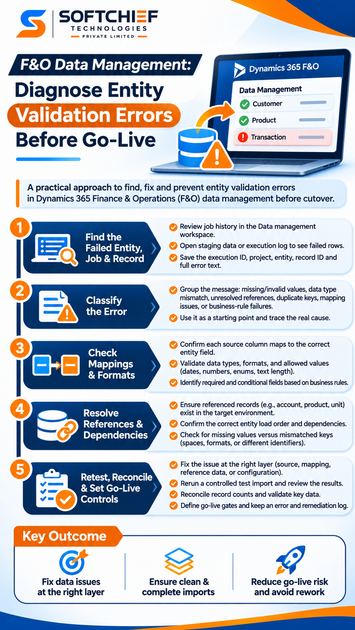
Diagnose F&O data management entity validation errors
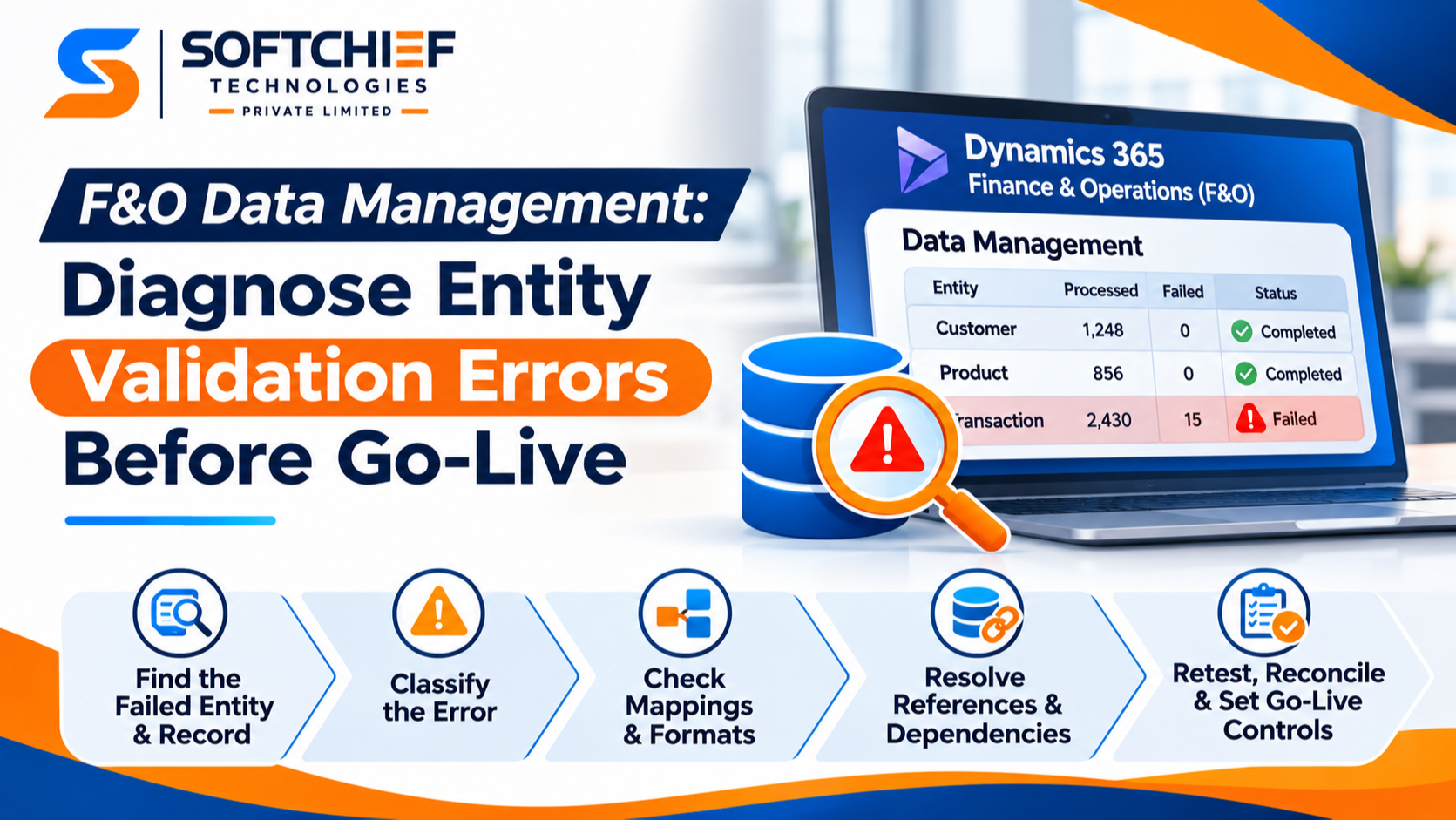
Find the failed entity, job, and record
Open the Data management workspace and review the job history for the import. The execution details show which entities ran, their record counts, and whether records failed. Open the relevant entity’s staging data or execution log to inspect the affected rows and messages.
Before changing a file or rerunning the job, save the execution ID, project name, entity, record identifier, and full error text. These details let the team compare test runs and see whether the same records fail again. Microsoft’s data import and export job guidance describes how execution details and logs help review job results.
Classify the error before changing data
Group the message by its likely cause: missing or invalid values, data type or format mismatches, unresolved references, duplicate keys, mapping issues, or business-rule failures. A date rejected for its format needs a different fix than a customer account that doesn’t exist in the target environment.
Treat the message as a starting point, not a full diagnosis. A target-table rule may report a problem that began with an incorrect source value or field mapping. Microsoft documents validation at both the data entity and underlying table levels in its guide to entity validations and defaults.
Trace the message to its source
Check where the failure occurs: in the source file, source-to-staging mapping, staging data, target-table validation, or application logic. Staging errors and target processing errors may need different fixes, so inspect both the record details and the execution log when the cause isn’t clear.
Compare the failed row with a successful row for the same entity. Look for differences in identifiers, blank fields, spacing, or formatting. A side-by-side check can reveal an input issue that a general error message doesn’t spell out.
Check F&O data management mappings and formats
Compare source columns with entity fields
Open the entity’s map and confirm that each source column points to the intended entity field. Check for missing required mappings, incorrect destinations, and transformations that alter values. A source label that sounds right doesn’t guarantee that it matches the target entity’s expected field.
Confirm that the map fits the entity in the target environment. A changed entity or extension can affect the available fields, so don’t assume a mapping from another environment or test cycle still applies. Microsoft’s mapping guidance for data entities explains how to review and update field mappings.
Validate data types, formats, and allowed values
Check dates, numbers, Boolean fields, text length, and enum values against the entity’s requirements and target configuration. A value can look valid in the source system yet fail when the target expects a different format or an allowed option. Confirm the expected format instead of guessing based on the column name.
Also review the import file’s data format settings. Delimiters, text qualifiers, or character encoding can affect how values are read, especially when text contains special characters. If a row appears shifted or split, inspect the file structure as well as the field value.
Identify required and conditional fields
Separate fields that are always required from fields required only under certain business conditions. A field may be needed only for a particular account type, product setup, or transaction status. Use the entity’s mapping details and validation output to identify the requirement for each record.
Don’t fill blanks with a default just to clear an error. An incorrect value can pass one check and still create a bad record. Confirm that the value matches the business rule and target setup before applying it across the migration file.
Resolve references and entity dependencies
Check that referenced records exist
A record may point to an account, product, unit, currency, dimension, or location that the target environment can’t find. Check the identifier in the failed row against the target record and the needs of that specific entity. These references vary by entity, so don’t treat every example as a universal requirement.
Check whether the value exists in the right company or legal entity, where applicable. A record in another environment or company may not satisfy the reference in the import. Confirm the expected key before changing the source value.
Confirm entity load order
Review the project’s entity sequence and dependency analysis before importing related data. Foundational or reference data may need to load before records that refer to it. Source-system order alone doesn’t show whether F&O’s entities have the needed prerequisites.
Microsoft’s data management framework documentation describes entity dependencies and sequencing. Use that guidance alongside test results from your project to set the load order. If a referenced record fails because its prerequisite hasn’t loaded yet, changing the row won’t solve the sequencing issue.
Distinguish missing values from mismatched keys
If a reference fails, check whether the target record is absent or exists under a different key. Review identifier transformations, leading or trailing spaces, punctuation, and differences in letter or number formats. Even a small key change can prevent a match.
Check for environment-specific values as well. A source identifier may not carry over to the target, or the target may use a different key. Document any approved key conversion so the same rule applies across the full data set.
Retest F&O data management fixes before cutover
Fix the issue at the right layer
Choose the correction point based on the root cause. Fix inaccurate values in the source data, incorrect destinations in the mapping, missing references in target setup, and faulty conversions in transformation logic. Change target configuration only when the business rule and system owners support that change.
Record why the fix is needed and how it was applied. Avoid one-off edits that can’t be repeated for the full migration. A correction should be traceable from the failed record to the updated source or configuration.
Rerun a controlled test
Test the corrected records in a non-production environment using the same entity and import settings planned for go-live. Review staging data and the execution log, then confirm that the original error is gone. Check for new errors that may appear once the first issue is fixed.
Keep the test focused enough to trace results, but include related records when dependencies are part of the failure. Don’t rely on a successful upload alone. Confirm that records reached the target and follow the expected business rules.
Reconcile imported records
Compare expected record counts with successful, rejected, and skipped records in the job results. Then check representative records in the application to confirm that key fields and relationships look right. Follow the reconciliation rules approved for the migration rather than setting a universal pass rate.
Retain the results, including the job ID, record counts, and any business-owner review. This evidence helps the team assess whether the correction worked and whether any records still need action.
Set go-live controls for validation errors
Define readiness gates
Agree on project-specific go-live criteria before the final import. These may cover unresolved errors, dependency checks, record reconciliation, and business-owner approval. The migration team should set and document acceptable thresholds; one threshold won’t fit every project or entity.
Make the gate clear enough that the team can use it to decide whether to proceed, fix issues, or escalate. Include who approves exceptions and how the team records that decision. Clear ownership prevents unresolved validation errors from being treated as informal warnings.
Keep an error and remediation log
Track the entity, job, message, affected records, root cause, correction, retest result, and owner. This gives the team a shared record of what changed and whether the fix passed. It also helps spot recurring problems across entities or test cycles.
Keep the log with migration evidence and control access as required by the project. Data jobs can include execution history and staging data, so teams should follow their approved access rules.
Use test evidence to prevent repeat failures
Review anonymized results from earlier test cycles for patterns that may affect the next run. Repeated mapping gaps or reference-data issues can guide checks in later imports. Use only examples the organization has approved for sharing, and keep lessons tied to actual project evidence.
Update the test plan when a recurring cause appears. A check added early in the process can catch the same issue before a later import or cutover run.
Conclusion: Catch entity validation problems before cutover
Diagnose the failed record and the layer where the error begins before editing data. Then check the entity’s required fields, formats, mappings, references, and load order. Retest each correction in a non-production environment, reconcile the results, and compare them with the project’s agreed go-live gates.
Use the next migration test to confirm that the fix works across the full process, not only for one row. Early, repeatable validation helps reduce avoidable surprises during cutover.