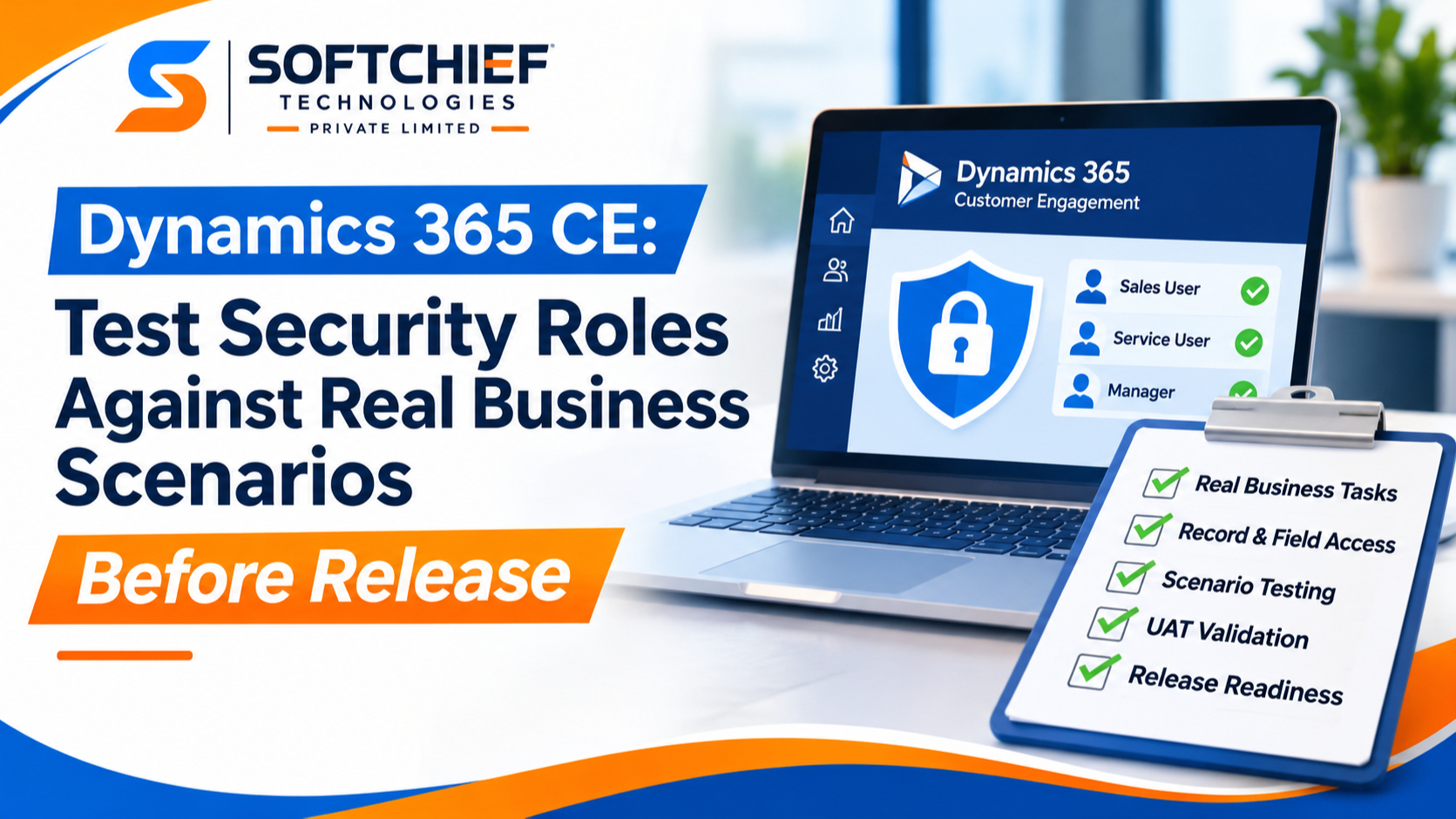
Dynamics 365 CE: Test Security Roles Against Real Business Scenarios Before Release
Introduction
A Dynamics 365 CE security role can look correct on paper while a user still sees records they shouldn’t—or can’t finish a task they need to do. In Dataverse, effective access can depend on more than a role: record ownership, business unit, team membership, sharing, and field security all matter.
The reliable test is to use representative, non-admin accounts to complete real business tasks in a controlled environment. Check both sides of the boundary: required work should succeed, and restricted records, fields, and actions should remain out of reach.
Start with the work people do, then map access paths, build a scenario matrix, and test in UAT. Use your organization’s approved workflows and sanitized records, not made-up customer cases.
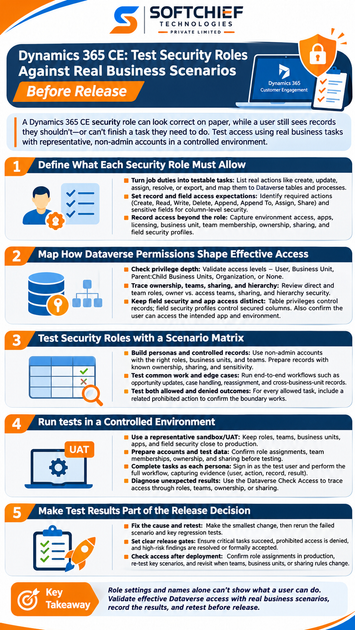
Define what each Dynamics 365 CE security role must allow
A role name such as “Sales User” doesn’t prove what its members can do. Set the role’s purpose in terms of business tasks and the data users need to handle. This gives reviewers a clear basis for testing.
Turn job duties into testable tasks
List the actions each job function performs, such as creating a record, updating an assigned item, assigning work, resolving a case, or exporting data. Link each action to its Dataverse table and business process. Use real procedures and requirements from your organization so the tests reflect daily work.
Set record and field access expectations
For each task, state which records the user may access and which actions they need. Dataverse table privileges include Create, Read, Write, Delete, Append, Append To, Assign, and Share; each has a role in common workflows. Identify sensitive fields that need column-level security rather than relying on a form layout to hide them.
Record access beyond the role
Document other setup that affects the test: environment access, app availability, licensing, business-unit placement, team membership, record ownership, sharing, and field security profiles. A user may receive access through several assignments or mechanisms at once. Include the planned production setup, not only direct role assignments.
Map how Dataverse permissions shape effective access
Dataverse checks both whether a user has a required privilege and whether that privilege applies to a given record. The Microsoft Learn guide to security roles and privileges explains the actions and access levels a role can grant. Treat the role as one part of the access model, not the entire test.
Check privilege depth across business units
For each table privilege, check whether its access level is User, Business Unit, Parent:Child Business Units, Organization, or None. User access is generally limited to records the user owns or can access through sharing or a team. Business Unit access reaches records in that unit; Parent:Child reaches its subordinate units; Organization applies across the environment.
Test records in the user’s own unit and in other units. That comparison can expose a role with broader access than intended, or a business-unit boundary that blocks needed work.
Trace ownership, teams, sharing, and hierarchy
A user can gain record access through ownership, role access, sharing, or hierarchy access. Security roles may be assigned directly to users or to teams whose members receive those privileges. Owner teams can own records, while access teams provide access to shared records but don’t own records or hold security roles.
Include direct and team-based roles in the review. Also check whether a record is shared with the user or one of their teams, and whether hierarchy security applies to the user and table.
Keep field security and app access distinct
Table privileges control actions on records; column-level security profiles control access to secured fields. A user needs access to the record before a field security profile can grant access to a secured column. Hiding a field on a form changes what appears on that form, not whether the user can access its data through other paths.
Confirm that each test user can open the intended app and environment as well as access its records. Passing a record check alone doesn’t prove the full app workflow is available.
Test Dynamics 365 CE security roles with a scenario matrix
A repeatable matrix turns access needs into evidence. For every case, record the test persona, setup, action, expected result, actual result, and evidence. Include a record identifier and the relevant role or team setup so another reviewer can repeat the test.
Build personas and controlled records
Use non-admin accounts that match intended job functions, business units, team memberships, and role combinations. Prepare controlled records with known owners, sharing settings, business units, and field sensitivity. Admin accounts help set up and diagnose tests, but they can’t show what a standard user can do.
| Persona and setup | Action | Expected result |
|---|---|---|
| Sales user; assigned opportunity | Update a required field | Update succeeds |
| Sales user; another unit’s restricted opportunity | Open or edit the record | Access is denied |
| Service user; case assigned to their team | Add a related note | Allowed if required privileges are present |
| User without a field security profile | Read a secured field | Value is unavailable |
Adapt these examples to workflows your organization uses. Confirm related-record actions carefully: attaching a note or activity can require Append and Append To privileges on the relevant tables.
Test common work and edge cases
Have each persona complete end-to-end tasks, not only isolated actions. Depending on your workflows, test opportunity updates, case handling, manager reviews, reassignment, team access, and cross-business-unit records. Check sensitive fields and any export actions that users need or must not perform.
Test both allowed and denied outcomes
Pair each allowed task with a nearby prohibited action or record. A sales user who can update an assigned opportunity, for example, may still need to be blocked from editing an unrelated record. This confirms that a workflow works without granting wider access than intended.
Run role tests in a controlled environment
Use a representative sandbox or UAT environment with configuration close to the planned release. Match the roles, teams, business units, apps, and field security profiles that users will have in production. Differences in setup can make a passing test misleading.
Prepare accounts and test data
Before testing, confirm each account’s role assignments, team memberships, business unit, app access, and field security profile. Verify record owners and sharing settings on the test data. Keep setup work separate from the user test so the test account reflects ordinary access.
Complete tasks as each persona
Sign in as each test user and perform the full workflow in the model-driven app. Include record creation, updates, search, related records, and handoffs where the process requires them. Capture evidence that shows the test user, action, record, and result.
Diagnose unexpected results
When access differs from expectations, trace the cause before changing permissions. Review the user’s roles, team roles, ownership, sharing, business-unit access, and field security. Microsoft’s Check user access to a row guidance describes how Check Access can show a user’s access to a record and help identify access through direct roles, team roles, or sharing.
Make security-role test results part of the release decision
A role change is ready only when the important workflows pass and restricted actions remain blocked. Keep test evidence with the release record, and make unresolved risks visible to the people who approve deployment.
Fix the cause and retest
Make the smallest suitable change to the role or related access setup. Then rerun the failed scenario and nearby regression tests, including denied cases. A fix that restores one workflow could also expand access to other records.
Set clear release gates
Require evidence that critical tasks succeed, prohibited access is denied, and high-risk findings are fixed or formally accepted. Ask business owners to confirm the workflows, and include the team responsible for security or compliance in the review when appropriate. Move security roles and column security profiles between environments using solutions, while managing users, teams, and business units in each environment as needed; Microsoft documents these distinctions in its Dataverse security overview.
Check access after deployment
After deployment, confirm role assignments and repeat key access checks with production users or approved test accounts. Revisit scenarios when teams, business-unit structure, ownership, or sharing rules change. Keep a process for access requests so new needs lead to a reviewed change, not a broad permission grant.
Conclusion
Role settings and names alone can’t show what a user can do. Test effective Dataverse access with realistic personas, records, and workflows, and verify both allowed and denied outcomes. Record the results, fix root causes, and retest before release. Make that check part of every security-role change.