D365 F&O: How to Investigate Unexpected Posting Dates in Period-End Processing
Introduction
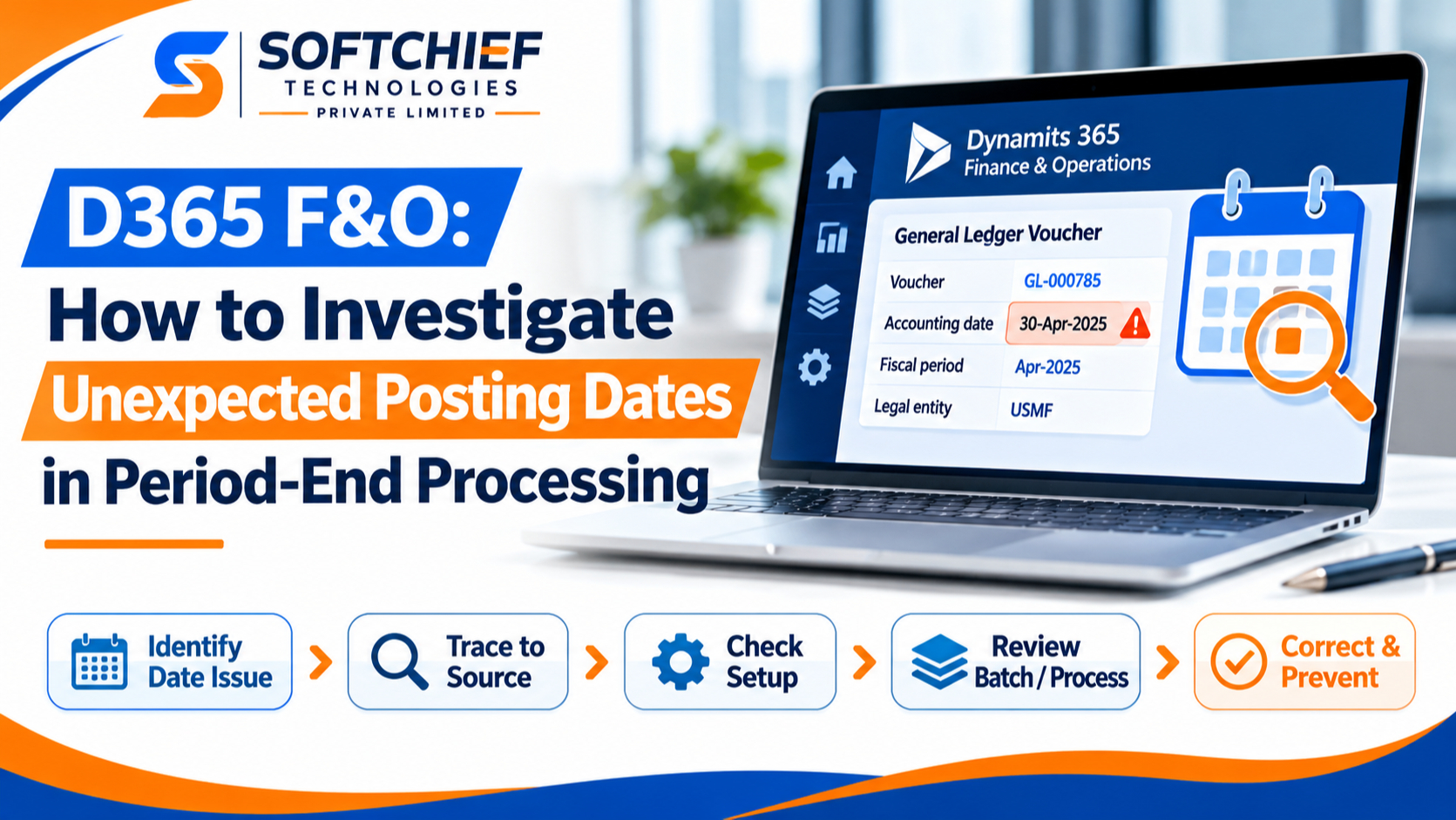
A D365 F&O period-end posting dated outside the expected period can distort reports, complicate reconciliation, or place entries in a closed period. The effect may reach beyond one voucher if the same process created several entries.
A source document’s date may differ from the accounting date recorded in the general ledger. The cause could be a process parameter, fiscal-calendar setup, source data, or batch execution. Don’t assume which one applies before you review the transaction.
Start by confirming which date is unexpected. Then trace the posted voucher to its source, check the period and process settings, and correct the cause through an approved, auditable method.
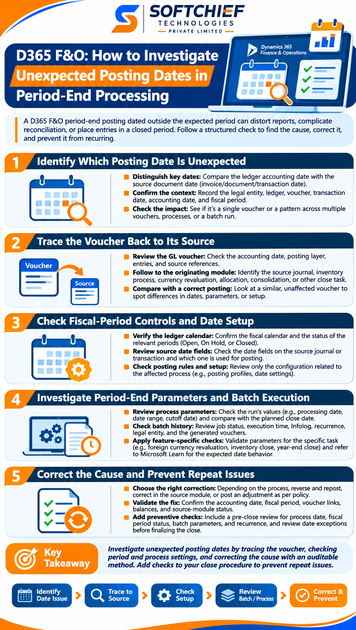
Identify which D365 F&O posting date is unexpected
A transaction can have several dates, and each has a different purpose. For period-end reporting, the ledger’s accounting date is the key reference because it determines the fiscal period that receives the entry.
Distinguish accounting date from document and transaction dates
A source document may show an invoice date, document date, or transaction date. These dates support business records and transaction workflows, but they don’t always match the date used for general ledger posting.
Compare those source dates with the ledger transaction’s accounting date. A difference alone doesn’t prove an error; first confirm which date the process was meant to use.
Confirm the legal entity, ledger, voucher, and fiscal period
Record the legal entity, ledger, voucher number, transaction date, accounting date, and fiscal period. Keep these details together so another reviewer can repeat the investigation.
The ledger and legal entity context matter because fiscal calendars and period controls apply within that setup. Confirm both before comparing the unexpected date with an intended close period.
Check whether one transaction or a full process is affected
Compare several affected vouchers and note their source module, process type, batch job, and execution time. Similar entries with the same unexpected date may share a process setting or run context.
If only one voucher differs, inspect its source data and posting path first. A wider pattern may point to shared parameters or setup, but treat that as a lead, not a conclusion.
Trace the D365 F&O voucher back to its source
The voucher shows where the accounting entry appears, but it may not show where its date came from. Follow the references back to the originating journal, module, or period-end task.
Review the general ledger voucher and related transactions
Open the voucher details and inspect the accounting date, posting layer, account entries, and available source references. Save the voucher and transaction identifiers for the review record.
Check whether all lines share the same date and posting layer. If the voucher contains several entries, record which lines are affected rather than treating the whole voucher as one item.
Follow the entry into the originating module or task
Use the voucher references to identify the source: a journal, inventory process, currency revaluation, allocation, consolidation, or another close task. Review the source transaction and any available process history.
For a batch-driven process, compare its history with the voucher’s creation time. This can help connect the ledger entry to a specific run without assuming that the run caused the date.
Compare an affected voucher with an unaffected posting
Choose a similar posting from the intended period and compare its dates, legal entity, source document, posting layer, and process parameters. Differences can narrow the investigation.
Keep the comparison factual. A different parameter or date is useful evidence, but confirm the process’s expected behavior before calling it the cause.
Check fiscal-period controls and date-related setup
Ledger period controls determine whether posting is allowed for a date. They may explain a posting restriction, but they don’t necessarily explain why a voucher carries a particular accounting date.
Verify the ledger calendar and period status
Confirm the fiscal calendar assigned to the ledger. Inspect the period that contains the expected date and the period that contains the actual accounting date.
Check whether each period is open, on hold, or closed, and follow your organization’s controls before changing a status. A period that blocks posting is a separate issue from the source of the date itself.
Review journal and source-document date fields
Inspect the source journal or transaction for its available date fields. Determine which field the posting path uses as the accounting date, and check whether a user or integration supplied the value.
If a recurring process created the source transaction, review its setup and recent run details. Don’t assume that the visible document date controls the ledger date.
Check posting rules and process-specific setup
Review only the configuration tied to the affected process. Depending on the source, that might include posting profiles or date-related settings.
Avoid broad setup changes until you’ve confirmed the transaction path and the intended date behavior. A change to shared setup can affect other entities or future postings.
Investigate period-end parameters and batch execution
Period-end tasks can create entries based on their own parameters and source data. The date rules differ by feature and version, so check the specific process rather than applying one rule to every close task.
Review the parameters used for the period-end operation
Check the saved or entered values for the run, such as processing date, date range, or cutoff date. Compare them with the close date in your documented procedure.
For example, Microsoft’s General ledger foreign currency revaluation guidance explains that the From and To dates define the balance period, while Date of rate sets the exchange-rate date. These selections have distinct roles, so review each one.
Check batch history, recurrence, and execution details
Review the job status, execution time, task history, Infolog, recurrence, legal entity, and parameter set. Confirm whether the run was scheduled, manually started, or repeated.
Microsoft’s year-end close guidance describes a process that runs in batch mode and keeps run history with links to created vouchers. Use the history and voucher links to identify the run under review.
Apply checks for the specific close feature
For inventory close or recalculation, currency revaluation, year-end close, or another task, inspect that feature’s process history and parameters. Don’t assume all tasks use a selected processing date in the same way.
Check Microsoft Learn guidance for the feature and your D365 F&O version. Year-end close, for example, is run for a selected fiscal year, and its options affect how opening and closing entries are handled.
Correct the cause and prevent repeat posting-date issues
Preserve the evidence before correcting anything. Choose a method that fits the originating process, accounting policy, and supported D365 F&O functionality.
Choose a correction method that preserves the audit trail
Depending on the transaction, the approved path may be to reverse and repost it, correct it in the source module, or post an adjustment. Confirm the supported method for that process before acting.
Don’t change a posted voucher’s date unless your organization’s policy and the product’s supported functions allow it. For year-end close and currency revaluation, review the process-specific reversal guidance before deciding how to proceed.
Validate the correction in the ledger and source module
After correction, verify the accounting date, fiscal period, voucher links, balances, and source-module status. Check related reports or close balances when the entry affects them.
Retain before-and-after evidence, including the original voucher, correction record, and approval. This gives reviewers a clear record of what changed and why.
Add checks to the close procedure
Add a pre-close review for the legal entity, process date, fiscal period status, batch parameters, and recurrence. Record the expected date behavior for each period-end task.
Require review of date exceptions before the close is finalized. A short check can catch a wrong parameter or scheduled run before it affects several vouchers.
Conclusion
Investigate an unexpected D365 F&O posting date by starting with the ledger accounting date, then tracing the voucher to its source and process run. Check the ledger context, period controls, source fields, and feature-specific parameters before choosing a correction.
Document the cause, affected entries, approved action, process owner, and preventive check. Use verified guidance for the specific feature and version, then confirm the corrected date and balances in both the ledger and source module.