Power Apps: Diagnose Incomplete Search Results for Business Users
Introduction
A Power Apps search screen that leaves out a valid record can shake users’ trust in the app. Worse, a team may make a decision based on incomplete information.
The record might still exist in the source. Delegation, formula logic, connection settings, stale data, or access rules can all affect what appears on screen. Start with one record a user cannot find, then trace it through the app.
The right fix depends on the connector, formula, and security model. Test the app against its real data source instead of swapping in a search formula that may not work for your setup.
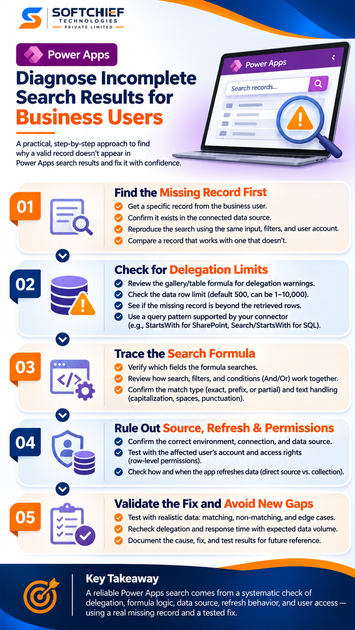
Find the missing record before changing the Power Apps search formula
Begin with a specific example from a business user. This helps you tell whether the search screen is at fault or whether the source, connection, or access rules explain the gap.
Confirm the record exists in the connected source
Open the data source in the same environment the app uses. Search for the record by a stable identifier, then check its field values and status. A record may exist but have a different value than the user expects, such as an old status or an abbreviated name.
Reproduce the search with the user’s input
Use the affected user’s account, exact search text, and selected filters. Check for leading or trailing spaces, punctuation, spelling differences, and other small details. Ask which field they expect to match; the formula may search only a name field, while the user is typing a code.
Compare a result that works with one that doesn’t
Choose one record the screen returns and one it misses. Compare their values in each searched field, as well as fields used by filters, sorting, or visibility rules. This can reveal a mismatch, such as a missing category or a status excluded by a control.
Check whether Power Apps delegation limits the search
Delegation means Power Apps sends a query to the data source, which processes it and returns matching records. When part of a query can’t be delegated, Power Apps may process only a limited set of records on the device. A matching record outside that set can be missed.
Inspect the formula for delegation warnings
Review the gallery or table’s Items formula, including nested filters, searches, and transformations. A warning is a clue to investigate, but the supported functions depend on the connector and field type. Microsoft’s delegation overview explains that if an expression includes a nondelegable part, the query may run locally instead.
Check the data row limit and record position
The default limit for a nondelegable query is 500 records. Microsoft’s current documentation says the app setting can be changed from 1 to 10,000, but a higher limit doesn’t make an unsupported query reliable. If the missing record falls beyond the rows Power Apps retrieves, the formula may never check it.
Pick a query pattern your connector supports
Check the delegation table for the exact connector and field type before changing the formula. For example, Microsoft’s SharePoint connector guidance lists StartsWith for text fields, while its SQL Server guidance lists both Search and StartsWith for text. Don’t assume the same function behaves the same way across sources.
Trace the search formula for unintended exclusions
Once you’ve checked delegation, look for conditions in the app that narrow results. Change one condition at a time and test the same missing record after each change. That makes it easier to find the rule that causes the gap.
Verify which fields the search checks
List every field used by the search formula, then compare them with what users expect to search. Check field types and underlying column names, especially when the label shown in the app differs from the source name. A formula that searches CustomerName won’t find a term that appears only in AccountNumber.
Review search terms and filters together
Check how the search box combines with status, date, category, and other controls. Confirm that And and Or match the intended logic; an extra And condition can rule out a valid match. Also test blank controls, since an empty filter may exclude records rather than leave them unchanged.
Match the formula to user expectations
Confirm whether users expect an exact, prefix, or partial match. Test capitalization, spaces, and punctuation with real source values. If you normalize text, check that the change still supports delegation and works with the connector’s data types.
Rule out source, refresh, and permission differences
A sound formula can still show different results if the app points to another source, uses stale data, or runs with limited access. Compare the app’s settings and behavior with the affected user’s experience.
Confirm the environment and data source
Check the app’s connection, environment, table or list, and connection references. Confirm that your test and the user’s app use the same source. A record in a test environment won’t appear in a production app unless that app reads the same data.
Test with the affected user’s access
Run the app under the user’s account, not only an app maker or admin account. Review source permissions and any row-level access rules that may limit which records the user can see. If an admin sees the record but the user doesn’t, access is a key part of the diagnosis.
Check when the app refreshes its data
Find out whether the screen reads from the source directly or from a collection or cached values. Compare the source’s current record with what the app displays, and check when Refresh or collection reloads run. A refresh that happens only when the screen opens may leave newer records out until the app reloads them.
Validate the fix without creating a new search gap
After finding the cause, test the change with realistic data and user access. A fix that works on a small sample may still miss records or slow down the screen when the data set grows.
Test common searches and filters
Include the reported missing record, records that should match, and records that should not match. Test an empty search and common filter combinations, too. Run these checks as the affected user and as an authorized app maker.
Recheck delegation and response time
Review the formula warnings again and test against a representative volume of data. Confirm that the connector supports the functions and operators in the updated formula. Don’t rely on a higher nondelegable row limit as the only fix.
Record the cause and test results
Document the source, formula, or permission issue you found, along with the connector guidance you used. Keep a short record of the test cases that passed. This helps other app makers spot the same problem if the formula or source changes later.
Restore confidence in Power Apps search results
Incomplete results can come from several layers of an app. A repeatable diagnosis starts with a known missing record, checks delegation, traces formula conditions, and then verifies the source, refresh behavior, and user access.
For app makers, the most useful next step is one concrete report from a business user. Trace that record from the data source through the search formula to the user’s screen, then test the fix with the same account.