Business Central Data Import: Preserve Document References and Audit History
Introduction
A Business Central data import can finish without errors and still leave users unable to follow an invoice to its payment or source record. The records may be present, but the links and history that explain them may be missing.
That’s because moving data isn’t the same as rebuilding its relationships or audit evidence. A sound plan defines what must remain available, maps record dependencies, selects a suitable import method, then tests and documents the results.
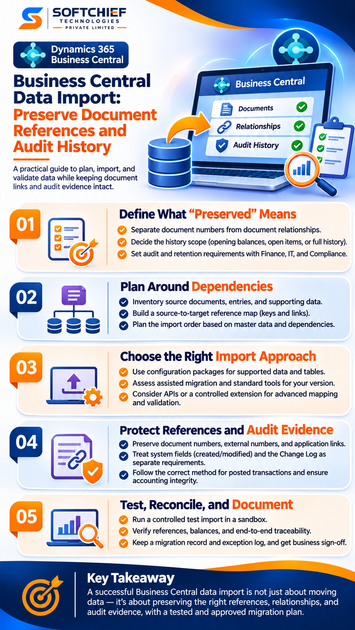
Define What “Preserved” Means Before Importing Data
Start by agreeing on the outcome. Business references, transaction links, and audit history are different requirements, and each can call for a different migration plan.
Separate document numbers from document relationships
A document number is a visible identifier. An external document number can help users find the source record, but neither field proves that related records connect correctly in Business Central.
A posted invoice, for example, may need to be traceable to its customer ledger entry and related payment application. List the references users need to search, reconcile, or follow, then identify which target records and fields must support each task.
Decide which history belongs in Business Central
An opening balance carries forward a summarized position. Open transactions preserve unpaid or unsettled items, while full history may include posted documents and their related ledger activity.
These choices affect reporting and drill-down. If users need to review prior invoices or understand how payments were applied, opening balances alone may not meet the need. Agree on the history scope with finance before choosing the import method.
Set audit and retention requirements
Write down what the organization must be able to show: who created or changed a record, when it happened, whether approvals were obtained, and which change logs are required. Involve finance, IT, and compliance teams early so their needs shape the scope.
Also decide how long source exports, reports, approvals, and other evidence must remain available. Target-system audit fields and logs won’t necessarily reproduce the source system’s history.
Plan a Business Central Data Import Around Dependencies
A migration plan should follow the links between records, not treat each table as an isolated file. Build a source-to-target map and import sequence before loading data.
Inventory source documents, entries, and supporting data
List the data in scope, such as customers, vendors, items, dimensions, posted documents, ledger entries, and payment applications. For each type, record where the source stores its identifiers and relationships.
Then identify setup and master data that transactions rely on. Missing posting groups, dimensions, or other required setup can block validation or cause data to behave differently in the target company.
Build a source-to-target reference map
Document how each source key maps to a Business Central number or record. Include document numbers, external document numbers, entry references, and any cross-reference needed to trace target data back to the source.
For example, a customer number may change during migration while an external identifier remains the same. Preserve both when users need to recognize the old number and search for the new record. Test whether references point to the intended target records; familiar-looking numbers alone don’t prove a link works.
Plan import order around dependencies
Master data and setup usually need to exist before dependent transactions can be loaded and checked. Record prerequisites and reference fields for each data set, then confirm the order against the chosen import method and your Business Central setup.
A dependency map also helps explain failures. If an invoice references a customer that hasn’t been created, the team can fix the sequence or mapping instead of repeatedly reloading an unexplained file.
Choose an Import Approach for the Required History
No single import method preserves every kind of data. Check what your Business Central version, extensions, and migration scope support before you design around a tool.
Use configuration packages for supported data tasks
Configuration packages can transfer supported tables and fields, including some master and transactional data. Microsoft’s guidance describes importing package data, validating it, and applying it; the available tables and fields depend on the package and task. See Microsoft’s guidance on importing data with configuration packages.
Check table relationships and validation behavior before relying on a package. Don’t assume that importing a document table recreates its posted ledger history, payment applications, or change-log entries.
Assess assisted migration and standard tools
Business Central offers migration options for specific source systems and data domains. Their scope isn’t universal, so confirm current eligibility, supported data, and known limits for your source and version before planning around one.
A tool may move useful records but still leave certain references or history outside its scope. Treat the tool’s stated coverage as a starting point for testing, not as proof that every migration requirement is met.
Consider APIs or a controlled extension
An API or a custom migration extension may help when standard tools can’t meet your needs for mapping, checks, or repeatable imports. Define its allowed data, validation rules, and error handling before using it.
Use least-privilege access and test in a sandbox. Avoid direct database manipulation, which can bypass application rules and create data that Business Central can’t safely process.
Protect References and Audit Evidence in a Business Central Data Import
Traceability depends on deliberate field mapping and clear audit expectations. Keep source evidence available even when you also load records into the target company.
Preserve identifiers and relationship fields deliberately
Identify the fields needed to retain document numbers, external document numbers, entry references, and application links. Map each one to its target field and define how the import handles missing or duplicate values.
After the load, test the user’s route through the data. Open representative documents and confirm they lead to the expected customer, ledger entry, or payment record, rather than a record that only happens to share a number.
Treat system fields and change logs as separate requirements
Business Central’s system fields include created and modified dates and user IDs. The platform generates these values as records are inserted or updated; Microsoft states that configuration packages can’t import data audit fields. See Microsoft’s documentation on Business Central system fields.
The Change Log is separate. It tracks selected direct changes after you configure it, rather than recreating the source system’s earlier activity. Microsoft’s Change Log documentation explains how tracked tables and fields are set up. Don’t assume a routine import restores original users, timestamps, approvals, or change-log records.
Protect posted transaction integrity
Posted activity is tied to accounting outcomes and related entries. Decide whether the project will load full history, open items, or opening balances, and have finance approve the method and expected results.
Don’t treat a posted document as an ordinary row in a spreadsheet. Use a method designed for the data in scope, then verify that its accounting effects and related records match the approved migration design.
Test, Reconcile, and Document the Import Before Go-Live
A successful import message confirms that a process ran; it doesn’t prove that balances and relationships are correct. Define acceptance checks before the production load and keep evidence of the results.
Run a controlled test import
Use a sandbox or another non-production environment. Select records that cover the document types, relationships, and edge cases in scope, such as a partially paid invoice or a transaction with dimensions.
Record the method, mappings, errors, and manual corrections. Re-run the test after changes so the team knows whether the revised process fixes the issue without creating another one.
Verify references, balances, and traceability
Check that users can follow the planned document links and trace target records back to their source. Reconcile record counts and financial balances against approved source reports, and investigate each gap rather than relying on a successful import status.
Include sample checks for key scenarios, such as an open invoice and its payment application. Finance should confirm that the result supports the reports and review tasks users need.
Keep a migration record and exception log
Document the source and target, mapping choices, import dates, responsible people, validation results, and unresolved exceptions. Preserve source exports and audit evidence under the organization’s retention policy.
Get sign-off from the business owners responsible for the data. An exception that can’t be fixed before launch should have a named owner and a clear record of how users can access the missing source evidence.
Conclusion
A reliable Business Central data import starts with a clear definition of the history users need. Map relationships and dependencies before loading records, choose a method based on verified capabilities, and test both traceability and financial reconciliation.
Some source audit evidence won’t become target-system history. Record what moved, what couldn’t be recreated, and where the original evidence remains. Before go-live, ask finance, IT, and compliance to approve that plan and its test results.