Power Apps vs Power Automate: Which Microsoft Power Platform Skill Should You Learn?
Introduction
Microsoft Power Platform has revolutionized the way organizations build business applications and automate workflows. With low-code development becoming a key part of digital transformation, professionals with Power Platform skills are in high demand worldwide.
Among the core products of Microsoft Power Platform, Power Apps and Power Automate are two of the most widely used tools. While they often work together, they serve different purposes and require different skill sets.
Many beginners ask:
- Is Power Apps better than Power Automate?
- Which one should I learn first?
- Which offers better career opportunities?
- Can I build complete business solutions using both?
This comprehensive guide compares Power Apps and Power Automate from technical, business, and career perspectives to help you choose the right learning path in 2026.
What is Microsoft Power Apps?
Power Apps is Microsoft’s low-code application development platform that enables users to create custom business applications without extensive coding.
With Power Apps, organizations can quickly build web and mobile applications that connect to multiple data sources, including Microsoft Dataverse, SharePoint, SQL Server, Excel, Dynamics 365, Salesforce, and many other services.
Power Apps is ideal for replacing paper-based processes, Excel spreadsheets, and manual applications with secure digital solutions.
Types of Power Apps
Canvas Apps
- Drag-and-drop interface
- Pixel-perfect UI
- Mobile-friendly
- Custom layouts
- Power Fx formulas
Model-Driven Apps
- Dataverse-based
- Data-first design
- Business process-driven
- Responsive interface
- Enterprise applications
Power Pages
- External business websites
- Customer portals
- Partner portals
- Secure authentication
What is Microsoft Power Automate?
Power Automate is Microsoft’s workflow automation platform that enables organizations to automate repetitive tasks, approvals, notifications, integrations, and business processes.
Instead of building applications, Power Automate focuses on connecting systems and automating workflows between different services.
It eliminates repetitive manual work and improves operational efficiency.
Types of Power Automate Flows
Instant Flows
Triggered manually by users.
Examples:
- Send approval
- Generate reports
- Upload documents
Automated Flows
Triggered automatically by events.
Examples:
- New email received
- New SharePoint file uploaded
- New Dynamics 365 record created
Scheduled Flows
Run at predefined times.
Examples:
- Daily reports
- Weekly reminders
- Monthly backups
Desktop Flows (RPA)
Automate desktop applications and legacy systems using Robotic Process Automation (RPA).
Power Apps vs Power Automate: Quick Comparison
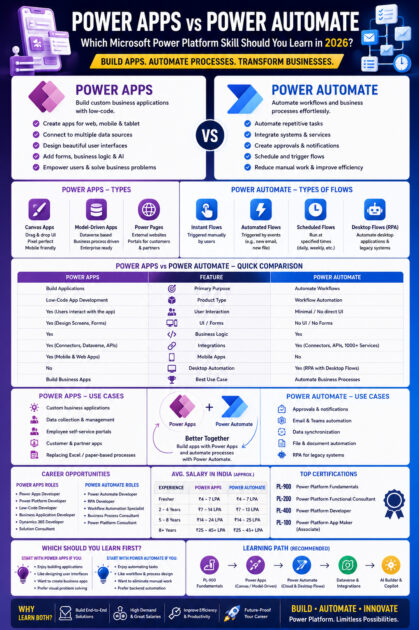
| Feature | Power Apps | Power Automate |
|---|---|---|
| Primary Purpose | Build Applications | Automate Workflows |
| Product Type | Low-Code App Development | Workflow Automation |
| User Interaction | Yes | Minimal |
| UI Design | Yes | No |
| Forms | Yes | No |
| Business Logic | Yes | Yes |
| Integrations | Yes | Yes |
| Mobile Apps | Yes | No |
| Desktop Automation | No | Yes (Desktop Flows) |
| Best Use Case | Business Applications | Business Process Automation |
Understanding the Difference
A simple way to understand these tools is:
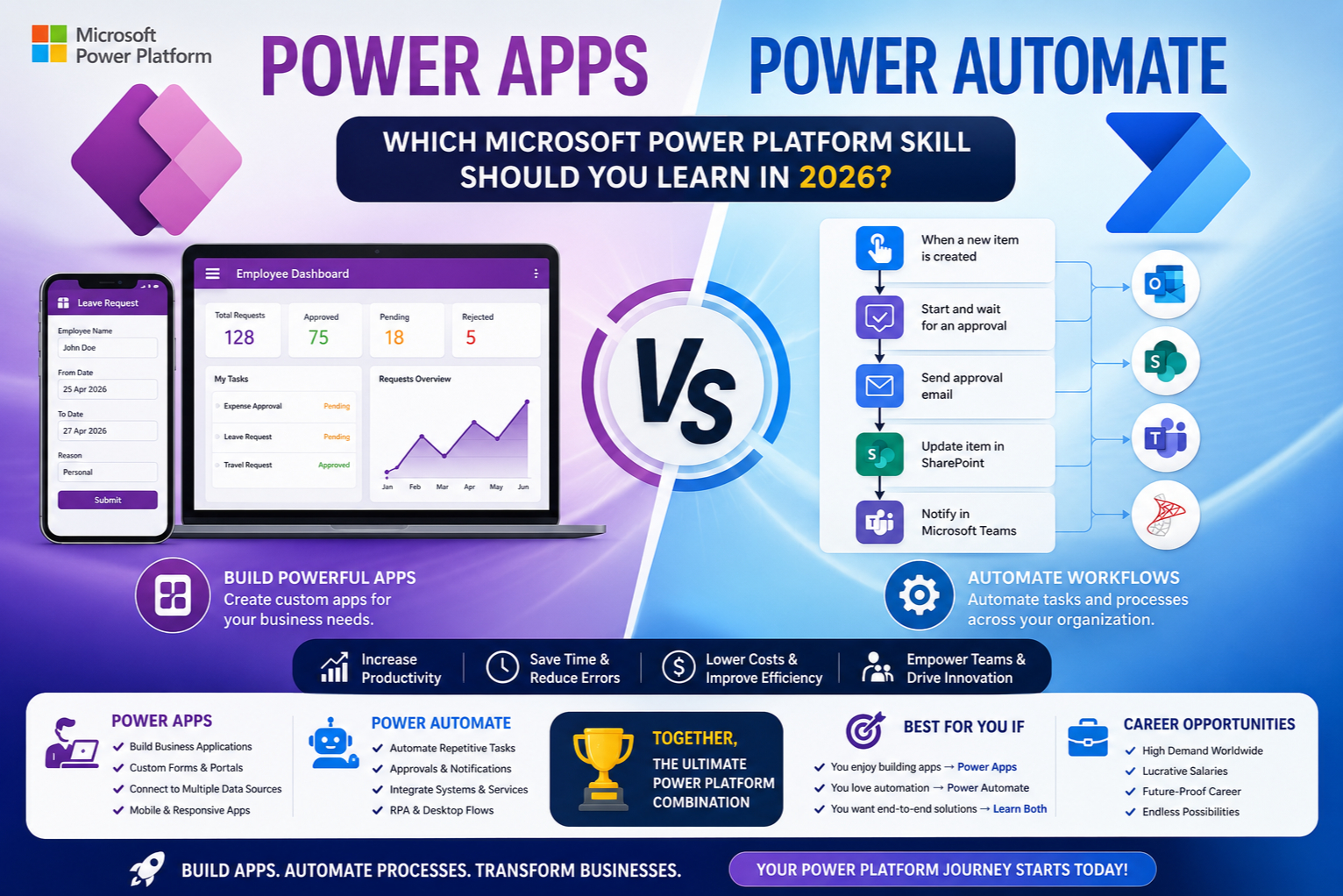
Power Apps = Build the Application
Power Automate = Automate the Process
For example:
An employee submits a leave request using a Power Apps application.
Power Automate then:
- Sends approval requests
- Notifies managers
- Updates SharePoint
- Creates Teams notifications
- Sends email confirmations
Together, they provide a complete business solution.
Core Features Comparison
Power Apps Features
Low-Code Development
Create applications with minimal coding.
Multiple Data Sources
Connect to:
- Dataverse
- SharePoint
- SQL Server
- Excel
- Oracle
- SAP
- Dynamics 365
- Azure SQL
Responsive Design
Build applications that work on:
- Mobile
- Tablet
- Desktop
Business Rules
Implement validation and business logic using Power Fx.
AI Builder Integration
Add AI capabilities such as:
- Form Processing
- Object Detection
- Text Recognition
- Predictions
Power Automate Features
Workflow Automation
Automate repetitive business tasks.
Approvals
Create multi-level approval workflows.
Notifications
Send alerts through:
- Outlook
- Teams
- SMS
- Push Notifications
Desktop Automation
Automate legacy Windows applications using RPA.
API Integration
Connect hundreds of business systems using pre-built connectors.
Technology Comparison
Power Apps Technologies
Developers work with:
- Power Fx
- Dataverse
- SharePoint
- SQL Server
- Azure
- JavaScript
- PCF Controls
- Power Platform
- AI Builder
Power Automate Technologies
Professionals commonly use:
- Cloud Flows
- Desktop Flows
- Expressions
- Connectors
- REST APIs
- HTTP Actions
- Azure Logic Apps concepts
- AI Builder
Connectors
Both Power Apps and Power Automate provide access to hundreds of connectors.
Popular connectors include:
- SharePoint
- Outlook
- Microsoft Teams
- Excel
- SQL Server
- Dynamics 365
- Salesforce
- SAP
- Oracle
- Azure DevOps
- OneDrive
- Dropbox
- Google Drive
Power Automate often handles the integration logic, while Power Apps provides the user interface.
Integration with Microsoft Ecosystem
Power Apps integrates with:
- Dataverse
- Dynamics 365
- Microsoft Teams
- SharePoint
- Azure
- SQL Server
- Microsoft 365
- Power BI
Power Automate integrates with:
- Power Apps
- Dynamics 365
- Outlook
- Teams
- SharePoint
- Azure
- SQL Server
- Power BI
- SAP
Both tools are designed to work seamlessly within the Microsoft ecosystem.
AI Integration
Microsoft has significantly enhanced Power Platform with AI.
Power Apps
Developers can integrate:
- AI Builder
- Microsoft Copilot
- Azure OpenAI
- AI Prompts
Power Automate
Supports:
- AI Builder
- Intelligent Document Processing
- AI-powered approvals
- Email summarization
- Natural language automation
- Copilot-assisted flow creation
AI capabilities continue to expand, making both tools increasingly powerful for intelligent business automation.
Licensing Comparison
Power Apps and Power Automate have separate licensing models, although many Microsoft 365 and Dynamics 365 plans include limited capabilities.
Organizations requiring premium connectors, Dataverse, or advanced automation typically need additional Power Platform licenses.
Always review the latest Microsoft licensing options before planning a solution.
Career Opportunities
Power Apps Careers
Popular roles include:
- Power Apps Developer
- Power Platform Developer
- Low-Code Developer
- Business Application Developer
- Dynamics 365 Developer
- Solution Consultant
Power Automate Careers
Popular roles include:
- Power Automate Developer
- RPA Developer
- Workflow Automation Specialist
- Business Process Consultant
- Power Platform Consultant
Most organizations prefer professionals who understand both application development and workflow automation.
Certifications
Recommended Certifications
Beginner
- PL-900: Microsoft Power Platform Fundamentals
Intermediate
- PL-100: Power Platform App Maker (if available in your region/organization)
- PL-200: Power Platform Functional Consultant
Advanced
- PL-400: Microsoft Power Platform Developer
These certifications validate practical skills in Power Apps, Power Automate, Dataverse, integrations, and solution development.
Salary Comparison
(Approximate salaries vary depending on location, employer, and experience.)
| Experience | Power Apps | Power Automate |
|---|---|---|
| Fresher | ₹4–7 LPA | ₹4–7 LPA |
| 2–4 Years | ₹7–14 LPA | ₹7–13 LPA |
| 5–8 Years | ₹14–24 LPA | ₹14–25 LPA |
| Senior Consultant / Architect | ₹25–45+ LPA | ₹25–45+ LPA |
Professionals skilled in both Power Apps and Power Automate generally have broader career opportunities and stronger earning potential.
Which Tool Should You Learn First?
Learn Power Apps first if you:
- Enjoy building applications.
- Like designing user interfaces.
- Want to create business apps.
- Prefer solving business problems visually.
Learn Power Automate first if you:
- Enjoy automating repetitive tasks.
- Like workflow design.
- Are interested in business process optimization.
- Want to reduce manual effort across systems.
For most learners, starting with Power Apps followed by Power Automate provides a natural progression, as many business applications rely on automated workflows.
Why Learning Both is the Best Choice
Power Apps and Power Automate are designed to complement each other rather than compete.
A complete business solution often includes:
- Power Apps for data entry and user interaction
- Power Automate for approvals and notifications
- Dataverse for secure data storage
- Power BI for reporting and dashboards
- Microsoft Copilot for AI-assisted productivity
Employers increasingly seek professionals who can build end-to-end Power Platform solutions using multiple tools.
Conclusion
Power Apps and Power Automate are two essential pillars of Microsoft Power Platform. While Power Apps empowers users to build modern business applications with minimal code, Power Automate streamlines operations by automating repetitive workflows and integrating business systems.
Rather than choosing one over the other, professionals should view them as complementary technologies. Together, they enable organizations to digitize processes, improve productivity, and accelerate digital transformation.
As Microsoft continues to expand Power Platform with AI, Copilot, Dataverse, and Azure integrations, professionals who can design applications and automate business processes will remain among the most sought-after low-code developers in the industry.