Power Platform and Azure Integration: Build Secure, Scalable Business Solutions

Introduction
A low-code app can be ready in days, yet still depend on data locked in enterprise systems. Power Platform and Azure integration connects apps and workflows to that data, APIs, and services without building a fragile web of one-off links. Power Platform handles app and workflow experiences; Azure can provide API management, processing, messaging, identity, and scale.
The right design depends on how quickly data must move, how much processing it needs, and who will run the integration. A standard connector may be enough. A custom connector or Azure service may fit better when you need a tailored API, queued work, or tighter control.
This guide covers the main patterns, how to choose and deploy them, and the security and monitoring work needed for production.
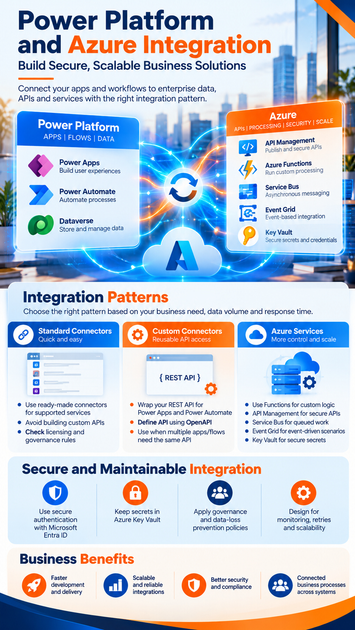
Choose a Power Platform and Azure Integration Pattern That Fits
No single pattern suits every connection. Start with the systems involved, data volume, response time, security needs, and the skills of the team that will maintain it.
Use standard connectors for supported services
Power Apps and Power Automate connectors provide a ready-made way to work with supported services. If a connector exposes the actions and data your solution needs, it can avoid the work of building and maintaining an API layer.
Check Microsoft’s connector reference for service coverage, authentication options, known limits, and any preview status. Confirm licensing and your organization’s data policies, too; connector availability doesn’t guarantee that a connection is allowed under your plan or governance rules.
Create custom connectors for reusable API access
A custom connector wraps a REST API so Power Apps and Power Automate can call it through named actions. Microsoft’s custom connector documentation describes API setup, authentication, OpenAPI definitions, and connection creation.
Use one when several apps or flows need the same API, or when direct HTTP calls would repeat the same setup and error handling. Define the API contract in OpenAPI, choose authentication that matches the API, and create a connection for users or flows that need access.
Add Azure services when the integration needs more control
Consider Azure when the work needs custom processing, asynchronous messaging, a managed API front door, or centralized secret storage. Azure Functions can run custom code, API Management can publish and govern APIs, Service Bus can queue work, and Event Grid can route events. Key Vault can store secrets in supported designs.
Each service adds setup and ongoing work. Add one only when it solves a clear need that a connector or a simpler API call can’t meet.
Connect Apps and Workflows to Azure with Practical Architecture Patterns
The best pattern depends on whether a person needs an immediate response or the work can finish later. Keep that distinction clear before you choose APIs, queues, or event routing.
Call Azure APIs from Power Apps and Power Automate
In a request-response design, an app or flow calls an API and receives a result. The API might be published through Azure API Management and run on an Azure Function or another backend. This works well for tasks such as checking an order, retrieving a price, or submitting a form for processing.
Set clear timeouts and return useful error codes and messages. If a request could take longer than an interactive app can wait, return an acknowledgment and move the remaining work to a queue. Keep the API contract stable so apps and flows know which inputs and outputs to expect.
Use Azure messaging for asynchronous work
A queue can separate a user’s action from work that takes longer, such as creating a report or updating several systems. Service Bus can hold messages for a consumer to process, while Event Grid can route events to subscribers. Power Platform can connect through an available connector or an Azure intermediary; verify the supported path for your chosen services.
Plan for failures and repeat attempts. A message may need to be handled again, and a downstream system may be unavailable. Use the selected service’s documented retry and dead-letter features, and make processing safe when the same request arrives more than once.
Use Dataverse and Azure together where appropriate
Dataverse stores business data for Power Platform apps and processes. For event-based integration, Microsoft documents a Dataverse connection to Azure Service Bus, including runtime data sent to Azure and listener applications that process it.
Before copying data, decide which system owns each field and whether updates must flow one way or both ways. Also check synchronization delays, data residency, and the supported export or event options for your use case. Replication can help another service process data, but it also creates another copy to protect and govern.
Build a Power Platform and Azure Integration That’s Maintainable
A good integration starts with clear boundaries, not code. Write down what each system owns and how the parts should behave when a call fails.
Define the data flow and system boundaries
Record the source of truth, data direction, payload shape, expected volume, response time, and failure behavior. A simple flow map can show the design: a Power App calls an API; API Management routes the request; a Function reads or updates a system of record.
Keep user interaction and workflow rules in Power Platform where they fit. Put specialized processing, API mediation, or background tasks in Azure when those needs justify it. Clear ownership makes later changes easier to review.
Design the API and connector for reuse
Use stable endpoints, meaningful operation names, and clear input and output schemas. Plan how versions will change, and return consistent errors that help an app or flow respond safely.
Build and test the API before wiring it into user experiences. Then test the connector with normal, missing, and invalid values, as well as likely service errors. If the API changes, check whether its connector and existing apps or flows need updates.
Package and deploy solutions across environments
Use Power Platform solutions to move app components, flows, and related items through development, test, and production. Environment variables can hold settings that differ by environment, such as an API endpoint. Keep connection references and credentials aligned with the target environment.
Before release, check that connector definitions, connection references, Azure resource settings, permissions, and environment-specific URLs are correct. Test the full flow in a production-like environment, including failures and recovery, before users depend on it.
Protect Data and Access Across Power Platform and Azure
Security needs to be part of the design from the first API call. Decide who or what is making each request, what data it can reach, and how access will be reviewed.
Choose authentication and authorization deliberately
Authentication confirms an identity; authorization decides what that identity can do. Select an approach that fits the API, connector, and organization, such as Microsoft Entra ID where supported. Review current Microsoft guidance for the exact connector and API setup.
Give each app, flow, and service only the access it needs. Avoid broad roles that let a user or workload read or change unrelated data.
Keep secrets out of apps and flows
Don’t put passwords, API keys, or client secrets in formulas, flow text, or source files. In supported Power Platform designs, environment variables can reference secrets stored in Azure Key Vault for use in flows and custom connectors. Microsoft’s Key Vault environment variable guidance covers setup and access requirements.
Protect secret values in flow run history and limit who can read them. Check the supported integration method, tenant setup, and permissions before using a vault; storing a secret securely doesn’t help if too many people or services can retrieve it.
Apply governance and data-loss controls
Use separate environments for different stages and apply data policies to control which connectors can share information. Ask administrators to review connector classification, environment access, and ownership before a solution reaches production.
Document who can use each app and flow, which connections it relies on, and what Azure resources it can call. That record helps teams review access and respond when a staff member, connection, or API changes.
Monitor, Troubleshoot, and Scale the Integration
An integration needs an owner after launch. Agree in advance on who reviews failures, handles alerts, and updates credentials or APIs.
Track failures across workflow and Azure components
Power Automate run history can show which action failed and what data it handled. Pair it with the monitoring and diagnostic tools for the Azure services in the same path. Where available, record timestamps and request identifiers so teams can trace one transaction across components.
Use safe logging practices. Logs should help diagnose an issue without exposing passwords, tokens, or sensitive payloads.
Plan for retries, throttling, and failure recovery
Services can throttle requests, time out, or become unavailable. Set retry behavior for temporary errors, and make operations idempotent where possible so a repeated request doesn’t create duplicate work. For queued messages, decide how failed items are reviewed and recovered using the selected service’s supported features.
Give users a clear message when an app can’t finish a request. Avoid showing raw system errors; log the details for the support team instead.
Review performance, cost, and operational ownership
Measure response times, volume, and failure rates against your needs. Check connector and Azure service limits, licensing terms, and current pricing in official documentation before you scale usage.
Name owners for connections, API changes, alerts, and incident response. Review those roles when the solution changes, not only when something breaks.
Key Takeaways for Power Platform and Azure Integration
Start with the simplest supported connector, then add a custom API or Azure service only when a real requirement calls for it. Clear data boundaries, reusable API contracts, and environment-aware deployment help keep the design understandable as it grows.
Build security and operations into the plan. Use least-privilege access, protect secrets, test failure behavior, and assign people to monitor the full path.
Start with requirements, not a preferred service
Choose a pattern based on data needs, response time, scale, security, and maintenance. A direct connector may be right for a simple service; queued work or custom processing may call for Azure.
Build for security and change
Document API contracts and access rules, keep environment settings out of app logic, and test releases across environments. These habits reduce surprises when an API or service changes.
Verify capabilities in current Microsoft documentation
Connector support, authentication, licensing, and service limits can vary by product and change over time. Check Microsoft Learn before implementation, then test the full design in your own environment.