Dynamics 365 CE Customisation Best Practices for Beginners: A Complete Guide to Building Scalable CRM Solutions
Introduction
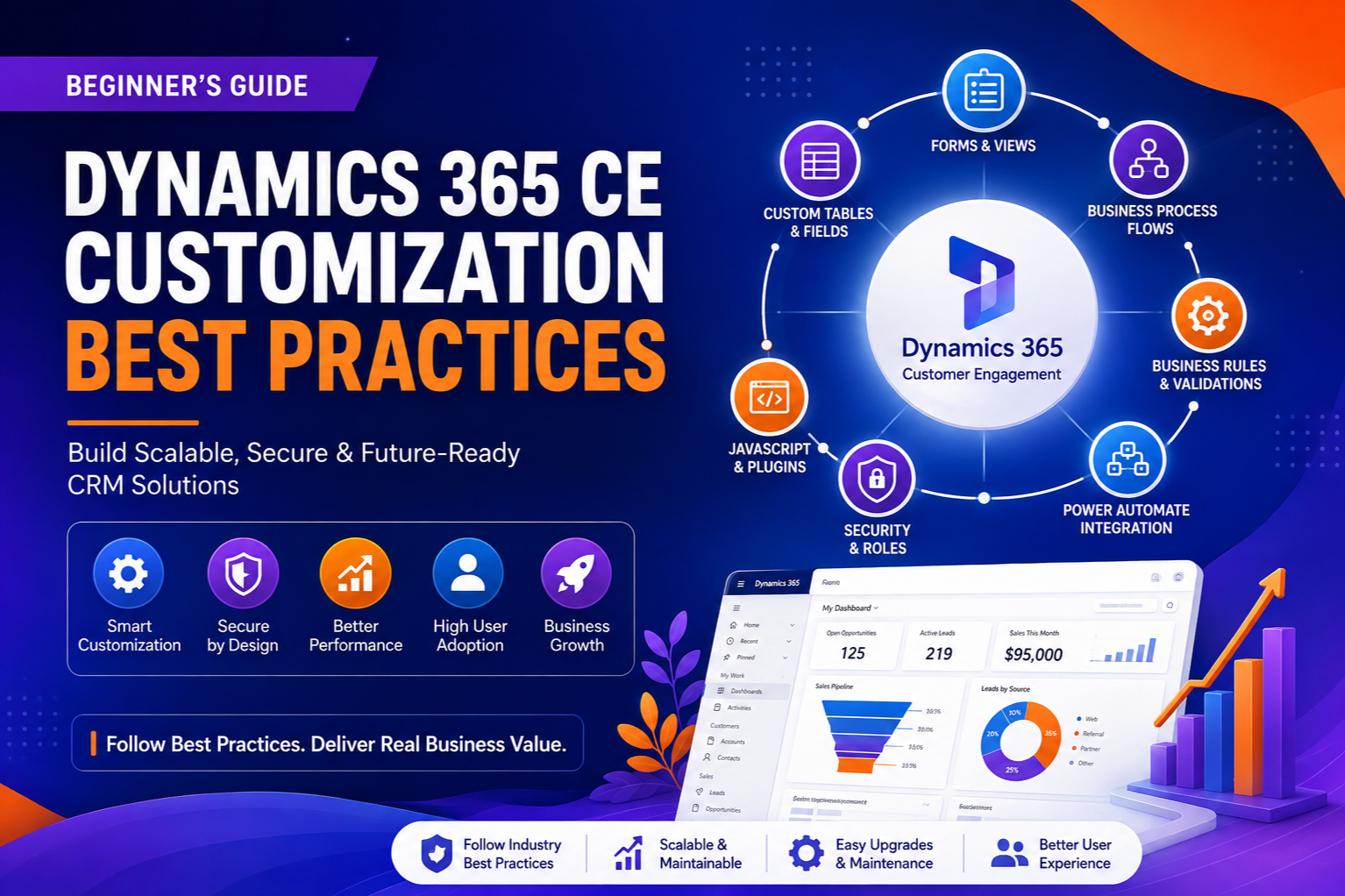
Microsoft Dynamics 365 Customer Engagement (Dynamics 365 CE) has become one of the most powerful enterprise CRM platforms for managing sales, customer service, marketing and field service operations. What makes the platform truly exceptional is its flexibility. Organisations can customise almost every aspect of Dynamics 365 CE to match their unique business processes without building an application from scratch.
However, many beginners make the mistake of customising everything immediately. While Dynamics 365 offers extensive customisation capabilities, poor customisation decisions can lead to performance issues, difficult upgrades and costly maintenance.
Whether you are a beginner, business analyst, CRM consultant or aspiring Microsoft Dynamics 365 developer, understanding customisation best practices will help you build solutions that are scalable, maintainable and future-ready.
In this comprehensive guide, you’ll learn the most important Dynamics 365 CE customisation best practices followed by Microsoft professionals and enterprise consultants.
What is Dynamics 365 CE Customisation?
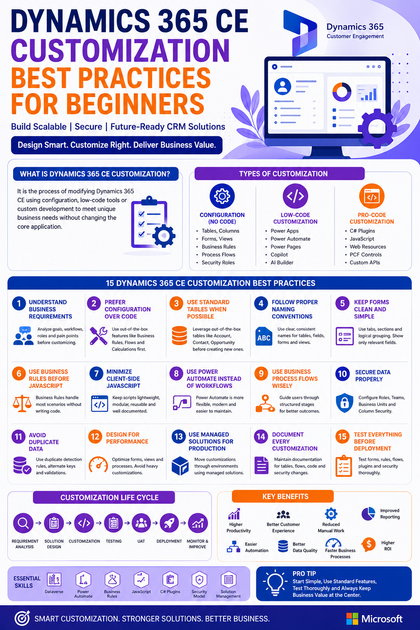
Dynamics 365 CE customisation refers to modifying the CRM application without changing Microsoft’s core source code.
Customisation enables businesses to:
- Create custom tables (entities)
- Add custom fields
- Design forms
- Configure views
- Build dashboards
- Create business rules
- Automate processes
- Add JavaScript
- Configure Power Automate flows
- Develop plugins
- Extend functionality using Power Apps
Unlike traditional software development, Dynamics 365 allows both low-code and pro-code customisation.
This flexibility makes it suitable for organisations of every size.
Why Customisation Matters
Every business has unique processes.
For example:
A healthcare organisation needs patient management.
A manufacturing company needs dealer management.
A university requires student admissions.
A real estate company tracks properties.
An insurance company manages policy renewals.
Although all use CRM, their workflows differ significantly.
Customisation allows organisations to adapt Dynamics 365 CE to their exact business requirements.
Benefits include:
- Higher employee productivity
- Better customer experience
- Reduced manual work
- Improved reporting
- Easier automation
- Better data quality
- Faster business processes
- Higher ROI
Types of Dynamics 365 CE Customisations
1. Configuration (No Code)
These are beginner-friendly customisations.
Examples include:
- Creating tables
- Adding columns
- Editing forms
- Creating views
- Business Rules
- Business Process Flows
- Security Roles
No coding knowledge is required.
2. Low-Code Customisation
Using Microsoft Power Platform:
- Power Automate
- Power Apps
- Power Pages
- Copilot
- AI Builder
These tools enable sophisticated business solutions with minimal coding.
3. Pro-Code Customisation
Advanced developers can use:
- C#
- .NET
- JavaScript
- TypeScript
- Web Resources
- Plugins
- Custom APIs
- Azure Functions
- PCF Controls
This approach is ideal for complex business logic.
Best Practice 1: Understand Business Requirements First
One of the biggest mistakes beginners make is jumping directly into customisation.
Instead, first understand:
- Business objectives
- Existing workflow
- User roles
- Approval process
- Pain points
- Reporting requirements
- Security needs
Never customise because “it looks nice.”
Customize because it solves a business problem.
Best Practice 2: Prefer Configuration Over Code
Microsoft recommends using out-of-the-box features whenever possible.
Instead of writing custom code:
Use:
- Business Rules
- Business Process Flows
- Power Automate
- Calculated Columns
- Rollup Columns
Only use plugins or JavaScript when necessary.
Benefits include:
- Easier maintenance
- Better upgrades
- Less technical debt
- Lower development cost
Best Practice 3: Use Standard Tables When Possible
Many beginners create custom tables unnecessarily.
For example:
Instead of creating:
Customer_Master
Use:
Account
Instead of:
Person
Use:
Contact
Instead of:
Sales_Table
Use:
Opportunity
Microsoft standard tables already include relationships, security and integrations.
Leverage them before creating custom tables.
Best Practice 4: Follow Proper Naming Conventions
Naming standards improve maintainability.
Good examples:
new_ProjectCode
sc_EmployeeID
abc_CustomerRating
Avoid:
Field1
Test
Column123
DataNew
Similarly:
Forms
Main - Sales
Main - Customer Service
Views
Active Customers
My Open Opportunities
Clear naming simplifies future maintenance.
Best Practice 5: Keep Forms Clean and Simple
A cluttered form reduces productivity.
Good form design includes:
- Tabs
- Sections
- Logical grouping
- Required fields only
- Consistent layout
Avoid placing 100 fields on one form.
Instead:
General Information
Customer Details
Financial Details
Sales Information
Audit Information
This improves usability significantly.
Best Practice 6: Use Business Rules Before JavaScript
Business Rules can:
- Show fields
- Hide fields
- Lock fields
- Make fields mandatory
- Set default values
- Validate conditions
Many beginners immediately write JavaScript.
Instead, use Business Rules whenever possible.
Advantages include:
- No coding
- Easy maintenance
- Faster deployment
- Better performance
Best Practice 7: Minimise Client-Side JavaScript
JavaScript is powerful but should be used carefully.
Avoid:
- Large JavaScript libraries
- Duplicate scripts
- Multiple OnLoad events
- Heavy calculations
Keep JavaScript:
- Modular
- Reusable
- Documented
- Lightweight
Best Practice 8: Use Power Automate Instead of Background Workflows
Modern Dynamics 365 implementations increasingly rely on Power Automate.
Examples include:
- Email notifications
- Approval workflows
- Teams notifications
- SharePoint integration
- Excel export
- PDF generation
Power Automate provides greater flexibility and easier maintenance compared to legacy workflows.
Best Practice 9: Use Business Process Flows Wisely
Business Process Flows guide users through standardised processes.
Example:
Lead
↓
Qualification
↓
Opportunity
↓
Proposal
↓
Negotiation
↓
Closed Won
Benefits include:
- Better user guidance
- Improved compliance
- Consistent processes
- Higher productivity
Avoid creating overly complex Business Process Flows with excessive stages.
Best Practice 10: Secure Data Properly
Security should never be an afterthought.
Configure:
- Security Roles
- Teams
- Business Units
- Column Security
- Hierarchical Security
Always follow the Principle of Least Privilege, ensuring users only have the access they need.
Best Practice 11: Avoid Duplicate Data
Duplicate customer records create confusion.
Use:
- Duplicate Detection Rules
- Alternate Keys
- Data Validation
- Required Fields
Maintain clean data to improve reporting and user confidence.
Best Practice 12: Design for Performance
Performance affects user satisfaction.
Avoid:
- Too many subgrids
- Large forms
- Excessive JavaScript
- Unnecessary plugins
- Large synchronous processes
Instead:
- Optimize views
- Reduce form complexity
- Use asynchronous processing where appropriate
- Archive historical data
Best Practice 13: Use Managed Solutions for Production
Development lifecycle should include separate environments:
Development
↓
Testing
↓
UAT
↓
Production
Package customizations using Solutions.
Benefits include:
- Version control
- Easy deployment
- Safer upgrades
- Rollback capability
Never make direct changes in production without testing.
Best Practice 14: Document Every Customisation
Documentation saves significant time in the future.
Maintain records of:
- Custom tables
- Custom columns
- JavaScript files
- Plugins
- Power Automate flows
- Security changes
- Business Rules
Good documentation simplifies onboarding and troubleshooting.
Best Practice 15: Test Everything Before Deployment
Before moving to production:
Test:
- Forms
- Views
- Business Rules
- Plugins
- Power Automate flows
- Security Roles
- Mobile experience
- Performance
- Reports
Include end users in User Acceptance Testing (UAT) to ensure the solution meets business expectations.
Common Beginner Mistakes
Avoid these common pitfalls:
- Creating too many custom tables
- Ignoring Microsoft’s standard features
- Hardcoding values
- Writing unnecessary JavaScript
- Skipping testing
- Poor naming conventions
- Overloading forms with fields
- Ignoring security configuration
- Not documenting changes
- Customising directly in production
Learning from these mistakes early will save significant effort later.
Recommended Development Lifecycle
A structured lifecycle helps ensure quality and maintainability.
Requirement Analysis
↓
Solution Design
↓
Customization
↓
Unit Testing
↓
User Acceptance Testing (UAT)
↓
Production Deployment
↓
Monitoring and Continuous Improvement
Following this approach reduces implementation risks and supports long-term success.
Essential Skills for Dynamics 365 CE Customisation
Professionals working with Dynamics 365 CE should develop expertise in:
- Microsoft Dataverse
- Model-Driven Apps
- Power Apps
- Power Automate
- Business Rules
- Business Process Flows
- JavaScript
- C#
- Plugins
- Solution Management
- Security Model
- Azure Integration
- REST APIs
- Power Platform Administration
Building these skills creates a strong foundation for advanced Dynamics 365 development.
Real-World Example
Imagine a sales organisation receiving hundreds of leads each day.
A well-designed Dynamics 365 CE customisation can:
- Automatically assign leads based on region
- Validate mandatory information
- Prevent duplicate customer records
- Send email notifications to sales representatives
- Trigger approval workflows for high-value opportunities
- Generate management dashboards in real time
- Integrate with Microsoft Teams for collaboration
The result is a streamlined sales process, improved customer experience and greater operational efficiency.
Future Trends in Dynamics 365 CE Customisation
As Microsoft continues to innovate, Dynamics 365 CE customisation is becoming increasingly intelligent.
Emerging trends include:
- AI-powered Copilot experiences
- Natural language app building
- Predictive analytics
- Intelligent automation
- Autonomous business agents
- Low-code AI development
- Deeper Microsoft 365 integration
- Enhanced Power Platform governance
Organisations that embrace these innovations will be better positioned to accelerate digital transformation and improve business agility.
Conclusion
Dynamics 365 CE customisation is much more than adding fields or changing forms. It involves designing business solutions that are secure, scalable, maintainable and aligned with organisational goals.
For beginners, the key is to start with configuration before moving to custom code. Leverage Microsoft’s built-in capabilities, follow consistent naming conventions, keep forms intuitive, prioritise security and thoroughly test every customisation before deployment.
By adopting these best practices from the outset, you’ll build Dynamics 365 CE solutions that are easier to maintain, perform reliably and adapt to evolving business needs.
Whether you’re starting your journey as a CRM administrator, functional consultant or developer, mastering these fundamentals will prepare you for more advanced Dynamics 365 and Power Platform projects in the future.