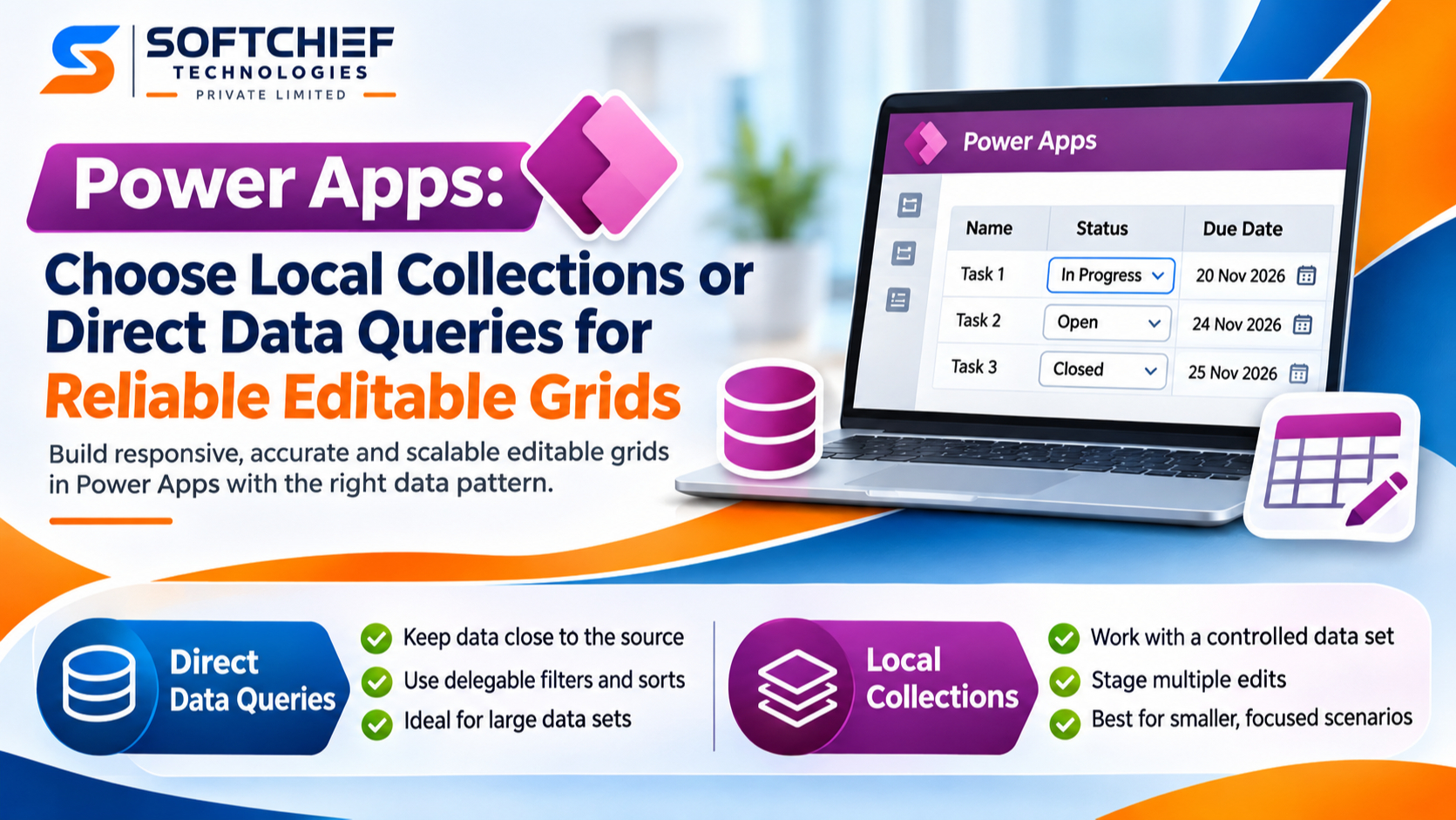
Power Apps: Choose Local Collections or Direct Data Queries for Reliable Editable Grids
Introduction
An editable grid can show fast updates and still save incomplete or outdated data. In Power Apps, the choice between a local collection and direct data queries affects responsiveness, freshness, delegation, and how users’ edits reach the source.
This guide focuses on canvas apps that use galleries or similar controls as editable grids. A gallery can display records with input controls in each row. Model-driven apps have a separate Power Apps grid control with its own inline-editing options.
Neither approach wins in every app. Your data source, connector, formulas, network, and save process all affect the result. Use the criteria below to choose a pattern that fits how people work.
Start with the grid’s data and editing requirements
Before building the grid, define what users must see and how they’ll edit it. These needs determine whether a live data source or a bounded local workspace makes more sense.
Identify the source of truth and record volume
Find out whether your app connects to Dataverse, SharePoint, SQL Server, or another source. Then estimate how many records users need to browse now and how that number may grow. A grid for a short list of assigned tasks has different needs from one that searches a company-wide table.
Check which filters, searches, sorts, and writes the connector supports. Power Fx functions don’t delegate the same way across all data sources, so a formula that works with one connector may not work the same way with another.
Define what “editable” means
Decide whether users save each row as they change it or edit several rows before selecting Save. A canvas gallery with text inputs, drop-downs, or toggles can create an editable-grid experience, but it doesn’t save changes by itself. You must define when each edit is validated and written.
A model-driven app uses a different grid control. Microsoft’s Power Apps grid documentation describes inline editing for that control. Don’t assume its behavior matches a canvas gallery.
Set expectations for freshness and collaboration
Ask whether users need to see other people’s changes right away, can work from a snapshot, or need offline access. A local collection can become stale while someone edits it. Direct queries keep the app closer to the source, but users may still need to refresh after another person changes a record.
Treat freshness, connection loss, and overlapping edits as core requirements. They affect both the save design and what feedback the app should show.
Power Apps direct data queries keep the grid close to the source
With direct queries, the gallery’s Items formula reads from a connected data source. The app can filter and sort records there, then write changes back to that source. “Direct” doesn’t mean every formula is delegated or that every record loads at once.
Use delegable formulas for larger data sets
When a query delegates, Power Apps sends supported operations to the data source. The source processes them and returns matching records, which lets a grid work with larger tables without first loading every row.
Support depends on both the connector and the formula. Microsoft’s delegation overview explains that nondelegable queries process only a limited number of records locally. The default data row limit is 500, and makers can raise it to 10,000. Raising the limit doesn’t ensure that a query finds every matching record.
Check delegation warnings for the exact filter, search, and sort formulas in your grid. Also review the connector’s documentation before relying on a function for a large source.
Save edits to the connected data source
Use Patch or an edit form to save changes. For Patch, the base record needs to identify the source record being changed. A row’s ID or another stable key helps the app update the right record rather than a similar one.
Add validation before writing, then show clear success or failure feedback. Microsoft’s Patch reference recommends error handling such as IfError for failed updates. Decide whether the grid should refresh after a save so users see the saved values.
Plan for latency and conflicting edits
Remote reads and writes depend on the connector and network. A save may take longer than a local control change, and another user could update the same record before your app saves it. Test with the connection quality and data size users will face.
If a write fails, tell users which change needs attention and avoid suggesting it saved. For conflicts, decide whether to refresh and let the user review the newer value before trying again.
Power Apps local collections make a working set easier to shape
A collection is an in-app table. It can hold a limited set of records while users make edits, run local calculations, or review changes before saving. It isn’t automatically connected to the source after loading.
Load only the records the grid needs
Use ClearCollect or a related collection function to build the working set. Filter at the source first when possible, and avoid loading columns or rows the grid won’t use.
Collection-building formulas don’t delegate. As Microsoft explains in its ClearCollect reference, only part of a connected source may be retrieved before the collection is built. A collection therefore doesn’t fix a query that fails to retrieve the full set of intended records. Verify the source-side filter and its delegation before treating the collection as complete.
Stage several edits locally
A collection helps when users need to change several fields or rows before submitting them. It can also hold temporary values for calculations or let users review a batch of changes. This makes the grid a controlled editing workspace rather than a live view of every saved value.
Changes to the collection stay local until the app writes them to the data source. Make the save step clear, especially if users might expect each field change to persist right away.
Build a reliable save-and-refresh cycle
When users select Save, send staged changes with Patch or another suitable write pattern. Track which records succeed, and report failures without treating the whole batch as saved. For larger batches, test the write process with the actual connector and data volume.
After saving, decide whether to refresh the collection, keep the saved values, or reload the working set. Remember that another user may have changed a record while it sat in the collection. Reconcile those changes before overwriting values that users didn’t intend to replace.
Compare the trade-offs before choosing a pattern
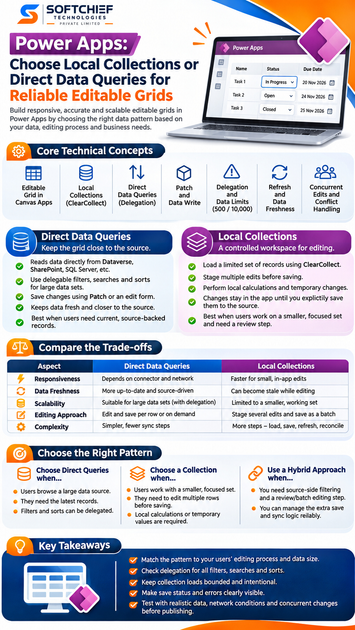
Think about scale, freshness, editing steps, and connectivity together. A local collection may make a small working set easier to edit, while direct queries may better suit source-backed browsing. Neither choice guarantees a faster grid.
Choose direct queries when source filtering and freshness matter
Use direct queries when users browse a large source and need current records. This pattern fits best when the connector supports the filters and sorts your grid needs, and those formulas delegate correctly.
Test the actual Items formula, not only a similar example. Confirm the results include records near the end of a large table, not just the first few matches.
Choose a collection for a controlled editing workspace
Use a collection when the grid works with a deliberately limited set, users stage several edits, or local calculations matter. Show users where the working set came from and when their changes will be saved.
This choice adds duties: the app must save changes, handle errors, and refresh or reconcile stale records. Keep the snapshot small enough that loading and saving remain practical.
Combine the approaches when the workflow needs both
A hybrid pattern can query a filtered set from the source, copy those records into a collection, stage edits, and then save them back. This supports source-side filtering and a local review step.
The extra steps also add risk. The app must identify records correctly, report partial failures, and avoid overwriting changes made by others. Choose a hybrid design only when staged editing adds clear value.
Validate the design with Power Apps documentation and testing
A grid can appear to work with sample data and still miss records or hide failed saves in production. Check the formulas, connector behavior, and user feedback before release.
Check delegation and connector behavior
Review Microsoft Learn’s delegation guidance and the documentation for your data source. Test each filter, search, and sort formula used by the grid. Treat delegation warnings as a reason to investigate, and verify that the query returns the records users expect.
For collection designs, check how many records the loading formula can retrieve. Don’t assume that loading data locally removes limits on the query that fills the collection.
Test saves, errors, and concurrent changes
Try valid and invalid edits, lost connections, permission failures, and changes made by another user. Confirm the app can tell users which records saved and which still need attention. Include refresh or retry behavior for records that have changed on the source.
Measure the experience with realistic data
Test app startup, grid interaction, and save time with the expected data volume and network conditions. Use Power Apps Monitor and available app diagnostics to inspect slow or failed operations. A small test table on a strong connection won’t show every issue users may encounter.
Choose the pattern that matches the user’s workflow
Use direct queries when source-backed browsing and fresh records matter. Use a collection when users need a bounded workspace and staged edits. Combine the two only when the review step is worth the added save and sync logic.
Collections don’t sync themselves, and direct queries still need delegation checks. The grid pattern also depends on whether you’re building a canvas gallery or using a model-driven Power Apps grid. Define how each edit is validated, saved, and refreshed, then test that workflow with real data.
Final Thoughts
The reliable choice is the one that matches your users’ editing process and your connector’s limits. Check delegation, keep collection loads bounded, and make save status visible. Before publishing, test the grid with realistic records and connection conditions.
Power Apps, Microsoft Power Platform, Power Apps Canvas Apps, Editable Grid in Power Apps, Power Apps Collections, Local Collections in Power Apps, ClearCollect Function, Direct Data Queries, Power Apps Delegation, Power Fx, Power Apps Patch Function, Dataverse, SharePoint Integration, SQL Server Integration, Power Apps Data Management, Power Apps Performance Optimization, Power Apps Data Sources, Canvas App Development, Power Apps Best Practices, Low-Code Application Development, Power Apps Development Tutorial, Microsoft Power Platform Training, Enterprise Application Development