Business Central: How to Validate an Extension After a Major Version Upgrade Without Risking Production
Introduction
An extension can compile and install after a Business Central upgrade, yet still fail during a real posting run. A major version change can affect compatibility, data handling, workflows, integrations, and user access. Testing only whether the app loads leaves the most important risks unchecked.
A reliable validation process covers extensions in both Business Central SaaS and on-premises environments. The exact steps can differ: Microsoft manages SaaS platform updates, while on-premises teams control more of the server and deployment setup. Extension type matters too, since Marketplace apps, per-tenant extensions, and development apps have different upgrade behavior.
Start by recording the upgrade context, then check technical compatibility, data, and business processes. Finish by collecting test evidence and confirming deployment and recovery plans before production release.
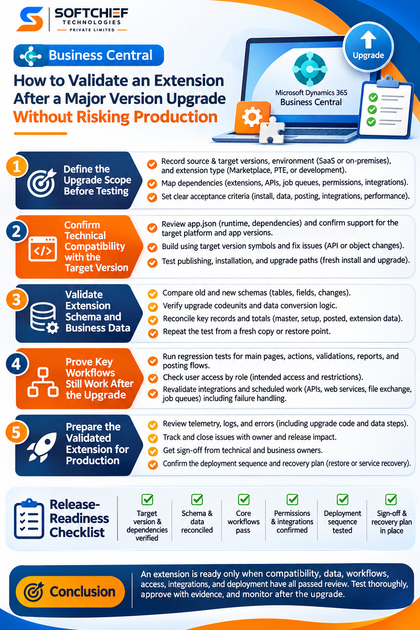
Define the upgrade scope before testing
Before you test, write down what’s changing and which parts of the business depend on the extension. This gives developers, administrators, and business owners a shared picture of what “ready” means. It also helps keep testing focused on the tasks that matter most.
Record versions, environment, and extension type
Note the source and target Business Central versions, and whether each environment is SaaS or on-premises. Record whether the extension is a Marketplace app, a per-tenant extension (PTE), or a development app. Include its current version and the version planned for the upgrade.
These details affect how the app is deployed and what may happen during an environment update. For example, Microsoft’s guidance on extension types and upgrade behavior describes different handling for Marketplace apps, PTEs, and development extensions. Check the current guidance for your app type instead of assuming every extension follows the same path.
Map dependencies and set acceptance criteria
List related extensions, APIs, web services, reports, job queues, permissions, and external services. Name an owner for each connected process, such as a warehouse feed or payment service. This inventory helps reveal problems that a stand-alone extension test might miss.
Set clear pass conditions before testing begins. You might require successful installation, preserved extension data, correct posting results, working integrations, and acceptable performance. Give priority to frequent tasks and high-impact work, such as posting sales orders or importing vendor invoices.
Confirm technical compatibility with the target version
Technical checks are an early gate, not the finish line. The extension must build against the target version and follow a valid publishing and upgrade path. A clean compile alone cannot prove that its code works as expected when users run it.
Review the manifest, runtime, and dependencies
Check app.json for the extension’s runtime and declared dependencies. Compare those settings with the target platform and the versions of each required app. Microsoft’s runtime version guidance explains that the server must support the app’s runtime and meet its platform, application, and dependency requirements.
Build the extension using symbols for the target Business Central version. Review compiler and analyzer messages, then address references to removed or changed objects and APIs. Record any warning you leave open, along with why it won’t affect use.
Test publishing, installation, and upgrade paths
In a representative non-production environment, rehearse the deployment path for the extension type. Confirm the app package and all required dependency versions are available. Microsoft’s publishing and installation guidance describes publishing, schema synchronization, and installation as distinct tasks.
Test a fresh install separately from an upgrade of an existing app. A fresh install won’t exercise all the data and upgrade logic used by an installed extension. For on-premises deployments, also verify the server instance and tenant details in the planned commands or scripts.
Validate extension schema and business data
A successful schema sync doesn’t prove that data still means the same thing. Compare the old and new extension schemas, then test any data conversion logic with a copy of real-world data. Avoid treating a destructive sync choice as a routine fix for a failed test.
Review schema changes and upgrade codeunits
Compare tables and fields in both app versions. Look for renamed, removed, or transformed fields, as well as new fields that need values for existing records. Decide how each change should affect stored data before synchronizing the schema.
If the extension has upgrade codeunits, confirm that each required change runs and produces the expected result. Check upgrade tags or version checks to make sure steps aren’t skipped or repeated by mistake. Microsoft’s extension upgrade guidance describes upgrade codeunits, data changes, and ways to control when upgrade code runs.
Reconcile records and repeat the test
Compare important records and totals before and after the upgrade. Include master data, setup, posted transactions, and extension-owned records. For a field conversion, check sample records from different cases, such as blank values, typical values, and older records.
Repeat the test from a fresh copy or restore point. A second run can reveal logic that depends on prior test activity or runs more than once. Keep the comparison results with the test record so the team can review any mismatch before release.
Prove key workflows still work after the upgrade
Test in a sandbox or other non-production environment with your organization’s own scenarios. Start with the tasks users perform most often, then include edge cases that could affect money, stock, or reporting. Compare each result with the acceptance criteria set before testing.
Run regression tests and check user access
Test the extension’s main pages, actions, validations, reports, and posting flows. For example, create a sales document, run the extension’s checks, post it, then confirm the expected entries and report output. Include an edge case, such as a missing setup value, and confirm users receive a clear response.
Check access by role. Intended users should be able to open the needed pages and complete their work; other users should remain restricted. Review role centers, page behavior, and error messages for changes that could confuse users or block a task.
Revalidate integrations and scheduled work
Run connected processes end to end, including APIs, web services, file exchanges, and job queues. Confirm that authentication still works and that field mappings match the target version. Test failure handling too: check retries, error details, and monitoring when an endpoint or file is unavailable.
Coordinate with the people who own each external service. A Business Central test can show that a request was sent, but the integration owner may need to confirm that the other system accepted and processed it. Record both sides of the result.
Prepare the validated extension for production
Turn the test results into a release decision before the production window. Rehearse the planned deployment sequence in a non-production environment, including required extensions and configuration. Use the same app packages and deployment steps planned for production.
Review telemetry, logs, and open issues
Check available telemetry, application logs, and error details during the test. Microsoft’s extension upgrade telemetry guidance explains how telemetry can help investigate upgrade code failures and upgrade tag activity. Use current documentation for the monitoring options available in your environment.
Track each defect, workaround, owner, and release impact. Decide which issues block release and which can be accepted with a clear plan. Don’t rely on a successful upgrade message if logs show a failed data step or integration.
Confirm sign-off and recovery plans
Get approval from both technical and business owners. Keep test cases, results, app versions, and any known issues together so the team can refer to them during release. Confirm the recovery method that fits the environment, such as a tested restore process or the service’s available recovery options.
Name the person who will monitor the extension after deployment. Set out how users should report issues and who will triage them. Early monitoring helps the team respond before a small fault interrupts a larger process.
Carry a clear validation decision into the upgrade
An extension is ready only when compatibility, data, workflows, access, integrations, and deployment have all passed review. Use a short release check to confirm nothing important was missed.
Use a release-readiness checklist
Before approval, confirm that target-version compatibility and dependencies are checked, schema changes and data are reconciled, and core workflows pass. Verify permissions, integrations, and the deployment sequence. Record sign-off and recovery plans.
Reuse evidence for future upgrades
Keep the test cases and results for the next Business Central upgrade. Update them when the extension, connected systems, or business processes change. Reusable evidence makes future testing faster without turning it into a box-ticking exercise.
Conclusion
A compile or install result is only one part of extension validation. Test the upgrade with representative data, prove the workflows users rely on, and rehearse the production deployment. Approve the release when the evidence supports it, then monitor the extension after the upgrade.