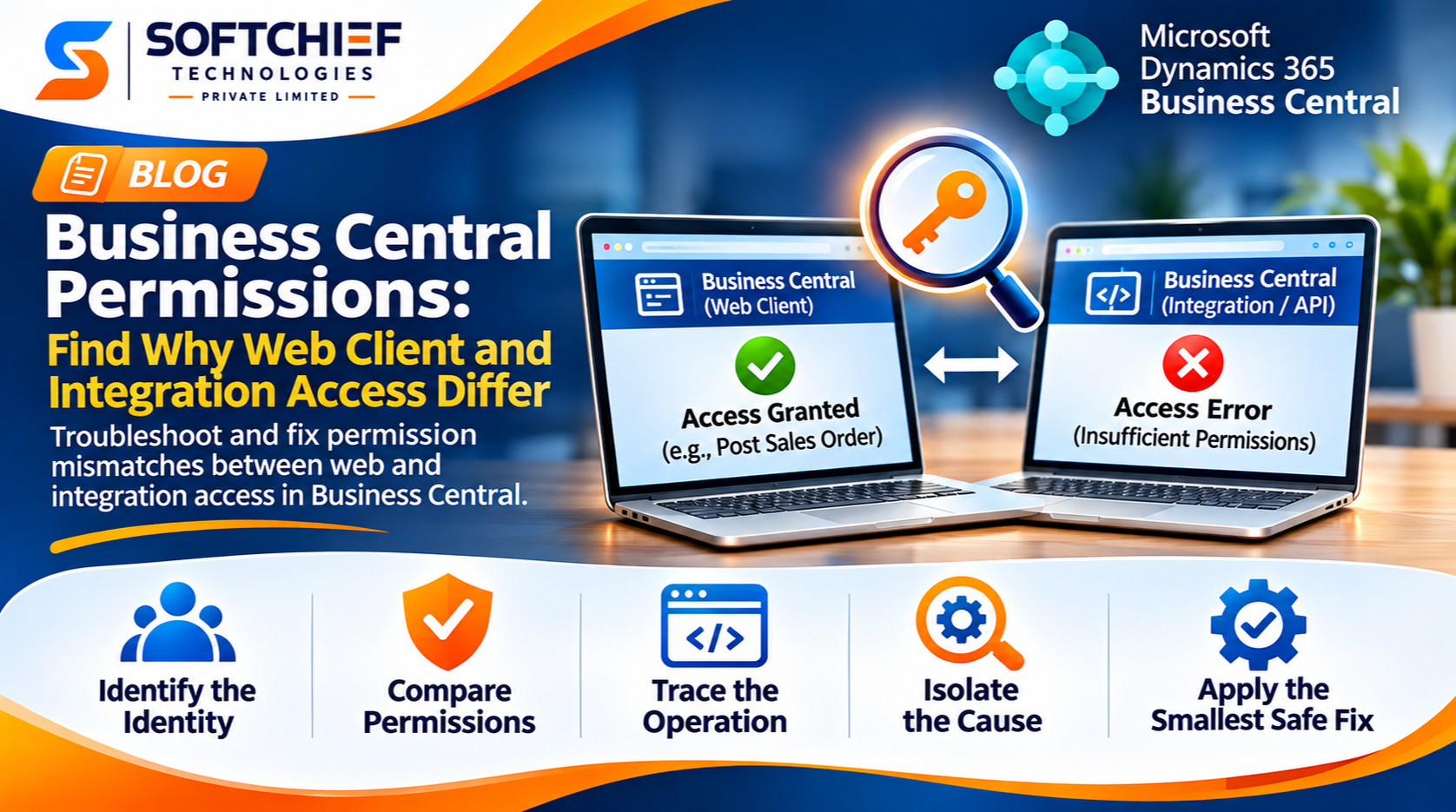
Business Central Permissions: Find Why Web Client and Integration Access Differ
Introduction
A user can post a sales order in the Business Central web client, yet an integration gets an access error when it tries to create or update related data. The reverse can happen, too. Business Central may be evaluating a different identity, or the two paths may call different objects and run different code.
Start by comparing authentication, assigned permissions, the requested operation, and the environment and company in use. These checks help isolate the cause before you change access. The goal is a verified, narrow permission fix, not broad access that hides the real issue.
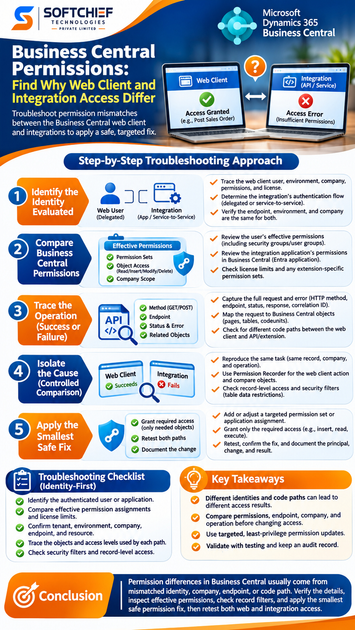
Identify which identity Business Central evaluates
A web session and an integration request don’t automatically share permissions. First establish which principal is making each request, then confirm that both tests reach the same Business Central data.
Trace the web client user
Check the signed-in user, environment, and company in the web client. Review the user’s assigned permission sets and any security group or user group memberships. The user’s license also affects available access, so compare it with the task being tested.
Determine the integration’s authentication flow
Find out whether the integration uses delegated access or service-to-service authentication. With delegated access, investigate the user context represented by the token. With service-to-service access, Business Central authorizes the Microsoft Entra application, not the web user.
Microsoft’s service-to-service authentication guidance explains that this flow uses an application identity and requires access to be granted in both Microsoft Entra and Business Central. Confirm which flow the integration uses before comparing permission sets.
Verify the endpoint and company
Compare the tenant, Business Central environment, company, API endpoint, and resource. A request pointed at a test environment or another company can look like a permission failure when the actual issue is a location mismatch. Check the request URL and the company ID or name against the web client session.
Compare Business Central permissions for each identity
Build a like-for-like comparison instead of assuming an integration inherits the web user’s access. The effective access can come from several permission sets and, for users, is affected by the assigned license.
Review the user’s effective permissions
Open the user’s Effective Permissions page to see which permissions apply and where they come from. Check the object type, object ID, and access level needed for the task, such as read, insert, modify, delete, or execute. Business Central’s permission guidance describes how assigned sets, entitlements, and object-level rights affect access.
If the user belongs to security groups or legacy user groups, include their permissions in the review. Also check whether a permission set is scoped to a specific company. A set assigned for one company might not apply in another.
Review the integration application’s permissions
For service-to-service access, locate the application on the Microsoft Entra Applications page in Business Central. Confirm that it’s enabled and assigned permission sets that cover the API operation and required objects. The Microsoft Entra API permission alone doesn’t replace the Business Central permission assignment.
Applications can’t be assigned the SUPER permission set. Microsoft recommends assigning only the permissions the integration needs, so identify the required object access rather than trying to grant administrator-level rights.
Check license and extension constraints
Confirm the user’s license supports the task and review any extension-specific permission sets or entitlements. An extension may define its own API page, codeunit, table, or permission set. Don’t assume the permission rules for a custom extension match those for a standard Business Central API.
Trace the operation that succeeds or fails
A clear record of the failed request helps narrow the gap to a particular object, access level, or data record. Compare the actual operation, not only the task’s business purpose.
Capture the full request and error
For an integration, record the HTTP method, endpoint, timestamp, status code, and response body. Save any request ID, correlation ID, or other diagnostic detail the response provides. For a web client failure, note the page, action, and complete error text.
Map the request to Business Central objects
Identify whether the integration calls a standard API, custom API, or web service. Then determine which pages, tables, and codeunits the request uses, where possible. A GET request may need read access, while a POST or PATCH can require insert or modify access and may invoke other objects.
Check for different code paths
A web page action and an API request may perform similar work through different objects or code. Success in the web client doesn’t prove that the API’s route has the same permissions. For custom APIs, ask the extension developer to check the code and permission set for the specific request path.
Isolate the cause with a controlled comparison
Change one factor at a time. Keep the environment, company, record, and operation the same where possible, and record the identity used for each test.
Reproduce the same task and compare object access
Run the web client and integration tests against the same record and data conditions. Confirm that the integration isn’t using a different company, endpoint, or operation. If the web task succeeds, use Permission Recorder to capture objects touched by the user interface operation; then compare those objects with the integration’s route.
Permission Recorder captures actions performed in the Business Central interface, so it won’t reveal every object used by separate API code. Inspect the API or extension path on its own rather than treating the recording as a complete list.
Check record-level restrictions
If object permissions look sufficient, check security filters and the specific records involved. A user or application can have permission to read a table but still lack access to a record that falls outside a filter. Microsoft’s security filter documentation explains how these filters limit access to table data.
Apply the smallest safe permission fix
Update the identity Business Central actually evaluates. Keep the change specific to the required objects and access levels, and follow your organization’s change controls.
Grant only the needed access
Add or adjust a targeted permission set or application assignment. For example, an API that creates a record may need insert access to its table and execute access to related code, while a read-only call should not receive modify rights. Avoid broad permission sets that grant unrelated access.
Retest and document the result
Repeat the original web and integration tests after the change. Confirm the intended operation works and check that unrelated access hasn’t expanded. Record the principal, authentication flow, environment, company, endpoint, error, permission change, and test result.
Use an identity-first checklist for future investigations
Before changing permissions, confirm that the comparison is valid. These checks help keep troubleshooting focused:
- Identify the authenticated user or application.
- Compare effective permission assignments and license limits.
- Confirm the tenant, environment, company, endpoint, and resource.
- Trace the objects and access levels used by each path.
- Check security filters and record-level access.
Keep an inventory of integration identities, authentication flows, and assigned permission sets. Test access changes in a controlled environment before applying them more broadly. When configuration details depend on your Business Central version or extensions, check the current Microsoft Learn guidance for that feature.
Conclusion
Business Central permission differences often start with a simple mismatch: the web client and integration use different identities, companies, endpoints, or code paths. Confirm those details, inspect the effective permissions, and check for record filters before changing access. Then grant the narrowest permission that resolves the failed operation and retest both paths.