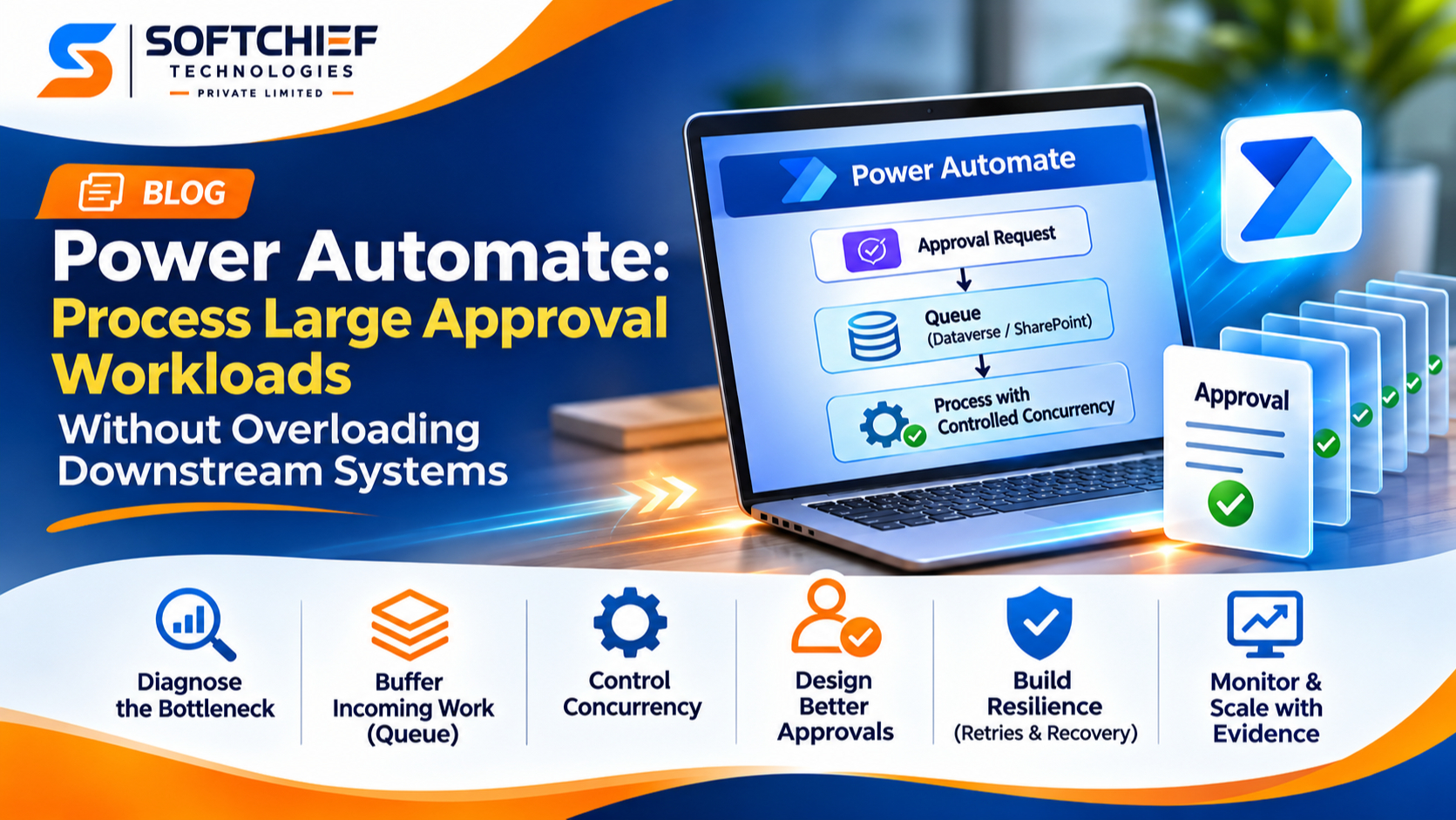
Power Automate: Process Large Approval Workloads Without Overloading Downstream Systems
Introduction
A burst of approval requests can turn a faster workflow into a problem: every request may trigger several calls to connectors, APIs, and business systems. If those services can’t keep pace, you may see throttling, timeouts, or updates that arrive long after an approval decision.
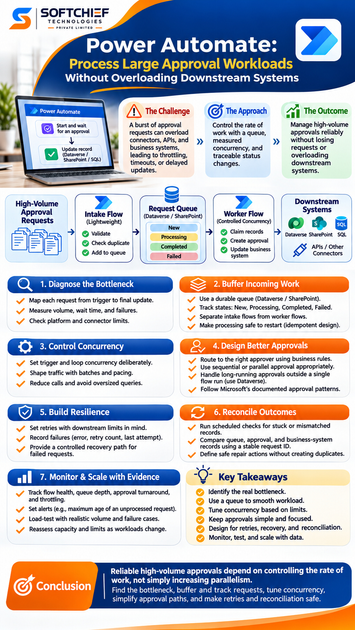
Power Automate approval flows can manage high volumes when they control how quickly work reaches connected systems. A clear queue, measured concurrency, and traceable status changes help protect those systems without losing requests.
There’s no single concurrency setting that fixes every bottleneck. The right design depends on when requests arrive, which connectors the flow uses, and how quickly decisions must be made.
Diagnose where Power Automate approval workloads create pressure
Before changing a flow, find out where work slows down. A backlog may come from flow runs, pending human decisions, or a downstream service that can’t handle the request rate.
Map each request from trigger to final update
Trace one approval from intake through validation, routing, decision, and record update. Note every action that calls another service, such as a profile lookup, approval creation, or update to Dataverse, SharePoint, or SQL.
Then compare the flow’s work with the request’s status in the business system. If approvals are issued quickly but updates lag, the final connector call may be the bottleneck, not the approval step.
Measure volume, wait time, and failures
Track submissions per hour, time spent waiting for an approver, action duration, retries, throttling responses, and failed updates. Run history can show where an individual flow slows down; queue depth and age reveal whether the overall workload is falling behind.
Look for patterns. A spike in HTTP 429 responses points to rate limiting, while long approval wait times may reflect routing or staffing rather than flow capacity.
Check platform and connector limits
Power Automate limits vary by plan and flow settings, and each connector may impose separate limits. Check Microsoft’s Power Automate limits and configuration and the documentation for every connector in the workflow. Verify the figures that apply to your environment before setting a target rate.
Buffer incoming work before downstream systems
A queue separates request intake from request processing. The intake flow can record a valid request quickly, while worker flows draw from the queue at a pace the connected services can handle.
Use a durable queue with clear states
Store each request in Dataverse, a SharePoint list, or another fit-for-purpose data store. Include a stable request ID, status, submission time, processing time, approval ID, and error details.
Use states such as New, Processing, Completed, and Failed. These make it easier to report on work in progress and spot records that need recovery. Choose a queue store based on expected volume, access controls, and governance needs.
Separate intake flows from worker flows
Keep the intake flow light: validate required fields, check for an existing request, and add a queue record. Worker flows can then claim eligible records, create approvals, and perform updates with concurrency set to a controlled level.
This split helps absorb short bursts without sending every request to a downstream service at once. Make sure workers can safely claim records so two runs don’t process the same item.
Make processing safe to restart
Use a stable ID from the source record or create one when the request first enters the queue. Before creating an approval or applying a business update, check whether that action has already happened for the ID.
Design updates to be idempotent: repeating the same operation should not create a second approval or duplicate a business transaction. Save key results, such as the approval ID, before moving the queue item to its next state.
Control concurrency in Power Automate
Concurrency determines how much work runs at once. Set it with the slowest or most restricted dependency in mind, rather than choosing the highest available value.
Set trigger and loop concurrency deliberately
Limit trigger concurrency when many simultaneous runs would overload a connector or contend for the same records. In an Apply to each loop, keep the default sequential behavior when order matters; raise parallelism only when items are independent.
Microsoft documents trigger and loop settings in its guidance on parallel execution and concurrency. Test a modest setting first, then increase it while watching connector errors and response times.
Shape traffic with batches and pacing
Process a manageable number of queued records per worker run. Add a delay or other rate control when a downstream API needs space between calls, and adjust the pace based on observed responses.
Batching organizes work, but it doesn’t raise the service’s capacity. A batch that makes many calls at once can still trigger throttling, so measure request volume at the connector boundary.
Reduce calls and avoid oversized queries
Filter records at the source, request only the fields the flow needs, and avoid repeated lookups or updates inside loops. Review pagination settings and query design against the connector’s current behavior and limits.
Each extra action adds work across a large volume of requests. For example, retrieving a record once and reusing its values can cut calls compared with looking it up again in several branches.
Design approvals to reduce avoidable work
Approval design affects decision time and the number of flow actions generated. Clear routing rules help each request reach the right person without adding needless stages.
Route requests to the right approver
Use conditions that match the business rules, such as approval by a department lead only for requests above a set amount. Choose sequential approval when each person must review the prior decision; use parallel approval when reviewers can act independently.
Add escalation paths for overdue requests, but avoid stages that don’t improve control. Each added step can increase wait time and create more flow activity.
Handle long-running approvals outside one flow run
A flow run that waits for an approval has a duration limit. For approvals that may take more than 30 days, Microsoft recommends storing approval data in Dataverse and using separate flows to create the request and act on its response.
The long-running approval pattern in Microsoft Learn uses the Create an approval action for this split. Track the approval ID and request status so the response can be matched to the right queue record.
Use documented approval patterns as examples
Microsoft’s approval tutorials show how to create requests, collect responses, and update a SharePoint record. They also explain approval types such as “First to respond” and “Everyone must approve.”
Use those tutorials as setup examples, then test the selected pattern with your own connectors, request volume, and approval rules. A tutorial demonstrates a flow pattern; it doesn’t guarantee a specific service can handle your workload.
Build resilience for throttling and failures
Transient errors should not turn into lost requests or repeated business actions. Keep enough state to retry safely and to review work that needs human attention.
Set retries with downstream limits in mind
Use retries for temporary failures, but avoid aggressive retry settings during an outage or throttling event. Each retry adds activity and can increase pressure on a service that is already struggling.
Check the connector’s retry guidance and record whether an action failed from a rate limit, timeout, or other cause. That detail helps distinguish a temporary issue from a bad request that will fail again.
Record failures and provide a recovery path
For each failed attempt, store the error message, retry count, and last-attempt time in the queue record. After the allowed retries, mark the request Failed and send it for review or controlled reprocessing.
Keep recovery separate from normal processing where possible. That lets an operator inspect the cause before restarting the request.
Reconcile queue and business-system outcomes
Run a scheduled check for records stuck in Processing, approvals without a final update, or completed actions that haven’t been reflected in the source system. Compare queue status with approval and business-system records using the stable request ID.
Reconciliation can catch gaps that a successful flow run alone won’t reveal. Define how to repair each mismatch without creating a duplicate approval or transaction.
Monitor throughput and scale with evidence
A queue makes workload visible, but you still need to check whether the design meets business needs. Monitor both technical health and the time requests spend waiting.
Track flow health and service goals
Watch run outcomes, queue depth, oldest pending item, approval turnaround, throttling, and downstream response times. Set alert thresholds around business goals, such as the maximum acceptable age of an unprocessed request.
A growing queue matters even when flows show no failures. It means incoming work is arriving faster than workers can complete it.
Load-test changes in a controlled environment
Test realistic bursts and sustained volume with representative data and connectors. Increase concurrency gradually, then check for throttling, timeouts, duplicate processing, and queue age.
Include failure cases in the test, such as a temporary API outage or slow response. Confirm that requests remain traceable and that recovery works before changing production settings.
Reassess capacity as workloads change
Review Microsoft’s platform limits and each connector’s documentation after changes to request volume, licensing, connectors, or downstream services. Recheck queue size, action use, and service response times as part of routine maintenance.
A setting that worked for last year’s workload may not fit a new request pattern. Treat concurrency as a capacity choice to revisit, not a permanent fix.
Conclusion
Reliable high-volume approvals depend on controlling the rate of work, not simply increasing parallelism. Find the actual bottleneck, buffer and track requests, tune concurrency, simplify approval paths, and make retries and reconciliation safe.
Start with measurements from a typical workload, then test changes under realistic volume. Scale only when the evidence shows where capacity is needed and the downstream systems can sustain the added work.