Power Pages: How to Test External User Registration, Authentication, and Account Linking
Introduction
When a Power Pages website allows customers, suppliers, partners or other external users to sign in, successful authentication is only the beginning of the testing process.
A user might successfully authenticate with Microsoft Entra External ID or another identity provider and still be unable to access the correct Dataverse records. In other situations, the authentication succeeds but the website creates an unexpected Contact record, associates the wrong identity, or grants permissions that are broader than intended.
These are not simply login issues. They involve identity management, Dataverse contact association, website authorisation and application security.
For Power Platform developers and Dynamics 365 consultants, the important question is not just whether an external user can log in.
The real question is whether the correct identity is authenticated, associated with the intended Dataverse Contact, and granted only the business access that user should have.
This guide explains how to test that complete process, from external registration to account linking, web roles, table permissions and production readiness.
Understanding External User Authentication in Power Pages
Power Pages allows organisations to build external-facing business websites that interact with Microsoft Dataverse.
Typical examples include:
- Customer self-service portals where customers view support cases.
- Supplier portals where vendors submit documents and track requests.
- Partner portals where business partners manage opportunities.
- Membership portals where registered users access restricted content.
- Service portals where customers submit and monitor applications.
These applications often require users who are not internal employees of the organisation.
Power Pages supports external identity providers, including Microsoft Entra External ID and other providers using supported authentication protocols such as OpenID Connect and SAML 2.0.
The authentication provider verifies the user’s identity. Power Pages then associates the authenticated website user with a Dataverse Contact record.
That Contact becomes central to website-specific authorisation and business data access.
Authentication vs Authorisation
These two concepts must be tested separately.
Authentication establishes who the user is.
Authorisation determines what the authenticated user is allowed to access.
For example, a customer may successfully sign in using an external identity provider. However, that does not automatically mean the customer should be able to view every support case stored in Dataverse.
The user’s web roles and the website’s table permissions determine the permitted access.
A properly tested Power Pages implementation must validate both.
How Power Pages External Authentication Works
Consider a customer portal configured with Microsoft Entra External ID.
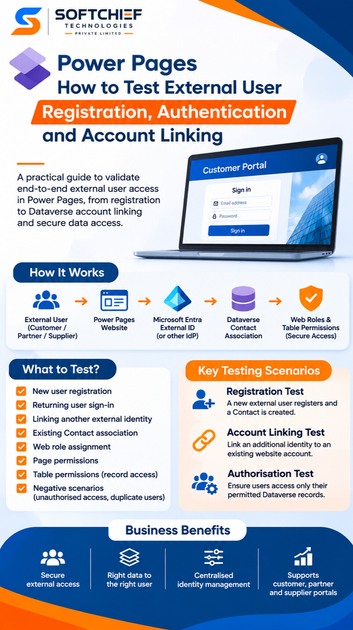
The authentication flow can be understood as follows:
External Customer
       |
       v
Power Pages Website
       |
       v
Select Sign In
       |
       v
Microsoft Entra External ID
       |
       v
User Authentication
       |
       v
Identity Token Validation
       |
       v
Power Pages Authentication
       |
       v
Dataverse Contact Association
       |
       v
Website Session
       |
       v
Web Roles + Page Permissions
       |
       v
Table Permissions
       |
       v
Authorised Dataverse Data
The identity provider handles the external authentication process.
Power Pages validates the authentication response and establishes the website session according to the configured provider and authentication settings.
The authenticated identity is associated with a Dataverse Contact.
Power Pages then evaluates the user’s website permissions when the user accesses protected pages and Dataverse-backed functionality.
A key architectural distinction is that the external identity provider account and the Dataverse Contact record are not the same object.
The identity provider manages authentication identity. Dataverse maintains the website user’s business record and associated portal information.
This separation is important when investigating registration and account-linking problems.
Preparing the Test Environment
Before testing external registration, establish a controlled environment.
Testing directly with real customer identities in Production can create unnecessary privacy, access and operational risks.
Use a dedicated development or testing environment with appropriately configured identity providers and non-sensitive test data.
Required Components
For a practical testing scenario, prepare:
- A Power Pages website connected to Dataverse.
- A configured external identity provider.
- An external test identity.
- Appropriate website registration settings.
- A Dataverse Contact table.
- Website web roles.
- Page permissions.
- Table permissions.
- A protected page displaying sample business data.
For this walkthrough, assume the website is a customer service portal.
The portal allows external customers to register, sign in and view their own support cases.
Recommended Test Identities
Use at least three separate test identities.
| Test User | Business Scenario | Expected Access |
|---|---|---|
| Customer A | Newly registered customer | Own records only |
| Customer B | Existing registered customer | Own records only |
| Unregistered Visitor | Anonymous website visitor | Public pages only |
Also prepare an existing Contact record that has not yet been linked to an external identity.
This allows you to test the difference between creating a new Contact and associating an identity with an existing Contact.
Configuring External Authentication in Power Pages
Microsoft Entra External ID is one supported option for external customer authentication.
The exact configuration depends on the identity provider, tenant configuration, application registration and authentication protocol.
Step 1: Open Power Pages Design Studio
Navigate to the Power Pages maker experience and open the website you want to test.
Select:
Security → Identity providers
Review the available providers and choose the external identity provider required for your implementation.
Step 2: Configure Microsoft Entra External ID
For Microsoft Entra External ID, the configuration typically involves:
- Creating or selecting an appropriate external tenant.
- Registering an application.
- Configuring the redirect URI.
- Configuring the required authentication settings.
- Creating and associating a user flow.
- Supplying the required provider configuration in Power Pages.
The application registration and redirect configuration must match the Power Pages website.
An incorrect redirect URI is a common reason for authentication failures.
Step 3: Validate the Provider Configuration
Review the following:
| Configuration | What to Verify |
|---|---|
| Client ID | Correct application registration |
| Authority | Correct identity tenant and endpoint |
| Redirect URI | Exact configured website callback |
| Metadata Address | Correct OpenID Connect metadata |
| User Flow | Correct registration and sign-in experience |
| Provider Status | Provider enabled for the website |
| Logout Configuration | Expected sign-out behaviour |
Do not assume that a successful application registration means the Power Pages configuration is complete.
The identity provider and website configuration must work together.
Testing External User Registration
Registration testing should establish what happens when a new external identity accesses the website for the first time.
Test Case: New Customer Registration
Business requirement
A customer who does not have an existing website account should be able to register using the approved external identity provider.
Test procedure
- Open the Power Pages website in a private browser session.
- Navigate to the sign-in or registration page.
- Select the configured external identity provider.
- Complete the identity provider’s registration process.
- Complete any required email verification.
- Return to Power Pages through the configured authentication flow.
- Confirm that the website recognises the authenticated user.
- Open Dataverse and inspect the associated Contact record.
Expected result
The customer should be registered and authenticated according to the configured registration policy.
If open registration is enabled and the identity is not already associated with an eligible Contact, the registration process can create a new Dataverse Contact.
The external identity should be associated with the correct Contact.
The customer should receive only the website access allowed by the configured web roles and permissions.
What Should Be Verified in Dataverse?
Do not stop after observing the welcome page.
Inspect the Contact record and verify:
- Correct Contact association.
- Expected email address.
- Appropriate Contact details.
- Correct external identity association.
- No unintended duplicate Contact creation.
- Correct website access assignments.
An important point is that Power Pages requires unique Contact email addresses for authentication. Duplicate email addresses across Contact records, including inactive records, can prevent authentication.
This should be included in registration test data preparation.
Testing Returning User Authentication
A returning user should authenticate without unintentionally creating another Contact.
Test Case: Existing Customer Login
Starting condition
Customer A has already registered and has an associated Dataverse Contact.
Test procedure
- Sign out of the website.
- Open a new private browser session.
- Navigate to the sign-in page.
- Select the same external identity provider.
- Authenticate using Customer A’s existing identity.
- Verify the website session.
- Inspect the Contact association.
Expected result
The existing external identity should resolve to the intended Contact.
A new Contact should not be created simply because the user signs in again.
The website should apply the user’s existing permissions.
Important Validation
Record the Contact ID after initial registration.
After the second login, confirm that the same Contact remains associated with the authenticated identity.
This provides stronger evidence than comparing only the displayed name or email address.
Understanding Account Linking in Power Pages
Account linking is often misunderstood.
In Power Pages, an external identity can be associated with a Dataverse Contact so that the user can authenticate through that identity.
An authenticated user can also connect multiple supported external identities to the same website account, subject to the configured providers and website settings.
For example, a user may have an existing website account and later connect another supported external identity.
The goal is to maintain one intended website account rather than unnecessarily creating separate user records.
Identity Linking vs Business Account Association
These are different concepts.
Identity linking associates an external authentication identity with a website user’s Dataverse Contact.
Business Account association connects a Contact to an Account record representing an organisation or customer relationship.
For example:
External Identity
       |
       v
Dataverse Contact
       |
       v
Parent Customer Account
       |
       v
Business Relationships
Linking an identity to a Contact does not automatically establish that the Contact should have access to every record belonging to a business Account.
That access must be designed through the appropriate Dataverse relationships, web roles and table permissions.
Testing Account Linking with an Existing Contact
Consider a customer whose Contact already exists in Dynamics 365 Customer Service.
The customer has not previously used the Power Pages website.
The business wants that customer to register and access the existing service information.
Test Case: Existing Contact Association
Starting condition
A Contact already exists in Dataverse with the customer’s email address.
Test procedure
- Identify the existing Contact and record its Contact ID.
- Confirm that the email address is unique.
- Review the external identity provider’s contact-mapping configuration.
- Start the approved registration or invitation flow.
- Authenticate using the customer’s external identity.
- Inspect the Contact association after authentication.
- Verify that the expected Contact is used.
- Confirm that no unintended duplicate Contact was created.
Expected result
If the configured registration or contact-mapping process supports association with the existing Contact, the authenticated identity should be linked to that Contact.
Microsoft Entra External ID includes a contact-mapping-with-email setting for applicable configurations. When enabled, it can associate a matching unique Contact with the external identity after successful sign-in.
This behaviour is configuration-dependent and should not be assumed for every provider or tenant configuration.
Security Consideration
Email matching must never be treated as sufficient proof of identity by itself.
The identity provider must authenticate the user, and the application must follow the supported identity-association process.
In higher-risk business scenarios, invitation-based registration or an explicitly verified account-claiming process may be preferable to unrestricted registration.
Testing Multiple External Identities
A customer might initially register with one external provider and later want to connect another.
Power Pages supports connecting multiple external identities to a user account, with one identity per configured provider.
Test Case: Connect Another Identity
Starting condition
Customer A already has an authenticated Power Pages account.
Test procedure
- Sign in as Customer A.
- Navigate to the supported external account management experience.
- Select the option to connect another configured identity provider.
- Authenticate with the additional provider.
- Return to the website.
- Verify the identity association.
- Sign out.
- Sign in using the newly connected identity.
Expected result
Both connected identities should resolve to the intended website account.
The user should not gain additional business permissions merely because another authentication method has been connected.
Test Case: Disconnect an Identity
Verify that a user can disconnect an eligible external identity without accidentally losing all supported sign-in methods.
Power Pages account management requires at least one external or local identity to remain connected when disconnecting identities through the supported process.
Also test the website’s behaviour when the identity provider account is disabled or no longer available.
Testing Web Roles and Table Permissions
Successful authentication does not guarantee correct authorisation.
This is where Power Pages security testing becomes especially important.
Practical Scenario: Customer Case Portal
Customer A and Customer B both have valid website accounts.
The business requirement is:
- Customer A can view Customer A’s cases.
- Customer B can view Customer B’s cases.
- Neither customer can access the other’s cases.
- Anonymous visitors cannot access protected case data.
Security Architecture
Authenticated Customer
        |
        v
Dataverse Contact
        |
        v
Assigned Web Role
        |
        v
Page Permissions
        |
        v
Table Permissions
        |
        v
Allowed Dataverse Records
Page permissions determine access to protected website pages.
Table permissions control access to Dataverse records exposed through supported Power Pages components.
Both must be tested.
Test Case: Contact-Level Record Access
Assume the Case table has an appropriate relationship to the customer’s Contact.
Configure a table permission that grants the required read access using Contact scope, where suitable for the data model.
Then perform the following tests:
- Sign in as Customer A.
- Open the case listing.
- Verify that Customer A can view the permitted cases.
- Attempt to access a known Customer B case through the supported website interface.
- Verify that the access is denied.
- Repeat the process as Customer B.
- Test the page as an anonymous visitor.
Expected result
Each user should see only the records permitted by the configured relationship and table permissions.
Account-Level Access
Some portals require users to access records belonging to their organisation rather than only records directly associated with their Contact.
For example, several employees of the same customer organisation may need access to the organisation’s support cases.
In that situation, Account-scoped table permissions may be appropriate.
However, the Contact-to-Account relationship and the intended business access model must be validated carefully.
An incorrect Account association can expose records belonging to another organisation.
Testing Negative Scenarios
A strong authentication test plan includes scenarios where access should fail.
| Test Scenario | Expected Behaviour |
|---|---|
| Unregistered visitor opens protected page | Access denied or redirected to sign-in |
| Invalid authentication attempt | Authentication rejected |
| Disabled external identity | Sign-in blocked according to provider behaviour |
| Duplicate Contact email | Authentication issue identified and handled |
| Incorrect redirect URI | Authentication flow fails safely |
| Missing web role | Protected access unavailable |
| Missing table permission | Dataverse data access denied |
| Customer A requests Customer B’s record | Unauthorised access denied |
| Expired session | Reauthentication required according to session policy |
| Invalid or expired invitation | Registration cannot proceed using that invitation |
Testing only the successful registration path leaves important security risks undiscovered.
Troubleshooting Common Power Pages Authentication Problems
Problem: External User Cannot Sign In
Possible causes include:
- Incorrect identity provider configuration.
- Invalid client ID or authority.
- Redirect URI mismatch.
- Incorrect user flow configuration.
- Provider-side access restrictions.
- Browser session or cookie issues.
Investigation approach
Start by identifying whether the failure occurs at the identity provider or after the browser returns to Power Pages.
Inspect the browser’s network activity and the identity provider’s available sign-in diagnostics.
Avoid recording passwords, tokens or sensitive personal information in troubleshooting logs.
Problem: User Authenticates but Cannot Access a Page
Authentication may be working correctly.
Investigate:
- Page permissions.
- Assigned web roles.
- Whether the page is restricted.
- Whether the user is associated with the intended Contact.
- Whether the user’s session reflects the current permissions.
Do not change identity provider settings before checking website authorisation.
Problem: User Can Open the Page but Cannot See Records
This often indicates a table-permission or relationship issue.
Check:
- Table permissions.
- Permission scope.
- Contact or Account relationship.
- Web role association.
- The actual Dataverse record relationships.
- Whether the page component uses the expected table.
Problem: Unexpected Contact Is Created
Investigate:
- Registration configuration.
- Existing Contact records.
- Duplicate email addresses.
- Contact-mapping settings.
- External identity associations.
- Whether an invitation-based registration flow was expected.
Avoid deleting Contact records until their relationships, external identities and business data have been reviewed.
Problem: Account Linking Does Not Work
Check whether the user is using the supported identity-connection process rather than simply signing in with another provider as though registering a new account.
Also verify that the provider is configured, the identity is not already linked incorrectly, and the relevant website account-management settings allow the operation.
A Practical End-to-End Testing Checklist
Use the following checklist before approving a Power Pages external authentication implementation.
| Testing Area | Validation |
|---|---|
| Registration | New user can register through the approved process |
| Identity Provider | Authentication succeeds with correct configuration |
| Contact Creation | Correct Contact is created when required |
| Contact Mapping | Existing Contact is associated when intended |
| Duplicate Prevention | Unexpected duplicate Contacts are not created |
| Returning Login | Existing identity resolves to the correct Contact |
| Account Linking | Additional identity connects to the intended Contact |
| Account Unlinking | Identity disconnection follows supported rules |
| Web Roles | Correct website role assignments are applied |
| Page Permissions | Restricted pages are protected |
| Table Permissions | Users access only authorised records |
| Cross-User Access | Customer A cannot access Customer B’s data |
| Logout | Website session ends as configured |
| Session Expiry | Expired sessions are handled correctly |
| Error Handling | Failures do not disclose sensitive information |
| Audit Evidence | Test results and defects are documented |
For enterprise projects, maintain test evidence that includes the test identity, expected Contact association, relevant permissions, actual result and defect reference.
Use anonymised test data rather than production customer information.
Production Security Considerations
Before deploying external authentication to Production, review the implementation from an identity and data-security perspective.
Use an Appropriate Identity Provider
Choose an identity provider based on the organisation’s security requirements, supported protocols, customer identity model and operational needs.
For new implementations, evaluate Microsoft Entra External ID and other currently supported providers against the actual business requirements.
Avoid introducing local username/password authentication without a justified requirement and an understanding of Microsoft’s current guidance.
Apply Least-Privilege Access
Do not assign broad table permissions simply to make a portal page display records.
Design access based on the minimum records and operations required by each user category.
Validate Contact Association
The Contact is central to the website user’s business identity.
Incorrect association can lead to incorrect authorisation even when authentication itself succeeds.
Protect Sensitive Information
Do not expose identity tokens, credentials, customer information or confidential diagnostic data in browser logs, screenshots or shared support records.
Test Identity Lifecycle Changes
Registration is not the end of the identity lifecycle.
Consider what happens when:
- A customer changes their email address.
- An external identity is disabled.
- A customer leaves an organisation.
- A Contact is deactivated.
- A user loses access to an identity provider.
- A business relationship changes.
- A website role must be revoked.
These scenarios are particularly important for supplier, partner and customer portals.
Real-World Scenario: Supplier Self-Service Portal
Consider a manufacturing organisation building a supplier portal using Power Pages and Dataverse.
Each supplier has an Account record in Dataverse.
Individual supplier employees are represented by Contact records associated with the relevant supplier Account.
The portal allows users to:
- View purchase-related information.
- Submit supporting documents.
- Track service requests.
- Update permitted contact details.
External users authenticate through an approved identity provider.
After authentication, Power Pages associates each user with the intended Contact.
The website then uses the relevant web roles and table permissions to determine what that supplier user can access.
Critical Test
Supplier A and Supplier B must never see each other’s restricted business records.
A developer should not consider the implementation complete simply because both suppliers can sign in.
The implementation is ready only after the team verifies the correct Contact association, Account relationship and record-level authorisation.
This is the difference between testing a login screen and testing an enterprise external-access solution.
Frequently Asked Questions
Does Power Pages automatically create a Dataverse Contact when a new user registers?
With open registration enabled, the registration process can create a Contact record for a new website user. Existing Contact association depends on the configured registration, invitation and contact-mapping behaviour.
Can one Contact have multiple external identities?
Yes. Power Pages supports connecting multiple external identities to a website account, subject to the configured identity providers and account-management settings.
Is successful authentication enough to access Dataverse records?
No. The user must also have the required website authorisation through appropriate web roles, page permissions and table permissions.
What is the difference between account linking and Contact-to-Account association?
Identity account linking connects an authentication identity to a website user’s Contact. Contact-to-Account association represents a business relationship between a person and an organisation in Dataverse.
Why does a user sign in successfully but see no records?
Possible causes include missing table permissions, incorrect permission scope, incorrect Dataverse relationships or an unexpected Contact association.
Should external authentication be tested in Production?
Initial implementation and security validation should be performed in controlled non-production environments. Production smoke testing should follow an approved release plan and use appropriately governed test identities.
Final Thoughts
Testing external user registration in Power Pages requires more than checking whether a login button works.
A complete implementation must verify the relationship between the external identity provider, the authenticated website session, the Dataverse Contact and the user’s authorised access to business information.
The most important principle is simple:
A successfully authenticated user is not necessarily a correctly authorised user.
For Power Platform developers and Dynamics 365 consultants, understanding this distinction is essential when building customer portals, supplier portals, partner applications and other external-facing enterprise solutions.
The strongest Power Pages implementations are those where identity association is predictable, access permissions are deliberate, and both successful and unsuccessful scenarios have been tested before deployment.
Continue Learning with Softchief Learn
If you are working with Microsoft Dynamics 365, Dataverse or Power Platform, understanding authentication and security is only one part of building enterprise applications.
At Softchief Learn, our technical training focuses on connecting platform concepts with practical development, configuration, troubleshooting and real-world implementation decisions.
Explore our Microsoft Power Platform and Dynamics 365 training programmes to strengthen your skills in Power Pages, Dataverse security, application development, integration and solution architecture.
Explore Softchief Learn training programmes and enquire about the next available batch.