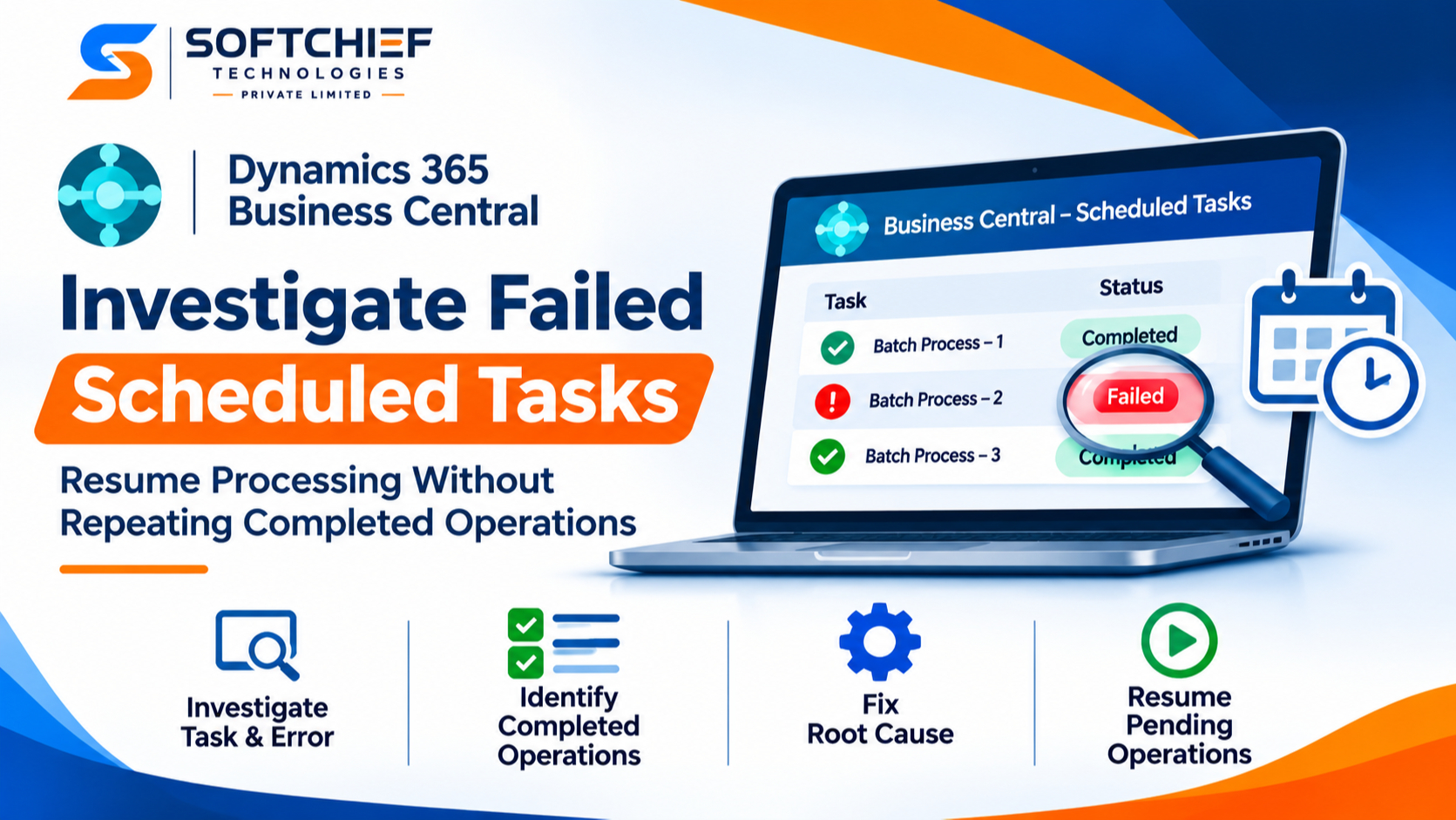
Business Central: How to Investigate a Failed Scheduled Task Without Repeating Completed Operations
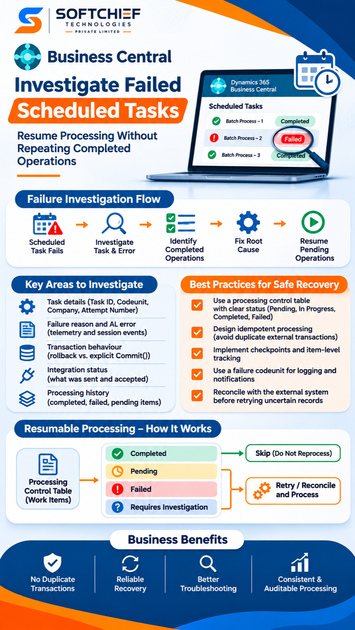
Introduction
A scheduled process in Microsoft Dynamics 365 Business Central can run successfully for several minutes, process hundreds of records and then fail because of a database issue, an integration error, a permission problem or an unexpected AL exception.
The immediate reaction in many implementations is to restart the task.
But that is not always the correct approach.
Consider a Business Central integration that processes 1,000 sales transactions and sends them to an external ERP system. The first 650 transactions have already been successfully processed. Transaction 651 fails because the external API becomes temporarily unavailable.
If the developer simply restarts the entire operation without checking its execution history, the application may attempt to process the first 650 transactions again.
Depending on how the integration was designed, this can result in:
- Duplicate transactions in the external system.
- Repeated invoice submissions.
- Duplicate financial postings.
- Incorrect processing status.
- Inconsistent data between systems.
- Unnecessary API calls.
- Difficult reconciliation and audit investigations.
The real challenge is not simply restarting a failed scheduled task.
The challenge is identifying exactly what completed, what failed, what remains pending and how to resume processing without duplicating successful operations.
This is an important responsibility for Business Central AL developers, technical consultants, functional consultants and solution architects.
In this article, we will examine how Business Central scheduled tasks work, how to investigate failures, how to use telemetry, how to design checkpoint-based processing and how to implement safe recovery patterns in AL.
Understanding Scheduled Tasks in Business Central
Before investigating a failure, we need to understand what a scheduled task actually represents.
Microsoft Dynamics 365 Business Central supports background processing through several mechanisms, including:
- Task Scheduler.
- Job Queue.
- StartSession.
- Page Background Tasks.
These mechanisms serve different purposes.
A scheduled task created through AL runs a codeunit in a background session at a specified time.
For example, a developer may schedule a task to:
- Process pending sales transactions.
- Synchronise customer information.
- Import external data.
- Generate financial integration records.
- Update inventory information.
- Process document attachments.
- Execute a background validation routine.
The Task Scheduler allows developers to control when the operation runs without requiring a user to keep a Business Central page open.
How Does the Task Scheduler Work?
The Task Scheduler manages background execution using the TaskScheduler AL data type.
The important methods include:
| Method | Purpose |
|---|---|
CreateTask | Creates a scheduled task |
SetTaskReady | Makes a task ready for execution |
TaskExists | Checks whether a task exists |
CancelTask | Cancels a scheduled task |
CanCreateTask | Checks whether the current session can create tasks |
A task is created with a reference to the main codeunit and, optionally, a failure codeunit.
The task can also specify the company, earliest execution time and timeout, depending on the overload used.
Scheduled Task Execution Architecture
Business Central Application
          |
          v
    AL Codeunit
          |
          v
 TaskScheduler.CreateTask()
          |
          v
   Scheduled Task
          |
          v
     Task Ready
          |
          v
   Background Session
          |
          v
    Main Codeunit
          |
          v
 Business Processing
          |
      +---+---+
      |       |
      v       v
   Success   Exception
      |       |
      v       v
 Task Ends  Exception Handling
                  |
           +------+------+
           |             |
           v             v
        Retry       Failure Codeunit
The Task Scheduler stores task information in the system-managed Scheduled Task table (ID 2000000175).
When the task becomes ready and its earliest execution time is reached, Business Central starts a background session to execute the main codeunit.
If the codeunit completes successfully, the scheduled task is removed.
If an exception occurs, the platform enters its exception-handling flow.
One important detail is that the exception-handling flow rolls back the current transaction before deciding whether the task should be retried or whether the failure codeunit should run.
This transaction behaviour is central to understanding why some operations are repeated and others are not.
Official Microsoft documentation: Task Scheduler in Business Central.
Scheduled Task vs Job Queue: Understand the Difference
A common mistake is to use the terms Scheduled Task and Job Queue interchangeably.
Although the Job Queue uses the Task Scheduler internally, they provide different application-level experiences.
| Feature | Scheduled Task | Job Queue |
|---|---|---|
| Main purpose | Schedule AL background execution | Manage scheduled business jobs |
| Execution | Background session | Background session |
| Recurrence | Typically one-time task execution | Supports recurring schedules |
| User administration | No dedicated task administration experience | Job Queue pages |
| Execution logging | Task scheduler telemetry | Job Queue Log Entries and telemetry |
| AL scheduling | TaskScheduler methods | Job Queue configuration and processing |
| Typical usage | Developer-controlled background operations | User-configurable recurring business processes |
For example:
A developer may create a scheduled task to process a specific integration batch.
However, if the business requires a recurring daily process that administrators can configure and monitor through the Business Central client, a Job Queue may be more appropriate.
Important: Job Queue entries also execute through the Task Scheduler infrastructure. Their error-handling and logging mechanisms include additional Job Queue processing logic.
This distinction matters because the investigation process depends on how the background operation was initiated.
Microsoft reference: Job Queue in Business Central.
Why Does a Scheduled Task Fail?
A scheduled task can fail for several reasons.
Understanding the failure category helps determine whether the problem requires a code correction, configuration change, data correction or controlled retry.
Database and Infrastructure Problems
Examples:
- Temporary SQL connection failures.
- Database connectivity issues.
- Business Central service interruptions.
- Service restarts during execution.
- Upgrade activities affecting task execution.
Some infrastructure-related exceptions are retriable.
AL Runtime Exceptions
Examples:
- Invalid record references.
- Unexpected errors in business logic.
- Missing configuration.
- Incorrect data assumptions.
- Invalid field values.
- Unhandled exceptions.
Permission Problems
A background task executes using the security context associated with the scheduling operation.
The executing user or application must have the required permissions for the codeunit and the records involved.
A process that works for one user in the foreground may fail when executed using a different background execution identity.
Integration Failures
Examples:
- External API unavailable.
- Authentication token expired.
- HTTP 401 or 403 responses.
- HTTP 429 throttling.
- Invalid JSON responses.
- External system validation failures.
- Network timeout.
These failures require careful handling because an external system may have completed an operation even when Business Central did not receive a successful response.
For example, an external API may accept an invoice submission, but the response may be lost due to a network interruption.
If Business Central blindly submits the same invoice again, a duplicate may be created.
Data-Related Problems
Examples:
- Missing customer information.
- Invalid posting groups.
- Incorrect dimensions.
- Missing document references.
- Duplicate external identifiers.
- Incomplete integration mapping.
A task should not repeatedly attempt an operation that requires manual correction without identifying the underlying data issue.
Understanding Transaction Rollback and Automatic Retry
This is one of the most important technical concepts in this topic.
Developers must understand what Business Central does when an exception occurs during scheduled execution.
What Happens When a Scheduled Task Fails?
Consider the following AL processing sequence:
Start Task
    |
    v
Process Customer A
    |
    v
Process Customer B
    |
    v
Process Customer C
    |
    v
Process Customer D
    |
    v
Unexpected Error
    |
    v
Exception Handling
    |
    v
Current Transaction Rollback
    |
    v
Retry Decision
When the main codeunit encounters an exception, the Task Scheduler enters the exception path and rolls back the current transaction.
This means database changes that belong to the uncommitted transaction are rolled back.
However, there is an important distinction.
Transaction rollback does not automatically undo every operation performed by the application.
For example:
- An external API may already have accepted a request.
- An email may already have been sent.
- A transaction may have been committed explicitly using
Commit(). - Another independent background process may already have completed its work.
These operations are not necessarily reversed by the rollback of the current transaction.
Understanding the Impact of Commit()
Consider this example:
ProcessCustomerA();
ProcessCustomerB();

Commit();

ProcessCustomerC();
ProcessCustomerD();

Error('Unexpected processing error');
Assume all operations use the same database transaction context.
The first two operations were committed before the error occurred.
The changes made after that commit, within the current transaction, are subject to rollback.
If Business Central retries the main codeunit, the execution starts again from its entry point.
Unless the developer has implemented duplicate protection, Customer A and Customer B may be processed again.
This is why explicit transaction boundaries must be designed carefully.
Important: Avoid using Commit() simply to make a long-running task appear more reliable. It changes transaction atomicity and creates recovery responsibilities for the application.
Automatic Retry Behaviour
The Task Scheduler distinguishes between retriable and non-retriable exceptions.
For Business Central online, the service determines which exceptions are retriable.
For Business Central on-premises, administrators can configure retriable exceptions using the TaskSchedulerExecutionRetryExceptions server setting.
Microsoft documents the following retry intervals:
Business Central Online
| Retry attempts | Approximate waiting time |
|---|---|
| 1 and 2 | 30 seconds |
| 3 and 4 | 1 minute |
| 5 and 6 | 2 minutes |
| 7 and 8 | 3 minutes |
| 9 to 99 | 5 minutes |
The platform can retry up to 99 times.
Business Central On-Premises
| Retry attempts | Approximate waiting time |
|---|---|
| 1 and 2 | 2 minutes |
| 3 | 4 minutes |
| 4 to 9 | 15 minutes |
The platform can retry up to nine times.
These intervals are approximate and should be checked against the documentation for the deployed Business Central version.
Microsoft reference: Task Scheduler and Retry Behaviour.
The Correct Investigation Approach
When a scheduled task fails, do not immediately recreate the task or restart the entire processing operation.
First, establish what happened.
A practical investigation should follow this sequence:
Scheduled Task Failure
          |
          v
Identify Task ID
          |
          v
Identify Main Codeunit
          |
          v
Inspect Failure Details
          |
          v
Review Transaction Boundaries
          |
          v
Identify Completed Operations
          |
          v
Identify Pending Operations
          |
          v
Correct Root Cause
          |
          v
Resume Safely
          |
          v
Reconcile Final Results
Identify the Scheduled Task
The first step is to identify the task that failed.
Collect:
- Task ID.
- Main codeunit ID.
- Failure codeunit ID, if configured.
- Company.
- Scheduled execution time.
- Execution attempt.
- Failure timestamp.
- Relevant session ID.
The Task ID is particularly important because Business Central task scheduler telemetry uses a unique identifier to correlate events belonging to the same task.
Identify the Main Codeunit
Determine which AL codeunit performed the operation.
For example:
SC Sales Integration Processor
Then inspect:
OnRun()trigger.- Called procedures.
- Record filters.
- Integration logic.
- Transaction boundaries.
- Error-handling logic.
- External API calls.
- Checkpoint implementation.
Do not investigate only the line where the exception occurred.
Trace the complete execution path.
Identify the Actual Failure
Determine whether the failure originated from:
- Business Central AL logic.
- Database execution.
- External integration.
- Permissions.
- Configuration.
- Data validation.
- Execution timeout.
A useful investigation question is:
Did the operation fail before processing the record, during processing, or after the external operation had already completed?
This distinction determines the recovery approach.
Using Task Scheduler Telemetry to Investigate Failures
Telemetry is one of the most useful tools for diagnosing scheduled task failures.
Business Central can send telemetry to Azure Application Insights.
Task scheduler telemetry provides information about task creation, readiness, cancellation, failure and successful completion.
Each task has a unique Task ID that can be used to correlate related telemetry events.
Important Telemetry Events
| Event ID | Event | Meaning |
|---|---|---|
| LC0040 | Task created | Task was created |
| LC0041 | Task ready | Task was made ready |
| LC0042 | Task removed | Task was cancelled or removed |
| LC0044 | Task cancelled | Task execution was cancelled |
| LC0045 | Task failed | Main or failure codeunit failed |
| LC0043 | Task completed | Main or failure codeunit completed successfully |
Notice that a successful LC0043 event can also indicate that the failure codeunit completed successfully.
Therefore, always inspect the isRunningFailureCodeunit dimension before concluding that the original business operation succeeded.
What Information Should You Inspect?
For a failed task, the following telemetry dimensions are particularly useful:
| Dimension | Investigation Purpose |
|---|---|
taskId | Identify the specific task |
codeunitObjectId | Identify the executing codeunit |
failureCodeunitObjectId | Identify the failure codeunit |
failureReason | Identify the runtime exception |
attemptNumber | Identify the execution attempt |
sessionId | Correlate the background session |
companyName | Identify the Business Central company |
environmentName | Identify the environment |
serverExecutionTime | Review execution duration |
sqlExecutes | Understand database activity |
sqlRowsRead | Understand database read activity |
The failureReason field is particularly useful because it contains the exception information.
KQL Query: Find Failed Scheduled Tasks
The following query can be used in Azure Application Insights Logs.
traces
| where timestamp > ago(30d)
| where tostring(customDimensions.eventId) == "LC0045"
| project
    timestamp,
    taskId = tostring(customDimensions.taskId),
    company = tostring(customDimensions.companyName),
    environment = tostring(customDimensions.environmentName),
    codeunitId = tostring(customDimensions.codeunitObjectId),
    failureCodeunitId = tostring(customDimensions.failureCodeunitObjectId),
    attemptNumber = tostring(customDimensions.attemptNumber),
    sessionId = tostring(customDimensions.sessionId),
    failureReason = tostring(customDimensions.failureReason)
| order by timestamp desc
This query identifies failed scheduled task executions during the previous 30 days.
It is useful for answering:
- Which task failed?
- Which codeunit was involved?
- Which company was affected?
- Was the codeunit retried?
- What exception was reported?
- Which session executed the operation?
KQL Query: Investigate One Specific Task
Once you have the Task ID, filter telemetry to investigate the complete execution history.
traces
| where timestamp > ago(30d)
| where tostring(customDimensions.taskId) == "<TASK-GUID>"
| project
    timestamp,
    eventId = tostring(customDimensions.eventId),
    message,
    taskId = tostring(customDimensions.taskId),
    codeunitId = tostring(customDimensions.codeunitObjectId),
    attemptNumber = tostring(customDimensions.attemptNumber),
    failureReason = tostring(customDimensions.failureReason),
    sessionId = tostring(customDimensions.sessionId),
    isFailureCodeunit = tostring(customDimensions.isRunningFailureCodeunit)
| order by timestamp asc
Replace the placeholder with the actual Task ID.
This allows you to reconstruct the recorded task lifecycle.
Important Telemetry Limitation
Task scheduler telemetry does not automatically tell you which individual business records were successfully processed.
For example, telemetry may show that Codeunit 50100 failed after 15 minutes.
It does not necessarily tell you whether sales documents 1001 to 1060 were successfully submitted to an external system.
For that information, the application needs its own processing history, checkpoints and reconciliation records.
Microsoft reference: Analyzing Task Scheduler Telemetry.
Investigating Session Events
Business Central also provides a Session Events table that can help investigate background execution problems.
The system table ID is:
2000000111
You can open the Session Events table from the Business Central web client by adding the table parameter to the URL.
Example:
https://businesscentral.dynamics.com/?table=2000000111Review the relevant session information and error comments.
Use this together with Application Insights telemetry rather than treating either source as a complete business-processing audit.
For example:
- Application Insights identifies the Task ID and failure reason.
- Session Events help investigate the relevant execution session.
- Custom processing logs identify the business records that were completed.
Combining these sources gives a much stronger investigation.
The Most Important Design Principle: Idempotent Processing
Now consider the main challenge.
How do we prevent successful operations from being repeated when a scheduled task is retried?
The answer is to design the processing logic to be idempotent.
What Is Idempotency?
An operation is idempotent when repeating the same operation does not produce additional unintended effects.
Consider a sales invoice integration.
The invoice has an external reference:
BC-INV-10025
The integration sends the invoice to an external ERP system.
If the same request is submitted again, the external system should recognise the reference and avoid creating a second invoice.
This is an example of idempotent integration design.
Why Is Idempotency Important?
Imagine this execution:
| Document | First Execution | Retry |
|---|---|---|
| INV-001 | Completed | Must skip |
| INV-002 | Completed | Must skip |
| INV-003 | Completed | Must skip |
| INV-004 | Failed | Must investigate or retry |
| INV-005 | Pending | Must process |
The second execution should not simply start from the beginning and create duplicate results.
It should determine the processing status of each document.
Recommended Processing States
A custom processing table can maintain a state for each business operation.
| Status | Meaning |
|---|---|
| Pending | Not yet processed |
| In Progress | Processing has started |
| Completed | Processing finished successfully |
| Failed | Processing failed |
| Requires Investigation | Result is uncertain or needs reconciliation |
The exact state model depends on the business process.
For external integrations, distinguishing Failed from Requires Investigation is particularly important.
A network timeout after submitting an invoice does not prove that the external system rejected it.
The external system may have completed the transaction without returning the response.
Blindly resubmitting such an operation can create duplicates.
Designing a Checkpoint-Based Processing Architecture
A checkpoint records the progress of a long-running operation.
Instead of treating the entire batch as one indivisible operation, we track the outcome of individual business records or small processing units.
Consider an integration involving 1,000 sales invoices.
The processing table could maintain:
- Batch ID.
- Source document number.
- External reference.
- Processing status.
- Attempt count.
- Last attempt timestamp.
- Completion timestamp.
- Error message.
- External system reference.
Architecture
Scheduled Task
      |
      v
Batch Processor Codeunit
      |
      v
Processing Control Table
      |
      v
Get Pending Work Items
      |
      v
Process One Document
      |
      v
External System / Business Logic
      |
      v
Validate Result
      |
      v
Update Processing Status
      |
      v
Completed Checkpoint
      |
      v
Next Pending Document
If the task fails while processing document 651, the next execution should identify the completed documents and process only those that are eligible for further action.
Why Is a Processing Control Table Useful?
It provides a business-level execution history.
For example:
| Batch | Document | Status | Attempt |
|---|---|---|---|
| BATCH-001 | INV-001 | Completed | 1 |
| BATCH-001 | INV-002 | Completed | 1 |
| BATCH-001 | INV-003 | Completed | 1 |
| BATCH-001 | INV-004 | Failed | 1 |
| BATCH-001 | INV-005 | Pending | 0 |
This gives the support team a much clearer understanding of the batch.
More importantly, it gives the application enough information to make a controlled recovery decision.
AL Implementation: Prevent Reprocessing Completed Records
Let’s understand how this pattern can be implemented using AL.
Assume we have a custom processing table called:
SC Integration Work Item
The table contains:
- Entry No.
- Batch ID.
- Source Document No.
- External Reference.
- Processing Status.
- Attempt Count.
- Last Error.
- Completed At.
A unique key should protect the business operation from being registered more than once.
For example:
table 50100 "SC Integration Work Item"
{
    DataClassification = CustomerContent;

    fields
    {
        field(1; "Entry No."; Integer)
        {
            AutoIncrement = true;
        }

        field(2; "Batch ID"; Code[50])
        {
        }

        field(3; "Source Document No."; Code[20])
        {
        }

        field(4; "External Reference"; Code[50])
        {
        }

        field(5; "Processing Status"; Enum "SC Processing Status")
        {
        }

        field(6; "Attempt Count"; Integer)
        {
        }

        field(7; "Last Error"; Text[250])
        {
        }

        field(8; "Completed At"; DateTime)
        {
        }
    }

    keys
    {
        key(PK; "Entry No.")
        {
            Clustered = true;
        }

        key(ExternalReference; "External Reference")
        {
            Unique = true;
        }
    }
}
The enum can be defined as:
enum 50100 "SC Processing Status"
{
    Extensible = false;

    value(0; Pending)
    {
    }

    value(1; InProgress)
    {
    }

    value(2; Completed)
    {
    }

    value(3; Failed)
    {
    }

    value(4; "Requires Investigation")
    {
    }
}
This is a simplified example. A production design should also define how batch identity, company context, external reference uniqueness and record retention are handled.
Processing a Single Work Item
The processing procedure should check the current state before performing the operation.
procedure ProcessWorkItem(EntryNo: Integer)
var
    WorkItem: Record "SC Integration Work Item";
begin
    WorkItem.LockTable();

    if not WorkItem.Get(EntryNo) then
        Error('Integration work item %1 was not found.', EntryNo);

    if WorkItem."Processing Status" = WorkItem."Processing Status"::Completed then
        exit;

    WorkItem."Processing Status" :=
        WorkItem."Processing Status"::InProgress;

    WorkItem."Attempt Count" += 1;
    WorkItem.Modify();

    // Execute the business operation.
    // Validate its outcome before marking the item Completed.

    ProcessBusinessOperation(WorkItem);

    WorkItem."Processing Status" :=
        WorkItem."Processing Status"::Completed;

    WorkItem."Completed At" := CurrentDateTime();
    WorkItem."Last Error" := '';

    WorkItem.Modify();

    Commit();
end;
The ProcessBusinessOperation procedure represents the actual business logic and must be implemented for the specific integration or document-processing requirement.
What Is Happening Here?
The processing procedure performs several important checks.
First: It retrieves the work item.
Second: It checks whether the item has already completed.
Third: If the item is completed, it exits without repeating the business operation.
Fourth: It marks the item as In Progress.
Fifth: It executes the business operation.
Finally: After successful processing, it marks the item as Completed and commits the result.
Important Transaction Consideration
The example illustrates the checkpoint principle, but it is not a universal implementation for every integration.
For Business Central database operations, the business operation and its Completed status should ideally be committed atomically in the same transaction.
That way, a failure before the commit rolls back both changes.
If an explicit Commit() is used after each work item, previously committed work items remain completed when the task retries.
However, if the business operation involves an external API, the external operation cannot participate in the Business Central database transaction.
For example:
- Business Central sends an invoice.
- The external ERP accepts it.
- The network connection fails before Business Central receives the response.
- Business Central cannot confirm whether the invoice was created.
- The task retries.
In this situation, the work item must not be treated as safely retryable without reconciliation.
Use an idempotency key recognised by the receiving system, or query the external system using a stable business reference before resubmitting.
A database checkpoint alone cannot guarantee exactly-once execution across two independent systems.
Building a Safe Resume Mechanism
A recovery process should not automatically process every record whose status is not Completed.
It should classify work items based on their state.
For example:
| Status | Recovery Action |
|---|---|
| Pending | Process normally |
| In Progress | Investigate whether execution was interrupted |
| Completed | Skip |
| Failed | Retry only after checking the failure reason |
| Requires Investigation | Reconcile with the external system before retrying |
Why Should In Progress Records Be Investigated?
Suppose a task marks a record as In Progress and then the background session is terminated.
The record may remain in In Progress status.
However, the external system might already have completed the requested operation.
Therefore, the recovery process must determine whether the operation was completed before deciding to execute it again.
A practical design may include:
- Processing start timestamp.
- Last heartbeat timestamp.
- Attempt number.
- External transaction reference.
- Reconciliation status.
- Recovery eligibility.
Do not simply reset every In Progress record to Pending.
That approach can create duplicate operations.
Handling Failures with a Failure Codeunit
The Task Scheduler supports an optional failure codeunit.
When a non-retriable exception occurs in the main codeunit, Business Central can execute the configured failure codeunit.
The failure codeunit should perform appropriate failure-handling activities.
For example:
- Record the failure details.
- Capture the affected batch.
- Store the exception information.
- Notify the support team through an approved mechanism.
- Mark the batch for investigation.
- Preserve the completed processing history.
The failure codeunit should not blindly repeat the main business operation.
It should provide operational visibility and controlled recovery.
Also remember that failures occurring inside the failure codeunit have their own retry behaviour.
The failure codeunit itself must therefore be designed to tolerate repeated execution.
Monitoring and Performance Considerations
A scheduled task may work correctly with 100 records but fail or become inefficient when processing 100,000 records.
Enterprise implementations must consider the following.
Batch Processing
Avoid loading and processing unnecessarily large datasets in one operation.
Process manageable batches and maintain reliable checkpoints.
Database Locking
Long-running transactions can increase contention with other Business Central users and processes.
Use appropriate transaction boundaries and avoid holding locks longer than necessary.
Task Timeouts
A scheduled task can be cancelled when it exceeds its configured timeout.
Telemetry provides information about cancellation and timeout behaviour.
Review the execution duration and determine whether the workload should be divided into smaller tasks.
Concurrency
If multiple tasks process the same business records, they must not perform conflicting operations.
Use appropriate locking, unique constraints and state validation.
A record should not be claimed by two workers at the same time.
Integration Throttling
External systems may impose API rate limits.
Use appropriate retry delays and respect the receiving API’s throttling guidance.
Do not retry every HTTP error indiscriminately.
For example:
- HTTP 429 may require waiting according to the API’s retry guidance.
- HTTP 401 may require authentication correction.
- HTTP 400 may indicate invalid business data.
- HTTP 500 may require controlled retry and reconciliation.
The correct response depends on the external API’s documented behaviour.
Real-Time Enterprise Scenario: Business Central to External ERP Integration
Consider a manufacturing organisation that integrates Business Central sales invoices with an external enterprise finance system.
The integration processes 2,000 invoices every night.
The business requirement is that each invoice must be transferred once and its external reference recorded.
Existing Problem
During one execution:
- 1,200 invoices are successfully transferred.
- Invoice 1,201 encounters an API timeout.
- The task fails after retries are exhausted.
The support team needs to resume processing without creating duplicate invoices in the external ERP.
Proposed Solution
Implement a processing-control architecture.
Each invoice receives a unique integration reference.
The integration maintains a processing record containing:
- Business Central invoice number.
- External reference.
- Batch identifier.
- Processing status.
- Attempt count.
- External response reference.
- Last error.
- Completion timestamp.
Recovery Flow
Failed Integration Batch
          |
          v
Read Processing History
          |
          v
Classify Every Invoice
          |
     +----+----------------+
     |         |           |
     v         v           v
 Completed  Pending    Uncertain
     |         |           |
     v         v           v
   Skip     Process     Reconcile
                         |
                         v
                  External ERP Check
                         |
                  +------+------+
                  |             |
                  v             v
              Already Done   Not Found
                  |             |
                  v             v
             Mark Complete   Retry Safely
Expected Outcome
- Completed invoices are not submitted again.
- Pending invoices are processed.
- Failed invoices are investigated.
- Uncertain transactions are reconciled.
- Duplicate submissions are prevented through an agreed idempotency mechanism.
- The support team has an auditable processing history.
This is a more reliable approach than simply restarting the entire batch.
Common Mistakes Developers Should Avoid
| Mistake | Why It Is Dangerous | Correct Approach |
|---|---|---|
| Restarting the entire task immediately | Previously committed operations may repeat | Inspect processing history first |
| Assuming rollback reverses API calls | External operations are outside the database transaction | Use idempotency and reconciliation |
| Using Commit() excessively | Creates partial-commit recovery requirements | Design deliberate transaction boundaries |
| Ignoring retry behaviour | The platform may execute the main codeunit again | Make processing retry-safe |
| Treating every error as transient | Permanent data errors will continue failing | Classify exceptions |
| Resetting all In Progress records | May repeat operations already completed externally | Investigate uncertain records |
| Logging only the final exception | Does not identify completed business operations | Maintain item-level processing logs |
| Running multiple workers without coordination | Can cause concurrent duplicate processing | Use atomic claiming and unique constraints |
| Using a failure codeunit to repeat everything | Can introduce additional duplicates | Separate failure handling from business processing |
Expert-Level Design Recommendations
For production-grade Business Central extensions, consider these additional practices.
Use stable business identifiers
Every integration operation should have a stable identifier that remains unchanged across retries.
Separate technical task status from business operation status
A scheduled task can fail even though some business operations have already completed.
Track both levels independently.
Use an Outbox Pattern for External Integrations
When a Business Central transaction needs to trigger an external operation, consider recording an outbound message in the same database transaction as the business change.
A separate dispatcher sends the message and records its outcome.
This improves reliability because the outbound intent is persisted with the business transaction.
The receiving system should still support idempotency or duplicate detection.
Implement reconciliation
Provide a way to compare Business Central processing records with the receiving system’s transaction references.
Preserve diagnostic information
Record the original error, attempt history and relevant external response details without storing credentials or sensitive data.
Design recovery as a controlled business operation
Allow support teams to resume eligible records rather than forcing a complete batch restart.
Practical Implementation Assignment
Build a Resumable Sales Invoice Integration Processor
Business Scenario
A company needs to transfer posted sales invoices from Business Central to an external finance application.
The integration must support failure recovery without resubmitting previously completed invoices.
Technical Requirements
- Create a custom integration-control table.
- Generate a stable external reference for each invoice.
- Maintain Pending, In Progress, Completed, Failed and Requires Investigation statuses.
- Implement a background processing codeunit.
- Implement item-level checkpoints.
- Maintain attempt counts and error details.
- Prevent duplicate processing.
- Implement a failure codeunit.
- Implement a reconciliation procedure.
- Provide a controlled resume action.
Expected Deliverables
- AL table and enum objects.
- Processing codeunit.
- Failure codeunit.
- Integration processing history.
- Telemetry investigation approach.
- Recovery procedure.
- Test evidence.
Validation Scenarios
- Process 100 invoices successfully.
- Introduce a failure after 40 invoices.
- Restart the processing operation.
- Confirm that completed invoices are skipped.
- Confirm that pending invoices are processed.
- Simulate an API timeout after the external system accepts an invoice.
- Reconcile the external transaction before retrying.
- Verify that no duplicate invoice is created.
Frequently Asked Questions
Does Business Central automatically retry a failed scheduled task?
Yes. The Task Scheduler automatically retries certain retriable exceptions. The retry behaviour depends on the exception type and whether Business Central Online or On-Premises is being used.
Does transaction rollback undo all previously completed operations?
No. It rolls back changes in the current uncommitted transaction. Explicitly committed database changes and external side effects are not automatically reversed.
Can we restart a failed task from the exact line where it failed?
The Task Scheduler retries the main codeunit from its entry point. It does not automatically resume AL execution from the last completed statement.
Developers must implement checkpoints and recovery logic to resume business processing safely.
What is the difference between a failed task and a failed business transaction?
A task failure represents a problem with the background execution.
A business transaction failure represents a problem with an individual business operation.
One scheduled task may contain multiple business transactions, some completed and others failed or pending.
How do we identify completed operations?
Use an application-level processing history with stable business identifiers, completion status, timestamps and external references where applicable.
Should we use a Job Queue or Task Scheduler?
Use the Task Scheduler when the application needs developer-controlled background execution.
Use a Job Queue when users need configurable scheduling, recurrence and operational visibility through Business Central’s job management pages.
Conclusion
Investigating a failed scheduled task in Microsoft Dynamics 365 Business Central requires more than identifying an error message and restarting the process.
Developers must understand the Task Scheduler execution lifecycle, automatic retry behaviour, transaction rollback, explicit commits, external integration side effects and business-level processing history.
The most important architectural principle is to design background processing so that it can safely tolerate repeated execution.
A reliable scheduled process should not depend on the assumption that it will always complete successfully in one attempt.
It should know which operations have completed, which operations remain pending, which failures are recoverable and which operations require reconciliation.
That is what separates a basic background codeunit from a production-ready enterprise processing solution.
For Business Central technical professionals, learning how to investigate failures and design resumable processing is an essential skill when building integrations, financial automation and large-volume background operations.
Take Your Business Central Technical Skills Further with Softchief Learn
Working with Business Central requires more than understanding pages, tables and AL syntax.
Professional developers and consultants must also understand background processing, scheduled tasks, transaction management, integration reliability, error handling and production troubleshooting.
At Softchief Learn, our Microsoft Dynamics 365 Business Central training focuses on practical AL development, technical implementation, real-world scenarios and enterprise troubleshooting.
If you want to strengthen your Business Central technical skills and learn how these concepts are applied in real projects, explore our Business Central training programmes.
Learn the technology. Understand the architecture. Build solutions that work reliably in production.