Power BI Reports Work for the Author but Fail for Other Users: Find the Cause
Introduction
A Power BI report looks perfect on your screen, but a colleague gets an access error, blank visuals, missing rows, or a failed refresh. The gap can be confusing, especially when you haven’t changed the report.
The report may be fine. The author and viewer can have different permissions, licenses, data access, or sign-in identities. The way you shared the report also affects what recipients can open.
Start with the exact symptom. Then reproduce it as the affected user and check access, data, and environment settings in order. This helps you find the failing layer before changing settings that already work.
Pinpoint the failure before changing report settings
First, find out what still works. A report that won’t open needs a different check from one that opens but shows empty charts.
Record the exact error and what still works
Ask whether the user can open the report, see the page but not its visuals, or view some pages but not others. Record the error text, affected visual or page, time, and whether the issue occurs in Power BI Desktop, the Service, or both.
Also ask whether the data looks wrong or simply old. These details help separate a report display problem from an access, query, or refresh issue.
Reproduce the issue using the affected user’s account
Test through the same route the user takes: a workspace, app, or shared link. If possible, have the person sign in and show you the result.
Your account may have more rights than theirs. Testing as the author can hide a missing permission or data rule.
Separate report access, data access, and refresh failures
Opening a report, querying its semantic model, and refreshing its data are separate actions. A user may be allowed to view a report but not create content from its model, while a refresh may fail because stored credentials expired.
Use the symptom to choose where to start. An access error points to sharing; blank or different results point to identity or data security; stale data points to refresh.
Check Power BI sharing, permissions, and licensing
The way you distribute a report affects which people can open it. Check the recipient’s access route before you change report settings.
Verify the report’s distribution path and audience access
Confirm whether the user opens a workspace app, workspace item, or directly shared report. Check that their account or group is in the right app audience and that the report is included and visible to that audience.
An app can contain several audiences with different content. Microsoft’s workspace app guidance also notes that dependent reports and semantic models in other workspaces may need separate access.
Confirm permissions on the report and semantic model
Check access to the report and its underlying semantic model. Viewing a report doesn’t usually require Build permission; users need Build when they want to create their own reports or other content from the model.
If a report relies on a model in another workspace, check access there too. A link to the report won’t fix a missing permission on a dependency.
Check licensing, capacity, and guest-user conditions
Compare the user’s license with the workspace’s capacity and the way you shared the content. In shared capacity, viewers generally need Pro or PPU; users with a free license can view shared content when it’s hosted on qualifying Premium capacity or Fabric F64 or higher. PPU workspaces have separate requirements.
Microsoft’s Power BI license overview explains the current combinations. For guest users, check the organization’s external-access and tenant settings as well as the guest’s account and license.
Diagnose blank or different results with identity and row-level security
A user may open the same report and see different data because security filters depend on their identity. Test with the affected user before widening access.
Test row-level security as the affected user
Review the RLS role rules, role membership, and identity values used by dynamic filters. A rule that compares USERPRINCIPALNAME() with an email field can return no rows if the stored value doesn’t match the viewer’s sign-in name.
Use the Service’s Test as role feature where it fits, then compare with the user’s actual result. Microsoft’s RLS documentation warns that the test doesn’t fully simulate every identity, including DirectQuery models with SSO.
Check how workspace roles affect RLS
Check the user’s workspace role. RLS applies to users with the Viewer role, but it doesn’t restrict Admin, Member, or Contributor roles in the same way.
If users must see data filtered by RLS, use the Viewer role or share the report through an app. Keep access limited to what each person needs. See Microsoft’s workspace role guidance.
Inspect identity propagation for DirectQuery and SSO
With DirectQuery and SSO, queries can run using the viewer’s identity. If that person lacks permission at the source, a visual may fail even when the report opens.
Check the gateway’s authentication setup and the viewer’s source access. If queries use stored credentials instead, confirm which account Power BI uses and what data that account can read.
Restore access to the data source, gateway, and refresh path
When the report opens but visuals fail or data goes stale, check how the semantic model connects to its sources. The author’s Desktop credentials don’t prove that the Service can connect.
Validate semantic model credentials and data-source permissions
In the Service, open the semantic model settings and check the data source credentials and authentication status. Credentials may have expired or changed, or the account used for queries may no longer have source access.
For imported data, viewers usually query the data stored in the semantic model, not the original source directly. For DirectQuery, source access can affect what each user sees.
Check gateway mapping and availability
For gateway-dependent sources, confirm that the gateway is online and the semantic model maps to the right data source. Check that the gateway connection uses the expected authentication method and has the required permissions.
A model can work in Desktop and fail after publishing if its server or database name doesn’t match the gateway data source. Verify the mapping rather than guessing.
Distinguish a refresh failure from a report-query failure
Check refresh history separately from errors that happen when users filter or open visuals. Refresh history shows the status, time, and error details for each attempt.
Microsoft’s scheduled refresh guidance recommends checking gateway status and credentials when refresh fails. Also look for recent source changes, such as a renamed column or a changed sign-in method.
Compare the author’s environment with the user’s experience
If permissions and data checks look right, compare the published content and the user’s setup. Keep the test focused on the same report, page, and filters.
Confirm the published report and model are current
Check that you published the intended report and semantic model, and that the report points to the expected model. For a composite model or linked semantic model, check access and dependencies at each layer.
If you use an app, changes in the workspace aren’t live to app users until you update the app. Confirm the latest version is published and includes the needed content.
Compare browser, device, and interaction conditions
Have the user try a supported browser or private session, then compare the same page and filters. A stale sign-in, cached session, or browser extension can affect what appears.
Treat this as a later check, not a replacement for permission testing. If the issue follows the user across browsers, focus on their account or data access.
Review tenant settings and organization controls
If sharing, export, or embedding is unavailable, ask the Power BI administrator to check the related tenant setting or policy. Name the blocked feature and affected group so the admin can review the right control.
Avoid changing tenant-wide settings until you know which feature is blocked. A broad change can grant access beyond the people who need it.
Prevent repeat failures with a permission and release checklist
A short viewer test before release can catch problems that the author’s session won’t show. Make the checks part of your normal publishing routine.
Test with representative viewer accounts before release
Test with accounts that match the intended users’ license, app or workspace access, and RLS roles. Check report navigation, key visuals, filters, and any actions users need.
Include a guest account if you share externally. Test the actual route, such as the published app, rather than relying only on Desktop.
Document dependencies and assign clear ownership
Record the semantic model, data sources, gateway, credential owner, RLS roles, and sharing method. Note who handles access changes, credential updates, and refresh monitoring.
This gives the next owner a clear place to start when a data source or account changes. Keep the record current when you publish a new model.
Keep a concise incident record
Log the affected user or group, exact error, report and model names, time seen, and last successful refresh. Add the checks you completed and what changed.
A clear record helps you spot repeat failures and gives administrators useful details without a long back-and-forth.
Give users a reliable report, not just an author-side success
A report that works for its author hasn’t yet passed the viewer test. The author and viewer may have different permissions, identity, license, source access, or sign-in conditions.
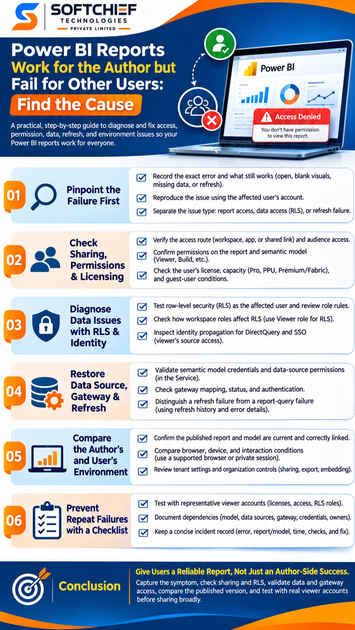
Capture the symptom, reproduce it as the affected user, then check sharing and RLS. Next, validate data credentials and gateways, and compare the published version and user environment. Before you share broadly, test the report with representative viewer accounts.