How to Diagnose Applications That Can Resolve a Hostname but Cannot Reach the Service
Introduction
Azure Networking Troubleshooting is an essential skill for Azure administrators, cloud engineers, and network professionals working with production applications.
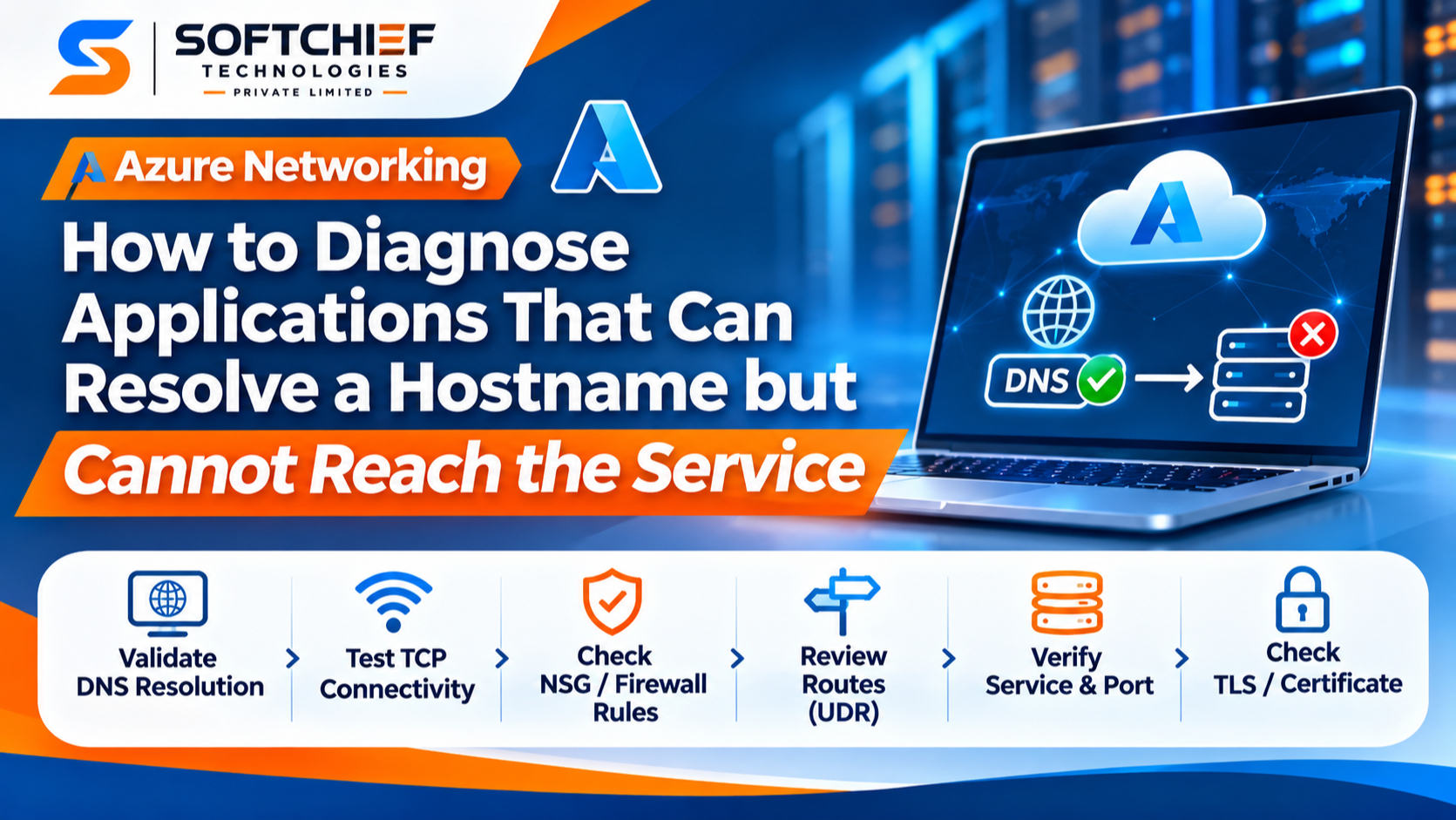
One of the most confusing networking issues in Azure production environments occurs when an application successfully resolves a hostname but fails to connect to the actual service.
For example, an application hosted on an Azure Virtual Machine resolves api.contoso.com to an IP address. However, when it attempts to communicate with the API over HTTPS, the connection times out or fails.
At first glance, DNS appears to be working correctly. Yet the application remains unavailable.
This happens because DNS resolution and network connectivity are two different stages of communication.
DNS only translates a hostname into an IP address. It does not guarantee that the destination is reachable, that the required TCP port is open, that the service is listening, or that TLS negotiation succeeds.
For Azure administrators and network engineers, the correct troubleshooting approach is to investigate the complete communication path, from name resolution to application response.
Let’s examine how to diagnose this problem systematically.
An effective Azure Networking Troubleshooting strategy requires validating both the source and destination before modifying network configurations.
1. Understand Where the Communication Is Failing
Consider an application running on an Azure VM that needs to communicate with an internal API.
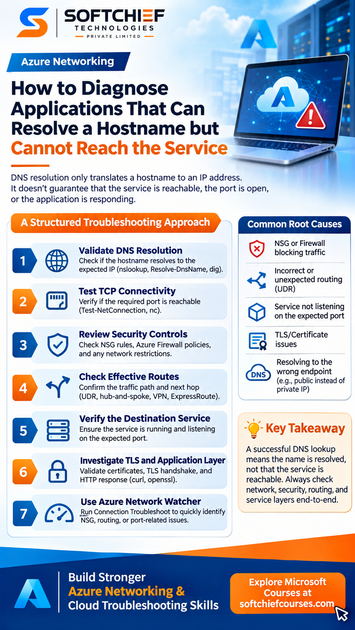
The communication process involves several stages:
- DNS resolves the hostname.
- The client selects the destination IP address.
- The operating system establishes a TCP connection.
- Network security rules permit the traffic.
- Azure routing directs packets towards the destination.
- The destination service accepts the connection.
- TLS negotiation establishes a secure session.
- The application exchanges HTTP requests and responses.
A failure at any stage can prevent successful communication.
The important diagnostic principle is to identify the exact stage where communication stops rather than assuming that a successful DNS lookup means the network is healthy.
Effective Azure Networking Troubleshooting starts with understanding the complete communication path between the application and its destination service.
2. Validate DNS Resolution First
Start by checking whether the application resolves the expected IP address.
On Windows:
nslookup api.contoso.comFor more detailed DNS information:
Resolve-DnsName api.contoso.comOn Linux:
dig api.contoso.comCheck the following:
- Is the hostname resolving successfully?
- Is the returned IP address correct?
- Is the application resolving an IPv4 or IPv6 address?
- Is the response coming from the expected DNS server?
- Is the application using the correct private or public endpoint?
Important Azure consideration: Private DNS
In Azure environments using Private Endpoints, DNS configuration becomes particularly important.
For example, an Azure Storage account may resolve to a private IP address through a Private DNS Zone.
If the application resolves the hostname to an unexpected public IP address, the connection may follow a completely different network path.
Similarly, custom DNS servers, DNS forwarding, and incorrect private DNS zone links can produce unexpected resolution results.
Do not stop troubleshooting simply because nslookup returns an IP address. Validate whether that IP address represents the intended service endpoint.
3. Test TCP Connectivity to the Destination Port
After confirming DNS resolution, the next step is to validate whether the application can establish a TCP connection.
For an HTTPS service:
Test-NetConnection api.contoso.com -Port 443For an application communicating with SQL Server:
Test-NetConnection sql.contoso.com -Port 1433Pay particular attention to:
TcpTestSucceeded : TrueIf the result is False, the TCP connection could not be established.
However, this does not immediately identify the root cause.
Possible reasons include:
- NSG rules blocking traffic.
- Azure Firewall denying the connection.
- Incorrect user-defined routes.
- Destination firewall restrictions.
- Service not listening on the expected port.
- Network appliances dropping packets.
For Linux environments, use:
nc -vz api.contoso.com 443These tests help separate DNS problems from TCP connectivity problems.
Azure Networking Troubleshooting becomes more efficient when administrators use diagnostic tools to identify whether the failure originates from routing, security policies, or destination connectivity.
4. Investigate Network Security Groups and Azure Firewall
During Azure Networking Troubleshooting, administrators should examine security policies and effective network routes together to identify where connectivity is being interrupted
Network Security Groups (NSGs) control inbound and outbound network traffic using security rules.
A common production issue occurs when DNS resolution succeeds but an outbound NSG rule denies access to the destination service.
For example:
| Parameter | Configuration |
|---|---|
| Source | Application subnet |
| Destination | API server |
| Protocol | TCP |
| Destination Port | 443 |
| Required Access | Allow |
Check both source-side outbound and destination-side inbound rules.
In Azure CLI, inspect effective NSG rules associated with the VM’s network interface:
az network nic list-effective-nsg \
  --resource-group <resource-group> \
  --name <nic-name>
If Azure Firewall is deployed between the application and destination, inspect its network rules, application rules, and relevant logs.
Remember that a connection may be blocked even when the NSG appears correctly configured because another security control exists along the communication path.
5. Examine Effective Routes and Next-Hop Behavior
A frequent mistake in Azure networking troubleshooting is checking security rules without examining routing.
Azure routing determines where packets travel after leaving the source network interface.
A User-Defined Route (UDR) may redirect traffic towards:
- Azure Firewall.
- A Network Virtual Appliance (NVA).
- A VPN Gateway.
- Another configured next hop.
An incorrect route can cause traffic to reach an unexpected destination or become unavailable.
Use Azure CLI to inspect effective routes:
az network nic show-effective-route-table \
  --resource-group <resource-group> \
  --name <nic-name> \
  --output table
Review the destination address prefix, next-hop type, and next-hop IP address.
Also investigate the return path.
Even when outbound packets reach the destination, an incorrect return route can create asymmetric routing and cause TCP connections to fail.
This is particularly important in hub-and-spoke architectures involving Azure Firewall, VPN Gateway, ExpressRoute, and NVAs.
6. Verify That the Destination Service Is Actually Listening
Not every connectivity problem originates in Azure networking.
Sometimes the destination VM is reachable, but the application service is stopped or listening on a different port.
On Windows:
netstat -ano | findstr :443On Linux:
sudo ss -lntp | grep :443Check:
- Is the application process running?
- Is it listening on the expected port?
- Is it bound to the correct network interface?
- Is the guest operating system firewall allowing traffic?
- Is the destination service healthy?
A server can respond to basic network tests while the actual application endpoint remains unavailable.
Therefore, validate service availability separately from network reachability.
7. Investigate TLS and Application-Level Failures
Suppose TCP connectivity succeeds, but the application still receives errors.
At this stage, investigate TLS and application-layer communication.
For HTTPS services:
curl -v https://api.contoso.comFor additional TLS diagnostics:
openssl s_client \
  -connect api.contoso.com:443 \
  -servername api.contoso.com
Look for:
- Expired or untrusted certificates.
- Incorrect certificate names.
- TLS protocol or cipher incompatibility.
- Server Name Indication (SNI) issues.
- HTTP 401 or 403 authorization failures.
- HTTP 502 or 503 service errors.
- Application gateway or reverse proxy misconfiguration.
A successful TCP handshake does not guarantee a successful TLS session or HTTP response.
Understanding these layers is essential when diagnosing applications that appear reachable but cannot complete business operations.
8. Use Azure Network Watcher for End-to-End Diagnostics
Azure Network Watcher provides tools that help identify connectivity problems across Azure networking resources.
One particularly useful capability is Connection Troubleshoot.
It can test connectivity between supported Azure resources and destinations using an IP address, FQDN, URI, or VM.
It can help identify:
- NSG restrictions.
- Missing or incorrect routes.
- Guest operating system firewall issues.
- DNS resolution failures.
- Destination ports that are not listening.
- Network connectivity problems.
For example, an administrator can test connectivity from an application VM to api.contoso.com on TCP port 443.
Azure CLI example:
az network watcher test-connectivity \
  --resource-group <resource-group> \
  --source-resource <source-vm> \
  --dest-address api.contoso.com \
  --protocol TCP \
  --dest-port 443
The diagnostic output provides connectivity status and relevant findings that help narrow down the failure.
This is particularly useful in production environments where manually inspecting every network component can consume significant troubleshooting time.
9. A Practical Production Troubleshooting Scenario
Consider an Azure-hosted application that communicates with an internal API through a private network.
The application successfully resolves:
api.contoso.com → 10.20.2.15However, API requests repeatedly time out.
A structured investigation reveals:
| Diagnostic Check | Result |
|---|---|
| DNS Resolution | Successful |
| Destination IP | Correct |
| TCP Port 443 | Failing |
| NSG Rules | Allow traffic |
| Effective Route | Traffic redirected to Azure Firewall |
| Azure Firewall | Network rule denies destination traffic |
| Root Cause | Firewall policy restriction |
After validating the business requirement and correcting the appropriate firewall rule, the administrator retests TCP connectivity and the application request.
The key lesson is that DNS was functioning correctly throughout the incident. The actual failure occurred later in the network communication path.
Conclusion
When an application can resolve a hostname but cannot reach the destination service, troubleshooting should extend beyond DNS.
Azure professionals must investigate TCP connectivity, NSG rules, Azure Firewall policies, effective routes, destination service availability, TLS negotiation, and application-level responses.
A structured diagnostic approach helps isolate failures faster, reduces unnecessary configuration changes, and improves production incident resolution.
The real skill of an Azure Network Engineer is not simply knowing how to configure DNS, NSGs, or route tables. It is understanding how all these components interact during an actual application communication failure.
Continue Your Azure Learning with Softchief
Consistent Azure Networking Troubleshooting practices help engineering teams reduce incident resolution time and avoid unnecessary production changes.
Want to strengthen your practical knowledge of Azure Networking, cloud infrastructure, and production troubleshooting?
Explore Microsoft technology training and practical learning with LIVE Webiars