How to Manage Long-Running Operations Without Freezing the User Interface
Introduction
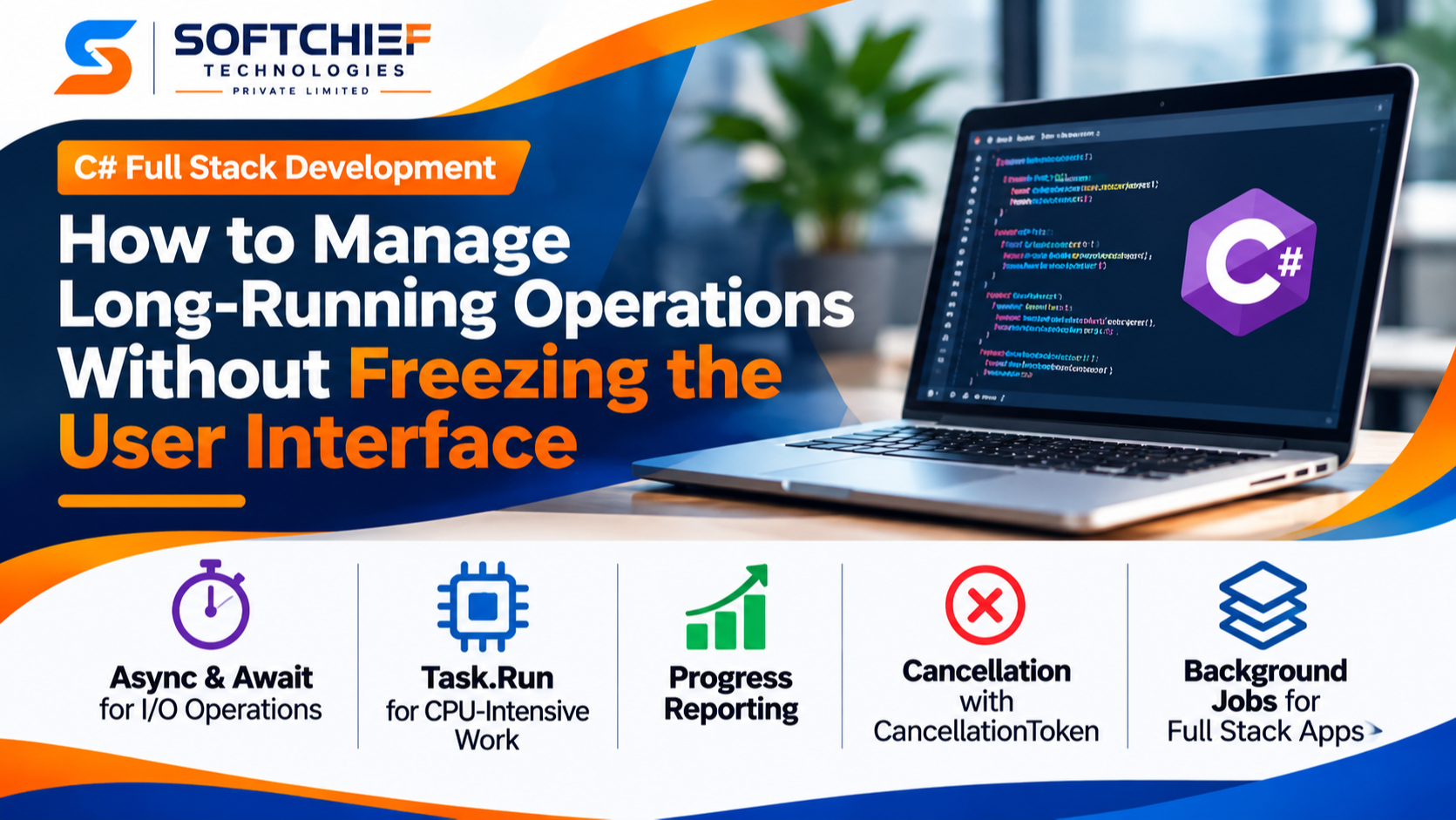
Long-Running Operations are a common challenge in C# Full Stack application development. When applications perform intensive calculations, process large datasets, generate reports, or communicate with external services, poorly designed execution can make the user interface unresponsive.
The user clicks Process, and suddenly the application stops responding. Buttons become unresponsive, the screen stops updating, and the user cannot determine whether the operation is still running or the application has crashed.
This is a common problem in C# application development.
The underlying issue is often that a long-running operation is consuming the thread responsible for handling user interactions.
In modern .NET applications, managing such operations requires more than simply creating another thread. Developers must understand asynchronous programming, CPU-bound versus I/O-bound workloads, cancellation, progress reporting, exception handling, and application architecture.
The objective is to keep the application responsive while ensuring that long-running operations execute reliably and deliver their results correctly.
Let’s explore how to design this in real-world C# applications.
1. Understand Why the User Interface Freezes
In desktop applications such as Windows Forms, WPF, and .NET MAUI, the UI thread handles user input, events, rendering, and updates to visual controls.
When a long-running operation executes synchronously on this thread, the application cannot process other UI events until that operation completes.
Consider this example:
private void ProcessButton_Click(
    object sender, EventArgs e)
{
    var result = GenerateLargeReport();

    resultLabel.Text = "Report completed";
}
If GenerateLargeReport() takes 30 seconds, the UI thread remains occupied during that period.
The user cannot interact with the application normally.
The solution is to design the operation so that the UI thread can return to processing user interactions while the work continues.
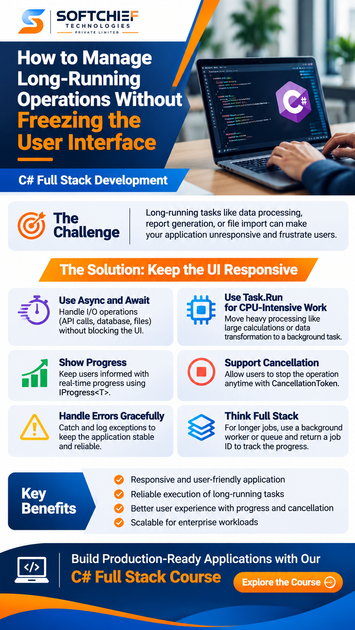
2. Use Async and Await for I/O-Bound Operations
Most business applications spend considerable time waiting for external resources.
Examples include:
- Calling REST APIs.
- Retrieving records from SQL Server.
- Downloading files.
- Reading large files asynchronously.
- Communicating with cloud services.
For these operations, use asynchronous APIs wherever available.
Consider an API integration:
private async void LoadDataButton_Click(
    object sender, EventArgs e)
{
    try
    {
        loadDataButton.Enabled = false;

        using var client = new HttpClient();

        var response = await client.GetStringAsync(
            "https://api.example.com/customers");

        resultLabel.Text = "Data loaded successfully";
    }
    catch (HttpRequestException ex)
    {
        resultLabel.Text = "API communication failed";
    }
    finally
    {
        loadDataButton.Enabled = true;
    }
}
When execution reaches await, the method yields control while the HTTP request is pending.
The UI thread can process other events instead of waiting synchronously for the network response.
Notice that async void is used here only because this is a UI event handler. Reusable asynchronous methods should generally return Task or Task<T>.
Important: Asynchronous I/O does not require creating a new thread for every request. The operating system and .NET runtime manage the asynchronous operation.
3. Use Task.Run for CPU-Bound Operations
Not every long-running operation involves waiting for an external resource.
Some operations consume significant CPU resources.
Examples include:
- Generating complex reports.
- Processing large datasets.
- Image processing.
- Data transformation.
- Performing computationally expensive calculations.
For CPU-intensive work, Task.Run() can move the computation to a ThreadPool thread.
Example:
private async void CalculateButton_Click(
    object sender, EventArgs e)
{
    try
    {
        calculateButton.Enabled = false;

        var result = await Task.Run(() =>
        {
            return CalculateLargeDataset();
        });

        resultLabel.Text = $"Result: {result}";
    }
    finally
    {
        calculateButton.Enabled = true;
    }
}
Here, the expensive calculation runs away from the UI thread.
Once the task completes, execution resumes after await, allowing the result to be displayed.
An important architectural distinction
| Operation | Recommended Approach |
|---|---|
| REST API calls | Async HTTP methods |
| Database queries | Async database APIs |
| File operations | Async file APIs |
| CPU-intensive calculations | Task.Run where appropriate |
| Large background processing | Background worker or job architecture |
Do not wrap naturally asynchronous database or HTTP operations in Task.Run() simply to make them asynchronous.
That introduces unnecessary ThreadPool usage without improving the underlying I/O operation.
4. Implement Progress Reporting for Long-Running Operations
Keeping the UI responsive is important, but users also need feedback.
Consider a file import process involving 50,000 customer records.
Displaying only a spinning indicator for several minutes does not provide much information.
A better implementation reports processing progress.
C# provides the IProgress<T> interface for this purpose.
Example:
private async void ImportButton_Click(
    object sender, EventArgs e)
{
    var progress = new Progress<int>(
        value =>
        {
            progressBar.Value = value;
            statusLabel.Text =
                $"Processing: {value}%";
        });

    await Task.Run(async () =>
    {
        for (int i = 1; i <= 100; i++)
        {
            ProcessRecord(i);

            progress.Report(i);

            await Task.Delay(50);
        }
    });
}
The Progress<T> implementation captures the current synchronization context when created on the UI thread. This allows progress notifications to be delivered back to the UI context.
In production applications, report progress at meaningful intervals rather than updating the UI for every individual record.
For large imports, progress can represent:
- Total records received.
- Successfully processed records.
- Failed records.
- Remaining records.
- Current processing stage.
This creates a more transparent user experience.
5. Support Cancellation Using CancellationToken
Long-running operations should not always be forced to complete.
Users may close a screen, cancel an import, or decide that a report is no longer required.
.NET provides CancellationToken for cooperative cancellation.
Example:
private CancellationTokenSource? _cts;

private async void StartButton_Click(
    object sender, EventArgs e)
{
    _cts = new CancellationTokenSource();

    startButton.Enabled = false;
    cancelButton.Enabled = true;

    try
    {
        await ProcessRecordsAsync(_cts.Token);

        statusLabel.Text = "Processing completed";
    }
    catch (OperationCanceledException)
    {
        statusLabel.Text = "Operation cancelled";
    }
    finally
    {
        _cts.Dispose();
        _cts = null;

        startButton.Enabled = true;
        cancelButton.Enabled = false;
    }
}

private void CancelButton_Click(
    object sender, EventArgs e)
{
    _cts?.Cancel();
}

private static async Task ProcessRecordsAsync(
    CancellationToken cancellationToken)
{
    for (int i = 0; i < 1000; i++)
    {
        cancellationToken.ThrowIfCancellationRequested();

        await ProcessSingleRecordAsync(
            i, cancellationToken);
    }
}
Cancellation is cooperative. Requesting cancellation does not forcibly terminate a running operation.
The underlying processing method must observe the token and respond appropriately.
For database operations, external API requests, and file processing, pass the cancellation token to supported asynchronous APIs whenever possible.
6. Handle Exceptions Without Losing Application Stability
A long-running operation can fail for several reasons:
- Network interruptions.
- Database timeouts.
- Invalid input records.
- External API failures.
- Insufficient permissions.
- Unexpected processing exceptions.
An operation running in the background must still have a clear exception-handling strategy.
Use try-catch-finally around awaited operations.
try
{
    var result = await GenerateReportAsync(
        cancellationToken);

    DisplayReport(result);
}
catch (OperationCanceledException)
{
    ShowStatus("Report generation cancelled.");
}
catch (HttpRequestException ex)
{
    LogError(ex);

    ShowStatus("Unable to access the external service.");
}
catch (Exception ex)
{
    LogError(ex);

    ShowStatus("An unexpected error occurred.");
}
finally
{
    SetProcessingState(false);
}
Avoid swallowing exceptions silently.
Production applications should record relevant diagnostic information, operation identifiers, execution duration, and failure details without exposing sensitive information to users.
7. Apply the Same Principles to Full Stack Applications
The concept of managing long-running operations extends beyond desktop applications.
In an ASP.NET Core application, there is no traditional desktop UI thread. However, blocking request threads can reduce server scalability and cause thread-pool starvation under load.
For example, consider an API that generates a large Excel report.
A poorly designed implementation might block while performing database operations and report generation.
A better design separates the work into appropriate stages.
For shorter operations:
- Use asynchronous database calls.
- Use asynchronous HTTP requests.
- Pass cancellation tokens through application layers.
- Avoid
.Result,.Wait(), and unnecessary synchronous blocking.
For long-running or durable operations:
- The client submits a processing request.
- The API validates the request.
- A background job is created and queued.
- The API returns an operation ID.
- A background worker processes the job.
- The application stores processing status and results.
- The client checks progress through polling, SignalR, or another notification mechanism.
For example, a report-generation API could return:
{
  "operationId": "JOB-10025",
  "status": "Queued",
  "message": "Report generation has started."
}
The client can use this operation ID to retrieve the current processing status.
For enterprise workloads, consider a durable queue, Azure Service Bus, a background worker, or a managed job-processing platform.
This architecture is more reliable than keeping an HTTP request open indefinitely.
8. Production Best Practices
Before deploying long-running operations, consider the following engineering practices:
| Area | Recommended Practice |
|---|---|
| UI responsiveness | Keep expensive work off the UI thread |
| I/O operations | Use genuinely asynchronous APIs |
| CPU processing | Use controlled background execution |
| Progress | Implement IProgress or job-status tracking |
| Cancellation | Support cooperative cancellation |
| Error handling | Log failures and handle exceptions |
| Concurrency | Control parallel workloads and resource usage |
| Database | Avoid holding transactions open unnecessarily |
| API design | Use background jobs for long-running requests |
| User experience | Display processing status and meaningful feedback |
Also avoid creating unlimited parallel tasks or updating UI controls directly from background threads.
In Windows Forms, .NET 9 introduces Control.InvokeAsync for asynchronous UI-thread marshaling. In WPF, use the Dispatcher for UI updates. The appropriate approach depends on the UI framework and target .NET version.
Well-designed long-running operations improve application responsiveness and provide a better experience for users working with enterprise applications.
Conclusion
Managing long-running operations is an important part of building reliable C# Full Stack applications.
The real solution is not simply to introduce additional threads. Developers must understand when to use asynchronous I/O, when to offload CPU-intensive work, how to report progress, how to support cancellation, and when to move processing into a separate background-job architecture.
For desktop applications, the priority is keeping the UI thread responsive.
For web applications, the priority is avoiding blocked request threads and designing background processing that can scale reliably.
A well-engineered application does not make users wait without feedback. It keeps the experience responsive, provides visibility into ongoing work, and handles failures and cancellation gracefully.
Continue Learning with Softchief
Want to strengthen your practical C# and .NET development skills?
Explore Microsoft technology training, application development concepts, and practical enterprise learning resources at:
Want to learn directly from industry experts? Explore our upcoming live Microsoft technology webinars to gain practical insights into C#, .NET, Azure, Dynamics 365, and Power Platform.
Stay connected with Softchief and access Microsoft technology learning resources on the go. Download the Softchief Mobile App from Google Play and continue your learning journey anytime, anywhere.