Business Central: How to Troubleshoot Currency Rounding Differences in Customer Transactions
Introduction
A customer invoice, payment, or balance can be off by a small amount, yet that difference may block payment application or complicate reconciliation. In Business Central, a “rounding difference” can come from line amounts, invoice rounding, tax, currency conversion, or applying entries in different currencies.
Start by finding where the amount first changes. Then check the currency and rounding setup, and trace the posted customer and general ledger entries.
Use your own document numbers and ledger entries as the example. The steps below help you identify the cause before changing setup or posting an adjustment.
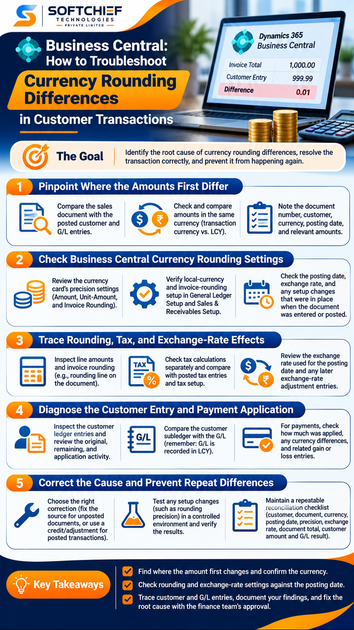
Pinpoint where customer transaction amounts first differ
Start with the earliest point where the numbers stop matching. A journal correction may hide the symptom without fixing the cause, especially if the difference began on the sales document.
Compare the document with its posted entries
Open the sales document or posted invoice and compare its total with the related customer ledger entry and G/L entries. Check whether the amount is already different on the document before posting, or whether the difference appears afterward.
Business Central posts G/L amounts in local currency (LCY). That means a foreign-currency invoice and its G/L entry won’t always show the same currency amount. Microsoft explains how currency amounts are converted and recorded in Business Central.
Separate transaction currency from local currency
Confirm the currency shown beside each amount. A customer ledger entry may show the invoice currency and its LCY equivalent; conversion and rounding can affect these amounts at different stages.
When you compare values, use the same currency basis. Comparing a foreign-currency document total directly with an LCY G/L amount can make a normal conversion look like an error.
Record the values and context
Note the document number, customer, currency code, posting date, and relevant amounts. Also record any filters or report settings that could affect which entries appear.
Use the actual transaction as your working example. This gives you a clear trail to follow without treating sample figures as evidence.
Check Business Central currency rounding settings
Review the setup before changing it. The settings in place when the document was entered or posted matter more than the settings you see today.
Review the currency card’s precision settings
Open the relevant currency card and check Amount Rounding Precision, Unit-Amount Rounding Precision, Invoice Rounding Precision, and Invoice Rounding Type, where applicable. Amount precision affects foreign-currency line amounts; unit-amount precision affects prices. Invoice rounding can add a separate rounding line to the document.
Microsoft’s currency setup guidance describes how these fields control different rounding tasks. Don’t change them just to force one old invoice to match.
Verify local-currency and invoice-rounding setup
Check General Ledger Setup for local-currency invoice rounding rules. Then review Sales & Receivables Setup to see whether invoice rounding is enabled for sales documents.
When invoice rounding is used, Business Central adds a separate line for the rounding amount. The invoice rounding setup instructions also explain the related precision and posting account settings.
Check dates and setup changes
Review the exchange rate that applies to the document’s posting date, including its starting date. A rate used for a later date may not explain the amount on an earlier invoice.
Also check whether someone changed the currency or rounding setup after the document was entered. If your company tracks setup changes, use that history; don’t assume current settings explain a past posting.
Trace rounding, tax, and exchange-rate effects
Several calculations can affect an invoice total. Check line amounts, tax, and currency conversion separately so you don’t treat every difference as a precision problem.
Inspect line amounts and invoice rounding
Compare line extensions with the document total. Rounding each line before adding the totals can produce a different result from rounding the combined amount.
Look for an invoice-rounding line as well. If it exists, confirm that its amount and posting account fit the configured rules.
Check tax calculations separately
Compare the tax shown on the sales document with the posted tax entries. Review the tax setup that applies to the customer, items, and posting date.
A tax difference may come from tax calculation or rounding rules, not currency precision. Keep those causes separate while you trace the total.
Review exchange rates and later adjustments
Confirm the exchange rate used for the posting date, then compare the invoice currency amount with its LCY value. The G/L records LCY, while the sales document retains the original transaction currency for reference.
If an exchange-rate adjustment was run later, check its adjustment entries separately. Business Central can adjust posted customer balances when rates change, affecting LCY values without changing the original invoice currency amount.
Diagnose the customer entry and payment application
Once the invoice is posted, the ledger entries help show whether a difference belongs to the invoice, a payment, or how the entries were applied. Reviewing these records is different from changing posted accounting data.
Inspect customer ledger entries
Open the customer’s ledger entries and follow the invoice or payment to its related detailed entries. Review the original amount, remaining amount, and application activity.
This helps show whether the invoice itself has an unusual balance or whether a later payment or application created the apparent difference. Keep the document number in view as you trace related entries.
Compare the customer subledger with the G/L
Trace the transaction to its G/L entries and compare amounts on a consistent currency basis. Customer entries can include transaction-currency information, while G/L amounts are recorded in LCY.
A display difference alone doesn’t prove that posting is out of balance. First confirm whether the values reflect different currencies or a later adjustment.
Review payment application and realized differences
For a payment, check how much was applied and what remains on the invoice. If the payment used a different currency or rate, review the linked entries for any exchange-rate gain or loss.
The payment application guidance explains how converted-currency applications can show amounts that differ from the original invoice. Check the currency code and the exchange rate used for the application.
Correct the cause and prevent repeat differences
Choose a fix based on the transaction’s status and the cause you found. Don’t edit ledger entries or change rounding setup just to make a displayed total match.
Choose a correction that fits the transaction
For an unposted document, correct the source values or setup, then check the result before posting. For a posted transaction, follow your organization’s approved process for a correction, credit, or adjustment.
If entries were applied across currencies, confirm that the right application and rounding accounts are set up. Microsoft’s guidance on applying entries in different currencies covers the related setup.
Test setup changes before using them
A change to currency precision can affect future sales documents, not only the invoice under review. Discuss the intended result with finance and your Business Central administrator before making a change.
Test the proposed setup with a suitable transaction in a controlled environment, if one is available. Verify the document, customer entry, and G/L result before applying the change in production.
Keep a repeatable reconciliation checklist
For each case, record the customer, document number, currency, posting date, applicable precision settings, exchange rate, document total, customer ledger amount, and G/L result. Add payment application or adjustment details when they apply.
A consistent record makes it easier to spot recurring setup issues and separate them from one-off posting or application differences.
Key takeaways for resolving currency rounding differences
Find the first point where the amount changes, then confirm which currency and calculation you’re comparing. Check rounding and exchange-rate settings against the document’s posting date, and trace the customer and G/L entries before acting.
Careful tracing is safer than changing precision or posting a correction before you know the cause. Use the actual transaction trail, document your findings, and follow your finance team’s approval process before making accounting changes.