Power Automate: Prevent Orphaned Approval Requests When Managers Change
Introduction
An approval can reach the right manager on Monday and stall by Friday if that manager leaves or changes roles. Power Automate approval requests can hold up purchases, access changes, and other work while everyone waits for a response. Updating a person’s manager in a directory doesn’t mean an approval already sent will be reassigned.
To prevent orphaned requests, resolve and check the approver before sending, keep a separate record of each request, and watch for approvals that remain pending. Then give owners a controlled way to reassign or restart them without losing the decision history.
Understand why Power Automate approvals become orphaned
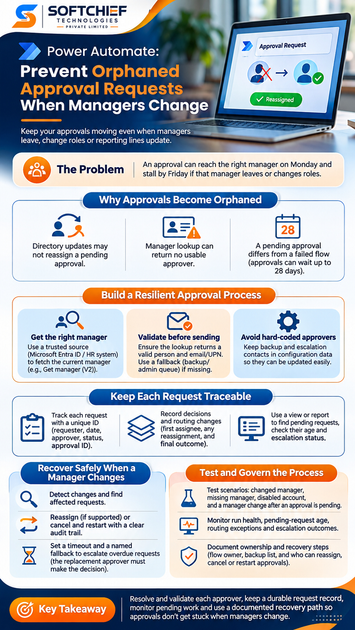
A manager listed in a directory and an approver assigned to an active request are different things. Routing depends on how the flow looks up the manager and which approval action it uses.
A directory update may not change a pending approval
A flow may look up the manager when a request arrives, then place that person in the approval’s Assigned to field. If the reporting line changes later, don’t assume the existing approval will update too. Microsoft’s Approvals connector documentation describes approval actions and their assigned recipients; it doesn’t promise that a directory change reassigns an approval already in progress.
Manager lookup can return no usable approver
The Office 365 Users connector’s Get manager (V2) action retrieves a manager profile from Microsoft Entra ID. Microsoft notes that it returns “No manager found” when no manager is configured for the user. A missing or recently updated record can leave the flow without a recipient. Also check that the returned email or user principal name is valid for the approval action; the connector accepts email addresses, UPNs, or Entra user IDs.
Check whether the request or the flow failed
A pending approval is different from a failed flow run. Review the run history, connector connections, and approval status before trying to recover a request. Microsoft documents that an approval flow can wait up to 28 days; beyond that, the flow fails while the approval can remain in the action center. That can leave an approval with no active flow waiting for it, so check both the known approval issues and your records.
Build Power Automate routing that adapts to manager changes
Resolve the approver from a maintained source, then confirm the identity before creating the approval. Plan a fallback for missing or unusable manager data instead of letting the request stop without a clear owner.
Use a trusted source for the current manager
Use your organization’s approved people data, such as Microsoft Entra ID or a connected HR system. In Power Automate, Get manager (V2) can retrieve a user’s manager profile; its available fields depend on the connector and tenant setup. Check the connector configuration and returned values in your environment before relying on them.
Validate the recipient before sending
Confirm that the lookup returned a person and a usable email, UPN, or ID. If the result is missing or invalid, route the request to a named backup, an administrative queue, or a review step that pauses for correction. The fallback should be part of the flow’s normal logic, not a manual fix known only to its maker.
Keep approvers and ownership out of hard-coded steps
Store backup approvers and escalation contacts in approved configuration data that the right people can maintain. A manager’s email embedded in several flow actions is easy to miss during a team change. Review the flow’s connections and ownership as well, so the process doesn’t depend on one employee’s account.
Keep each approval request traceable
Store request details outside the approval action so administrators can find and manage pending work. Dataverse or SharePoint may fit, subject to your organization’s access, retention, and governance rules.
Track the request and approval reference
Give each business request a unique ID. Keep the requester, submission date, current approver, status, and approval ID or related flow reference alongside it. Microsoft’s connector documentation describes approval creation and waiting actions, but a separate request record gives your team a place to track work across flow runs and staff changes.
Record decisions and changes to routing
Save who was first assigned, any later assignees, and the time and reason for each routing change. When the approval is completed, record the responder, outcome, and response date where available. Limit access to these details and retain them according to your organization’s policies.
Make pending work easy to find
Create a view or report that shows open requests, their age, current assignee, and escalation status. That gives a process owner a way to spot delays without searching individual inboxes or relying only on a flow owner’s run history. Set permissions so the people responsible for recovery can see the records they need.
Recover approvals safely when a manager changes
A recovery process should preserve the original request and make clear which approval is active. Before building it, confirm which reassignment or cancellation options your approval setup supports.
Detect changes and find affected requests
A scheduled check or regular operational review can compare pending requests with current manager and employee-status data. Define which events trigger review, such as a manager leaving, an account being disabled, or a reporting-line change. Use the request record to identify the open approvals tied to that person.
Reassign or restart with a clear audit trail
Where supported, an authorized user may reassign an approval. Microsoft’s guidance on managing approval requests describes reassigning an approval from the Approvals area. If reassignment isn’t available for your setup, evaluate canceling the old approval and creating a replacement linked to the same request. Keep the original assignment and status in your records, and ensure only one approval remains active for the decision.
Set a timeout and a named fallback
Choose a review period that fits the business process, then route overdue requests to a backup or review queue. Handle the timeout as an escalation, not an approval: the replacement approver must still make the required decision. If you use separate Create an approval and Wait for an approval actions, Microsoft warns that a quick response before the wait action starts can leave the flow stuck. Keep those actions close together or test the pattern carefully.
Test and govern the approval process
A flow can work in the common case and still fail during a staff change. Test the edge cases before release, then assign clear owners for the flow, routing data, and recovery steps.
Test manager changes and missing data
Test a changed manager, a missing manager, a disabled account, and an unavailable backup. Also test a manager change after an approval is already pending. For each case, confirm that the request reaches a valid owner, leaves a traceable record, and doesn’t create duplicate active approvals.
Monitor run health and approval age
Review failed runs, pending-request age, routing exceptions, and escalation outcomes. Check approval records alongside Power Automate run history, since neither view alone may show the full picture. Ensure that the people handling these checks have the required access.
Document ownership and recovery steps
Name the team that maintains the flow, backup list, and request records. Document how to review, reassign, cancel, or restart a pending approval, and who can approve those actions. Review connection ownership and account choices against Microsoft guidance and your organization’s security rules.
Conclusion
Manager changes are a routine event, so approval flows shouldn’t rely on a single assignment that can become outdated. Resolve and validate each approver, save a durable request record, monitor pending work, and use a documented recovery path when an assignment changes.
Review your current flow against Microsoft’s connector documentation, then test a manager change while the approval is still pending. A small, controlled test can show whether your process recovers cleanly before a real request gets stuck.