Troubleshooting F&O Integration Failures to Restore Reliable Data Flows
Introduction
A failed Dynamics 365 Finance and Operations (F&O) integration can stall order processing, leave records out of sync, or make it unclear which system has the right data. Fast diagnosis matters because a blind retry may create duplicates or hide the original cause.
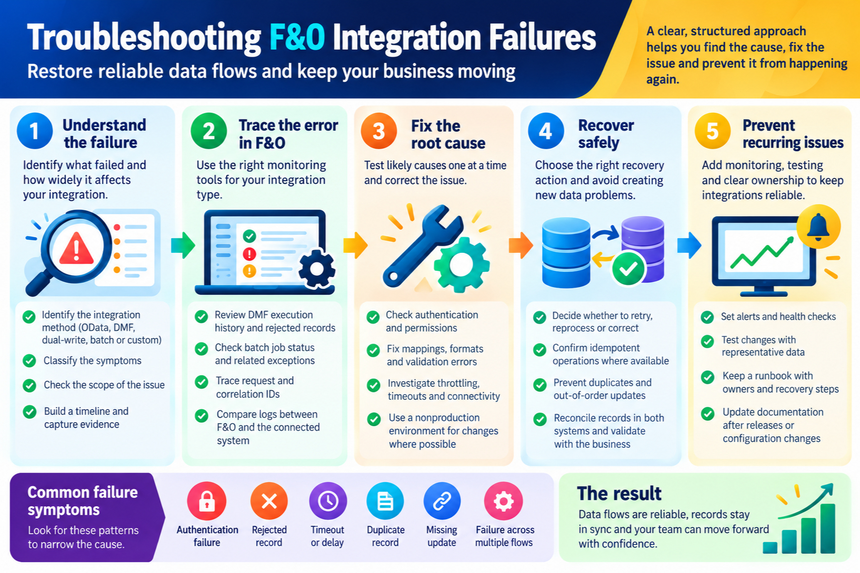
Failures can involve OData, the Data Management Framework (DMF), batch jobs, dual-write, Dataverse, or custom services. Each method has its own logs and retry behavior. Use a clear sequence: identify the affected flow, capture evidence, trace the error, fix the cause, then verify the data.
Troubleshooting F&O integration failures starts with the failure pattern
Before changing settings or resubmitting data, work out what failed and how widely the problem reaches. A single rejected record points to a different cause than a queue that has stopped processing.
Identify the integration method
Check the design or runbook to confirm whether the flow uses OData, DMF, dual-write, a batch data API, or a custom service. Microsoft’s integration pattern guidance describes how these options differ. For example, OData can return a result with the request, while a batch data API schedules work that runs later.
That difference affects where you look for errors. An OData caller may receive an error immediately, while an asynchronous import requires you to check the later execution result.
Classify the symptoms and scope
Record the symptom before you investigate: authentication failure, rejected record, timeout, delay, duplicate, or missing update. Then check whether it affects one record, one entity, one legal entity, or every integration.
A single bad enum value suggests a data or mapping issue. A sudden failure across several flows may point to a shared service, credential, network, or deployment change.
Build a timeline and capture evidence
Note when the issue began, the last successful run, and any recent releases, mapping edits, or credential changes. Save representative error text, timestamps, execution IDs, and correlation or request IDs before retrying.
That evidence helps you compare logs across F&O and the connected system. It also prevents a successful retry from erasing clues about the first failure.
Use F&O monitoring tools to trace the failure
Follow the transaction through the tools for its integration type. One log rarely shows the full path, especially when F&O passes work to a queue or another service.
Inspect DMF projects and execution history
For a DMF import or export, open the project’s execution history and review its execution details. Check staging data, target errors, and any skipped or rejected records. These details can show whether the issue began with a file, field mapping, or F&O validation.
Microsoft’s DMF error descriptions link common error codes to likely causes. For example, an invalid enum value calls for a data correction, while a missing mapped column points to a file or mapping mismatch.
Check batch jobs and asynchronous processing
For queued or batch-driven work, check the job status, batch history, schedule, and related exceptions. Look for jobs that are waiting, failing repeatedly, or finishing without the expected records.
A successful scheduling call doesn’t prove the import itself succeeded. Microsoft’s integration guidance notes that asynchronous callers must check the later process result and handle its errors.
Trace requests and correlation IDs
For OData, dual-write, or custom services, compare timestamps and request IDs between F&O and the connected application. For dual-write, Microsoft documents options such as Dataverse plug-in trace logs and F&O debug logs in its dual-write troubleshooting guidance.
Use logs only for the time and flow under review. Turn on detailed tracing when needed, then turn it off after collecting evidence to avoid keeping unnecessary trace data.
Resolve common F&O integration failure causes
Test one likely cause at a time, and use a nonproduction environment for risky changes when possible. Keep the original error and configuration details so you can tell whether a fix changed the result.
Correct authentication and permissions
Check the application registration, secret or certificate, service account status, and credential expiry. Confirm that the integration identity has the needed roles and access to the relevant legal entities and data.
If access changed recently, compare the current setup with the last known working one. Avoid granting broad rights as a quick fix; use only the permissions the flow needs.
Fix mappings, formats, and validation errors
Review required fields, field mappings, enum values, dates, number formats, and reference data. A record may fail because a customer, product, or other referenced value doesn’t exist in F&O.
Use the rejected-record details to fix the source data or mapping. Repeatedly submitting the same payload won’t correct a bad date, missing column, or invalid enum.
Investigate throttling, timeouts, and connectivity
Check endpoint availability, recent firewall or network changes, request volume, and payload size. A timeout may occur before F&O finishes processing, so confirm the transaction’s status before sending it again.
For large imports, use a suitable batch pattern rather than many rapid calls. Apply backoff between retries and avoid flooding the endpoint while it’s slow or unavailable.
Recover failed transactions without creating new data problems
Once you understand the cause, choose a recovery action that fits the failure. Confirm what has already processed before resubmitting records or rerunning a project.
Choose whether to retry, reprocess, or correct
Retry transient failures, such as a brief service or database outage, after confirming that no partial result needs review. Correct invalid records before resubmitting them. Reprocess an execution only after checking its status and side effects.
Confirm whether the integration supports idempotent operations, which can safely accept the same request more than once. If it doesn’t, check for an existing record before retrying.
Prevent duplicates and out-of-order updates
Use stable business keys and duplicate checks to identify the same record across systems. For flows that process updates in sequence, confirm that older data won’t overwrite newer values.
For dual-write or other two-way flows, review which system owns each field. Make sure a retry won’t trigger a loop in which each system repeatedly updates the other.
Reconcile the records after recovery
Compare record counts, key fields, timestamps, and processing statuses in both systems. Use a small, documented sample first, then expand the check if the results match.
Ask the business owner to confirm sensitive financial or operational records. A job marked complete doesn’t prove every expected value is correct.
Prevent recurring F&O integration failures
A recovery is only part of the fix. Monitoring, testing, and clear ownership help teams spot problems before they disrupt work.
Add alerts and health checks
Set alerts for failed executions, growing queues, repeated sign-in errors, and processing delays. Choose thresholds based on the impact of that flow, such as a delayed order feed versus a low-priority nightly export.
Assign an owner to each alert and state when to escalate it. Manual checks alone can miss a failure between review times.
Test changes with representative data
Before release, test mappings, permissions, expected volumes, and error handling in a suitable nonproduction environment. Include valid and invalid records so the team can see how the flow handles both.
Test retry and recovery behavior too. A flow that passes clean records may still fail when it sees a duplicate key, a missing reference, or a slow endpoint.
Keep a runbook with owners and recovery steps
Document each flow’s endpoints, dependencies, credential owner, monitoring location, and support contact. Include common errors and safe recovery steps, then update the runbook after releases or configuration changes.
Clear ownership saves time during incidents. Teams can find the right logs and contact the person who can approve a data correction.
Conclusion: Restore the flow, verify the data, and prevent the next failure
Start by identifying the integration method and the scope of the failure. Preserve the error details, use the matching monitoring tools, and test the likely cause before making changes. Recover with duplicate safeguards, then reconcile key records in both systems.
Avoid blind retries. Keep clear logs, assign an owner to each flow, and turn repeat failures into better alerts or tests. When an incident closes, record what failed and what confirmed the fix.