Dynamics 365 CE: Keep Record Changes From Disrupting a Running Business Process

Introduction
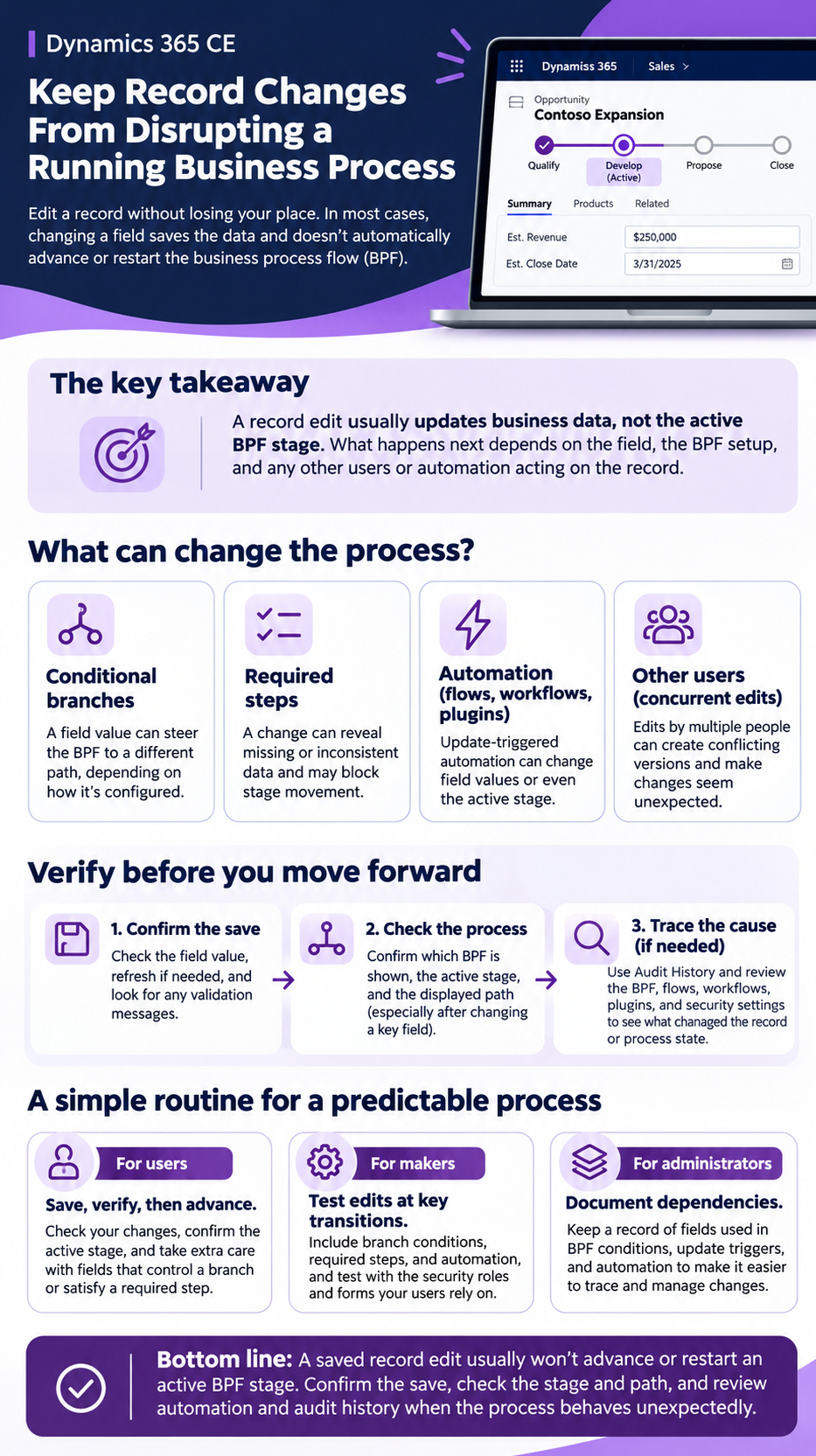
A user edits an opportunity while its business process flow (BPF) is active. Will the edit save, move the process to another stage, or disrupt the path? In most cases, changing a record field updates the record; it doesn’t automatically advance or restart the BPF.
The key is to separate business data from process state. What happens next depends on the field, the BPF setup, and any other users or automation acting on the record.
Knowing what to check can prevent confusion. Here’s how to tell a normal edit from a process change and how to find the cause when something looks wrong.
Dynamics 365 CE record edits don’t automatically change the active stage
The saved record and BPF instance hold different state
A record stores business information, such as an opportunity’s estimated value or close date. A BPF guides users through stages and steps, and its instance tracks the active stage. Microsoft describes BPFs as a visual guide for users, with stage controls such as Next Stage. Saving a changed field doesn’t usually change the active stage by itself. (Microsoft’s BPF overview explains how stages, steps, and process instances work.)
Saving an edit doesn’t necessarily move the user forward
Stage movement is a separate action, usually made through the BPF controls. A step can be set as required, which may block the user from moving to another stage until they enter the needed data. In some setups, required BPF fields can also affect whether the form saves, so read any validation message before assuming the edit was saved.
Process configuration can change the outcome
Custom code or automation may respond to a record update and change data or process state. Microsoft notes that workflows can interact with BPF tables, including changing the active stage when a related record changes. Check the organization’s workflows, flows, plugins, and scripts before concluding that a field edit alone moved the process.
Changed fields can affect what the user sees next
Conditional branches can depend on record values
A BPF can use conditions to guide a user along different paths. For example, a choice field might lead users to a different set of steps depending on the selected option. Changing that field does not necessarily advance the process, and the visible path may depend on how the BPF is configured and when it checks the condition. Test the field change and relevant transition in your own environment.
Required steps can reveal missing or inconsistent data
A changed value may leave a required step unfinished or make the current stage’s details inconsistent. A user might, for example, change a deal status but leave a required reason field blank. Review required steps and check that the saved data still fits the stage before moving forward.
Check the path before advancing
After editing a field used by a BPF, pause and review the displayed stage and path. If they look unexpected, confirm the field saved, then inspect the process conditions and related customizations. That quick check can catch a path change before the user proceeds.
Other users and automation can make edits feel unpredictable
Concurrent edits may create conflicting versions
Two people can work on the same record at once. If one person changes a field while another has an older form open, the second person may not see the latest value before making another edit. Refresh the record and confirm which values persisted; when the cause is unclear, review audit history if auditing is enabled.
Update-triggered flows and workflows run separately
A record edit can start a Power Automate flow, classic workflow, plugin, or other automation, but only when that component is configured to respond to the update. Its actions and timing depend on its setup. A flow might update a field used in a BPF, making the process appear to have changed after the original save.
Review trigger conditions and update scope
Check which table and changes start each flow, whether it updates the same record, and whether it touches fields used by the BPF. Microsoft’s Dataverse row-change trigger documentation explains that the trigger can be set for create, update, or delete events and can filter updates by selected columns or conditions. It also notes that multiple updates can lead to multiple flow runs, so don’t assume every edit starts every flow—or that one edit can only cause one run.
Verify record and process state before continuing
Confirm the record value was saved
Check the field after saving, and refresh the record if needed. A value visible on the form may not have persisted if the save failed or validation blocked it. Look for error messages and compare the displayed value with the saved record.
Check the active stage and process path
Confirm which BPF is shown, which stage is active, and what path the process displays. Users may be able to switch between available processes, and a different process can have its own stage state. If the process changed unexpectedly, check whether someone switched it or configured automation altered its state.
Use auditing and configuration review to trace changes
Dataverse auditing can show who changed an audited record, when it changed, and which fields changed. It must be enabled at the needed environment, table, and column levels; audit records may also take time to appear. Use Microsoft’s Dataverse auditing documentation to check setup and review the Audit History for a record. Then review the BPF, flow, workflow, plugin, and security settings that could affect the update.
A change-control routine keeps the process predictable
Users should save, verify, then advance
Save the record, confirm important values, and check the active stage before moving forward. Take extra care when changing a field that may control a branch or satisfy a required step. If the stage or path looks wrong, stop and verify rather than advancing on assumption.
Makers should test edits at key transitions
Test changes made both before and during stage transitions. Include branch conditions, required steps, and automation that runs on updates. Check the experience with the security roles and forms that users rely on, since process access and display can vary by setup.
Administrators should document dependencies
Keep a record of fields used in BPF conditions, update triggers, and automation that can change record or process state. This makes it easier to trace an unexpected result and assess the effect of a planned change. Review that map when a field, flow, or process is revised.
Conclusion
In Dynamics 365 CE, a saved record edit usually changes business data without advancing or restarting the active BPF stage. The result can differ when a changed value affects a branch, a required step, another user’s edit, or configured automation.
Confirm the save, inspect the current stage and path, and check audit history and automation when the process behaves unexpectedly. Before rolling out a change to a field used by a BPF, test it through the stages your users follow.