Dynamics 365 CE: Design Duplicate Detection Rules That Fit Real Customer Data
Introduction
One customer appears under two email addresses. Another has the same name as a relative. In Dynamics 365 CE, duplicates like these can split interaction histories, skew reports, and leave staff unsure which record to update. Well-designed duplicate detection rules can help teams spot likely matches before those problems spread.
Real customer data rarely looks as tidy as sample data. Names, phone numbers, and company details vary in format and completeness, so a rule may miss a true duplicate or flag two valid records. Design rules around your organization’s data and work habits, then test and review them as those habits change.
Why Dynamics 365 CE duplicate detection starts with real customer data
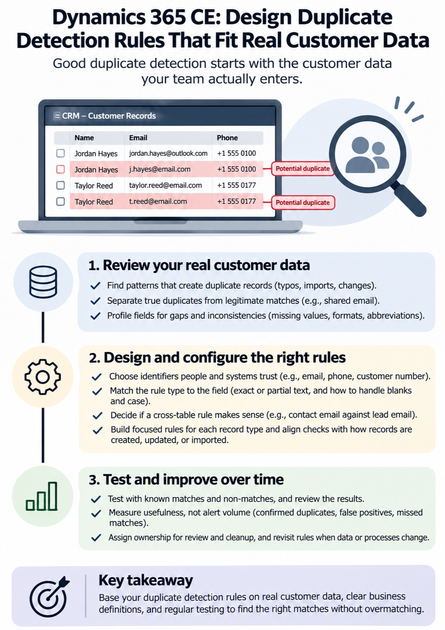
Find the patterns that create duplicate records
Manual entry can create typos or alternate spellings. Imports and integrations may add records without checking them against existing data, while changes in a customer’s name, email, or phone number can make an old record hard to recognize. Review duplicate records already found in your system and look for repeat causes before choosing match fields.
Separate true duplicates from legitimate matches
Two contacts may share a household email address or phone number without being the same person. A company’s general inbox can appear on several contact records, and common names can match by chance. Define what “duplicate” means for each table and process: two account records may need different criteria than two contacts.
Profile fields before choosing match criteria
Check a sample of real records for missing values, inconsistent formats, abbreviations, and outdated details. A phone number might include a country code in one record and omit it in another. Standardize data where practical, and decide how much variation your rules should allow before adding criteria.
Turn business definitions into dependable match criteria
Choose identifiers that people and systems trust
Email can work well for some contacts, but it may be shared or changed. Phone numbers can be reused, while organization names may differ through abbreviations or legal suffixes. A customer or account number can be a stronger identifier if it is stable, reliably filled in, and used consistently.
No field is dependable for every table. Consider how each value is collected, how often it changes, and whether several people or records can share it. Take extra care with sensitive fields; a match should support a clear business purpose and follow your organization’s data rules.
Match the rule type to the field
Dynamics 365 duplicate detection supports exact matching and, for supported text fields, matching the same first or last characters. Partial text matching can catch some spelling or formatting differences, but it can also flag unrelated records. Check the current Microsoft Learn guidance on setting up duplicate detection rules to confirm which options apply to your fields.
Also decide how the rule should treat blank values and letter case. Microsoft’s setup guidance includes options to ignore blank values and to make a rule case-sensitive. Test those choices with actual records before publishing.
Decide when a cross-table rule makes sense
A cross-table rule can compare different record types, such as a contact’s email against a lead’s email. That can help when your process needs to check whether a person already appears in another table. It can also flag records that serve different purposes, so define the process first and test the rule against both likely matches and valid differences.
Configure Dynamics 365 CE duplicate detection rules without overmatching
Build focused rules for each record type
Create a rule for a clear duplicate definition instead of combining unrelated conditions. Select the base record type, the matching record type, and the fields that support the definition. If a rule compares different tables, map the relevant field on each side.
A rule must be published before the system can use it. Microsoft notes that publishing creates matchcodes for records in the matching record type, and that you can publish up to five rules for the same base record type at a time. Keep criteria focused and review existing rules before adding another.
Align checks with user and import workflows
Duplicate checks can behave differently depending on how a record enters or changes in the system. Microsoft documents checks during record creation or updates in supported user interfaces, as well as an option to check for duplicates during imports. The duplicate warning dialog is not shown for every process, such as records created by a workflow.
Confirm your organization’s settings and test the exact paths people use: forms, grids, imports, and integrations. Scheduled duplicate detection jobs can also help find existing records that were not caught during entry. Don’t assume one successful test covers every app or data route.
Know what duplicate detection can and cannot do
Duplicate detection identifies potential matches; it does not merge records or replace a cleanup process. Staff still need to review the results, decide which record to keep, and merge or correct records through an approved process. Microsoft also notes that duplicates can be created if records are processed at the same time, which is another reason to run checks on existing data.
For strict uniqueness, consider whether an alternate key fits the business need. Microsoft Learn explains that Dataverse alternate keys enforce uniqueness on configured column values, while duplicate detection is used to identify possible matches. Choose key columns carefully; Microsoft notes that uniqueness is not enforced when an alternate key column has a null value.
Test and improve Dynamics 365 CE duplicate detection rules
Test against known matches and non-matches
Before broad release, test rules with approved, anonymized records that include confirmed duplicates and legitimate near-matches. For example, include two contacts with the same family email address, then confirm the rule does not treat them as one person unless your business definition says it should. Record which matches were found, which were missed, and which alerts were false.
Run these checks in the environment and workflow where the rule will be used. If a rule catches too many valid records, narrow its criteria or standardize the relevant data. If it misses known duplicates, review field quality and the match type.
Measure usefulness, not alert volume
A large number of alerts does not prove that a rule works well. Ask users whether flagged records are useful and track confirmed duplicates alongside false positives and missed matches. Use your own baseline rather than an outside benchmark; the right balance depends on your records and the cost of reviewing each alert.
Assign ownership for review and cleanup
Name the people who investigate matches, approve merges, and correct source data. Record decisions so staff can apply the same standard to similar cases. Review the rules when forms, integrations, data standards, or business processes change, and schedule periodic checks for older records.
Make duplicate detection part of customer-data governance
Keep the core design principles in view
Good rules begin with a clear business definition, not a convenient field. Profile real records, choose stable match fields, and test for false positives before publishing. Treat detection, cleanup, and uniqueness enforcement as separate tools with different jobs.
Give administrators and data owners a clear next step
Start by documenting what counts as a duplicate for each record type. Inspect a representative set of records, build a small set of focused rules, and test them across the organization’s entry and import paths. Assign an owner to review alerts and revisit the rules on a set schedule.
Conclusion
Dynamics 365 CE duplicate detection works best when it reflects real customer data and real staff workflows. Reliable identifiers, focused criteria, and careful testing help reduce missed matches and false alarms. Document your duplicate definitions, test a small set of rules, and use Microsoft’s current setup guidance when you configure and publish them.