F&O Financial Dimensions: Fix Invalid Combinations Before Posting Delays
Introduction
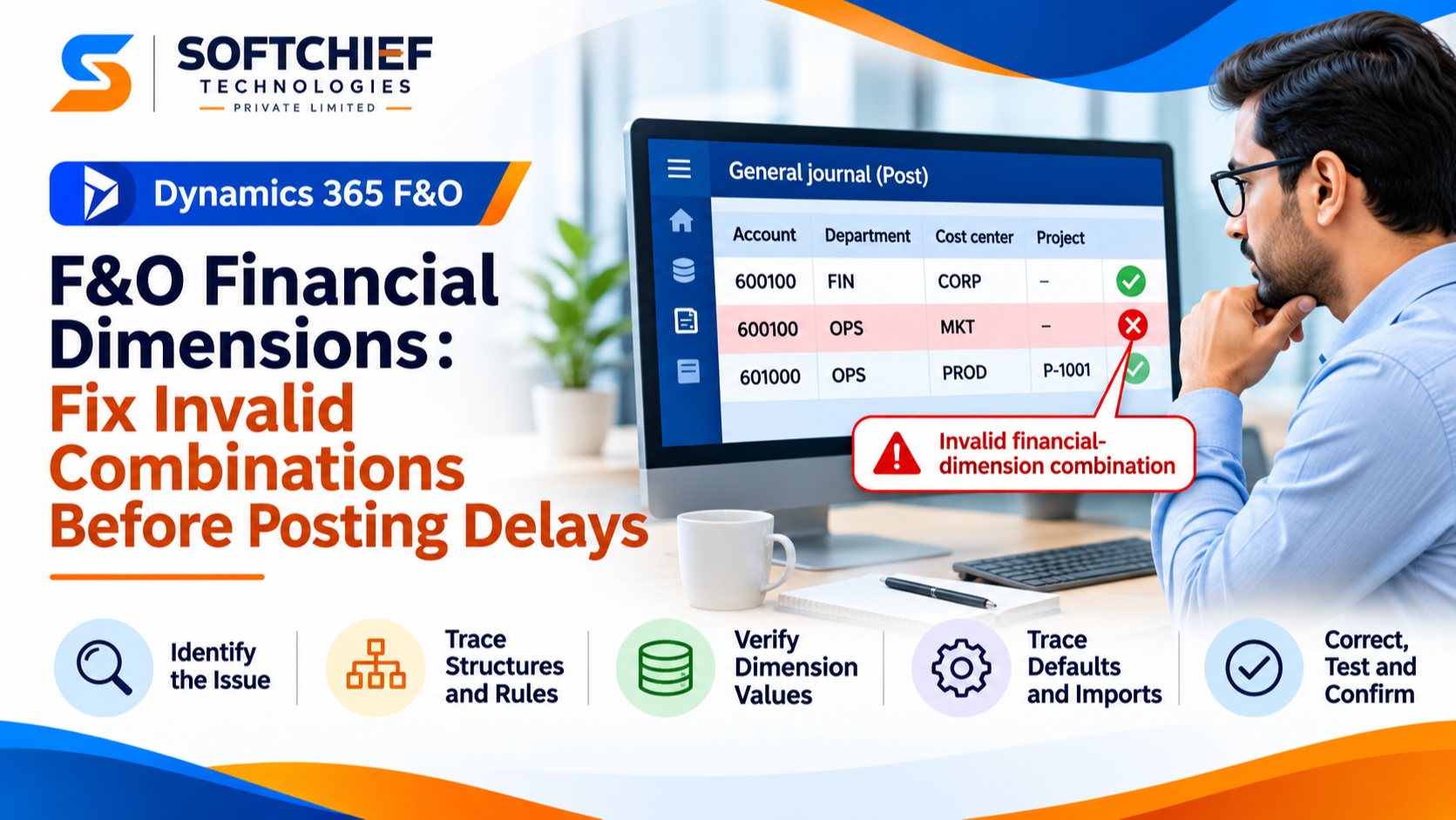
A journal line can look complete and still fail because its account and financial dimensions aren’t allowed together. When F&O financial dimensions block journal posting, close tasks, payments, and other finance work can stall.
The fastest way to find the cause is to trace the error from the journal line back to the rules that govern valid combinations. The right fix depends on your chart of accounts, account structures, advanced rules, and dimension values.
Find the failing journal line before changing setup
Capture the full posting error
Record the complete error text, journal name, batch, voucher, and affected line. Note whether the error appears during entry, validation, or posting. Those details can help separate a dimension-combination problem from other issues, such as an unbalanced voucher.
Use the message to guide your first check. Microsoft’s financial dimension error guidance lists common errors for missing, inactive, suspended, or disallowed values. Some messages also name the account structure or advanced rule that caused the failure.
Check the account and test one change at a time
Review the main account and every financial dimension on the line. Check whether the values were typed in, filled from defaults, or supplied by a template or integration. A value that looks correct on screen may have come from an unexpected source.
Before editing, save the original values and run journal validation. Microsoft documents journal validation and simulated posting in its dimension data validation guidance. Change one value at a time, then validate again; otherwise, it can be hard to tell which edit fixed the problem.
Trace F&O financial dimensions through account structures and rules
Confirm the account structure for the ledger
Account structures set the allowed order and combinations of main accounts and financial dimensions. They’re assigned to a ledger, so don’t assume every main account uses the same requirements. Check the ledger setup and identify the structure that applies to the account on the failing line.
Microsoft’s account structure documentation explains how structures define valid dimensions for account entry and posting. Compare the line’s full combination with the permitted values in the relevant structure. A department may be allowed for one main account but disallowed for another.
Check advanced rules and overlapping criteria
Advanced rules can add dimensions or extra requirements when their criteria apply. Confirm that the affected main account meets the rule’s criteria, then check whether each required dimension is present and allowed. A rule intended for one type of transaction may restrict a line if its criteria are too broad or missing.
Also check for unexpected interactions between structures and rules. Microsoft notes that overlapping criteria can cause conflicts, and the system may enforce the more restrictive applicable combination. Trace the rule path for the specific account before changing setup; a combination that seems reasonable to a user may still fail the configured rules.
Verify each financial dimension value
Check whether the value is available on the transaction date
Confirm that each value exists and is usable in the right legal entity. Look for typos, old values retained in templates, and values that have been suspended or blocked for manual entry. If the value appears in a lookup, still check its status and date settings.
Where date controls apply, compare the transaction date with the value’s active-from and active-to dates. The Dimension data validation page lets you set the date and company for a check, which matters when value status differs by legal entity. Don’t treat a visible value as proof that it’s valid for this posting.
Tell an invalid value from an invalid combination
A value error means that a dimension value itself may be missing, inactive, suspended, or unavailable. A combination error means the values may each be valid alone but aren’t allowed together under the active account structure or advanced rule.
Read the exact error, then check the individual value and the full combination separately. The Dimension data validation page can test a ledger account or default dimension combination and show detailed results. For journal lines, you can also right-click the Account field and choose Validate data integrity.
Trace defaults and imported values to their source
Compare the line with its defaults
If you didn’t enter the problem value yourself, inspect the sources that can populate it. Check the journal header, templates, main account fixed dimensions, and any derived dimension setup. A fixed or derived value can replace what someone entered or fill a blank unexpectedly.
Compare the failing line with a known-good line that uses the same account and process. Look for one dimension that differs, then trace where that value came from. This comparison can reveal whether the issue lies in the line or in the setup supplying it.
Check integrations and data-entry processes
For imported or generated journals, review the source mapping and payload. Check for missing fields, stale values, and mappings that send a source field to the wrong financial dimension. Compare a failing record with a successful record from the same integration or batch process.
After correcting the source, test a fresh transaction. Editing only the current journal may clear the immediate error, but it won’t prevent the same value from returning on the next import. Retest the process that creates the journal, not only the line that failed.
Correct the cause and prevent repeat posting errors
Make the smallest safe correction
If the line contains a wrong value, correct the journal value. If a default or mapping supplies it, fix that source. Change an account structure or advanced rule only when the current rule conflicts with approved accounting policy, and follow your organization’s review process before expanding allowed combinations.
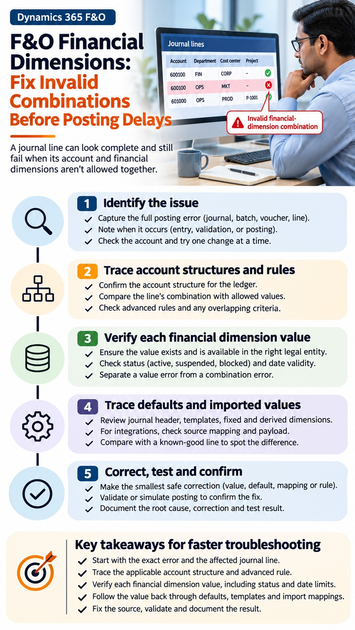
Use this repeatable sequence: record the error, identify the journal line and main account, check the applicable structures and rules, verify each value, trace defaults or imports, then validate again. If the error remains, use detailed dimension validation results to narrow the search.
Document the result and confirm posting
Record the root cause, affected process, correction, and test result. Then validate or simulate posting before committing the journal. Microsoft’s journal validation guidance distinguishes full line validation from voucher-only checks; voucher-only validation doesn’t replace checks for dimension combinations.
Once the journal posts, confirm that the correction didn’t allow combinations outside your accounting rules. If you changed shared setup, test a valid case and a case that should remain disallowed. This helps catch unintended effects before more journals use the updated configuration.
Key takeaways for faster journal troubleshooting
Start with the exact error and the affected line, then trace the account structure or advanced rule that applies. Check the values themselves, including status and date limits, before treating the issue as a combination conflict.
Follow each dimension back through defaults, templates, and import mappings. Fix the source when it can cause the error again, and document the test result. Use Microsoft Learn’s account structure and dimension validation guidance to confirm the setup before you post.
Conclusion
An invalid financial-dimension combination is a rule or data issue that you can trace. Identify the line, inspect its account structure and advanced rules, verify each value, and find any defaults or imports that changed the combination.
Make the smallest approved correction, then validate and confirm the journal posts as expected. A documented fix helps your team resolve the next error faster without weakening accounting controls.