Business Central: How to Investigate Why a Posted Document Differs from Its Source Document
Introduction
A posted invoice shows a different quantity or total than the order you entered. That gap can prompt customer questions, slow a reconciliation, or raise concerns during an audit. In Business Central, the difference may be expected, but you’ll need to trace the records to confirm why.
Posting records a transaction as processed. The posted document can reflect a partial shipment or receipt, system calculations, or details that changed after an earlier posting. A mismatch alone doesn’t prove an error.
To investigate, identify the exact source and posted documents, compare the fields that matter, then follow the posting into its related entries. Check the posting method and any available history before deciding whether to correct anything.
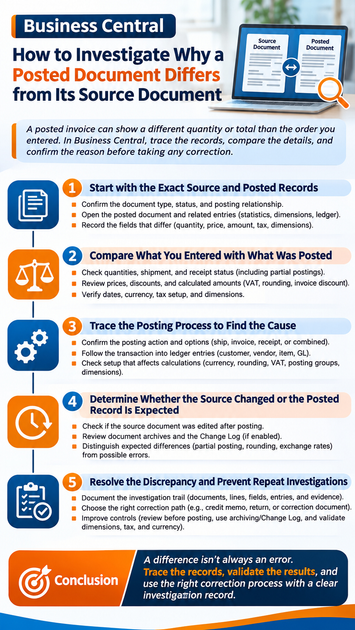
Start with the exact source and posted records
Before comparing amounts, make sure both documents relate to the same transaction. Confirm the document type, status, and posting relationship; one order can lead to multiple posted records.
Identify the document type and posting relationship
Sales orders can be posted as shipments, invoices, or both. Purchase orders can be posted as receipts, invoices, or both. A sales order may produce several shipments and invoices when the user posts only part of the order at a time.
Microsoft’s guidance on posting sales documents explains that shipment and invoice posting can happen together or separately. Purchase orders also support partial receipts and invoices, as described in Microsoft’s purchase posting guidance.
Open the posted document and related entries
Search for the posted sales invoice, shipment, purchase invoice, or receipt. Use its source number, customer or vendor, posting date, and external document number to confirm the match. Available references depend on the document and posting flow.
Open the posted document’s statistics, dimensions, or ledger entries where available. Microsoft notes that you can review the entries created by a posted invoice from its record. These links help connect the document to customer or vendor balances, inventory, tax, and general ledger activity.
Record the fields that differ
Write down both document numbers and the affected line numbers. Compare the item or account, quantity, unit price, line amount, posting date, dimensions, and currency. Include tax details when they affect the total.
Also note whether the difference is in a value or in document structure. One order line may connect to several posted shipment lines, or an invoice may cover only part of a receipt.
Compare what you entered with what Business Central posted
A posted document records the transaction processed at posting time. It isn’t always a live copy of the source document, so compare matching lines and quantities rather than only comparing document totals.
Check quantities, shipment, and receipt status
Look at the posted quantity beside the source line’s ordered quantity and the quantity already shipped, received, or invoiced. If the user entered a partial quantity to ship or receive, the posted document should show only that portion. The remaining quantity may stay on the open source document.
Check earlier posted shipments or receipts too. A later invoice may relate to several deliveries, while one order can create several posted documents over time. The Business Central sales invoice guidance explains when an order is needed for partial shipments.
Review prices, discounts, and calculated amounts
Compare the unit price or direct unit cost first, then review line discounts and any invoice discount. Make sure you’re comparing the same quantity; a line amount for a partial invoice won’t match the full source line.
Check line totals and document totals separately. VAT or sales tax rounding can make a posted total differ from the amount shown before posting. Business Central can also add an invoice rounding line when that feature is set up.
Verify dates, currency, tax, and dimensions
Confirm the posting date and currency code. For foreign currency transactions, the exchange rate tied to the posting date affects the local-currency amount. Currency settings also control how unit amounts and invoice amounts are rounded.
Review the relevant VAT or tax details, posting groups, and dimensions on both records. A different tax setup can affect tax amounts or ledger accounts, while dimensions affect how entries are grouped and reported. Focus on the setup that relates to the field that differs.
Trace the posting process to find where the difference arose
Once you’ve found the mismatch, use the posting details and ledger entries to test possible causes. This helps distinguish a display difference from an amount or quantity that posted incorrectly.
Confirm the posting action and options used
Check whether the user posted a shipment, invoice, receipt, or a combined transaction. Then check the quantities selected for posting, such as Qty. to Ship, Qty. to Invoice, or Qty. to Receive. Those choices determine which posted records and amounts to expect.
If your team uses posting previews or reports, review them for the transaction. They can show which entries Business Central expects to create before the user posts.
Follow the transaction into its ledger entries
Use the posted document’s links or search for related customer, vendor, item, and general ledger entries. Compare the amounts and quantities in those entries with the posted lines. For inventory items, item ledger entries can help confirm what was shipped or received.
A difference that appears on the document and its ledger entries may be part of the posted transaction. If the posted document and related entries don’t agree, record the entry numbers and escalate the issue to your Business Central administrator or finance lead.
Check setup that affects calculations
Review only the settings linked to the mismatch. For example, check currency exchange rates and rounding precision for a currency difference, or VAT setup for a tax difference. Check posting groups if you need to understand which accounts received the transaction.
Dimensions can come from document lines or default settings. Compare the dimension values on the posted document and entries rather than assuming they stayed the same as the source.
Determine whether the source changed or the posted record is expected
A source document’s current values may not show what was on it at an earlier posting. This matters when the source remains open after a partial shipment or receipt.
Check whether the source document was edited after posting
Compare the source document’s remaining quantities and current line values with the posted records. A user may have changed an open order after posting part of it. The posted record will still show the transaction that was processed earlier.
Check posting dates and the sequence of related documents before drawing a conclusion. A current source document alone can’t prove what its earlier values were.
Review document archives and change history
If document archiving was enabled, look for saved versions of the source document. The Change Log can also help when it was active and set to track the relevant tables and fields. Microsoft’s Change Log guidance explains that administrators choose what to track.
These tools can show what changed and when only if they were configured before the change. If there’s no archive or log entry, don’t treat the absence of history as proof that the source stayed unchanged.
Distinguish expected differences from possible errors
Partial posting, rounding, exchange rates, or a later source edit can explain many differences. Those are expected only when the linked posted records and entries support the explanation.
Escalate an unexplained quantity or amount mismatch across related entries. Also investigate if the posting date, tax result, or account impact conflicts with the approved transaction details.
Resolve the discrepancy and prevent repeat investigations
Once you’ve found the cause, preserve a clear record of what you checked. Then choose a correction that fits the transaction and your organization’s controls.
Document the investigation trail
Record the source and posted document numbers, affected lines, and fields that differ. Include the related ledger entries, posting action, quantities posted, and evidence reviewed. This gives finance, support, and audit teams a useful record to follow.
Choose the appropriate correction path
Posted records don’t work like open source documents. Some non-financial details may be editable, but changes to core posting data usually require a supported correction or reversal process. Depending on the transaction, that may involve a credit memo, return, or another correction document.
Follow your company’s posting controls and confirm the method with a Business Central administrator or finance lead. Don’t alter a posted record to make it look like the source document.
Improve controls for future postings
Review quantities and document totals before posting, especially for partial shipments or receipts. Use document archiving or the Change Log when your business needs a history of source changes. Standard checks for dimensions, tax, and currency can also reduce repeat questions.
Conclusion: Trace the difference before correcting it
To investigate why a Business Central posted document differs from its source, first confirm the exact records and posting relationship. Compare quantities, prices, dates, currency, tax, and dimensions in context, then trace the results through the related ledger entries.
A difference may be normal, but the records should support the reason. Document what you find, use the right correction process when needed, and check that your history and posting controls capture the details your team relies on.