F&O Procurement: Find Why a Purchase Order Won’t Reach Its Next Approval Stage
Introduction
A purchase order can look like it’s waiting while its next approval step never starts. In F&O Procurement, guessing at the cause may waste time or change the record before you’ve captured what went wrong.
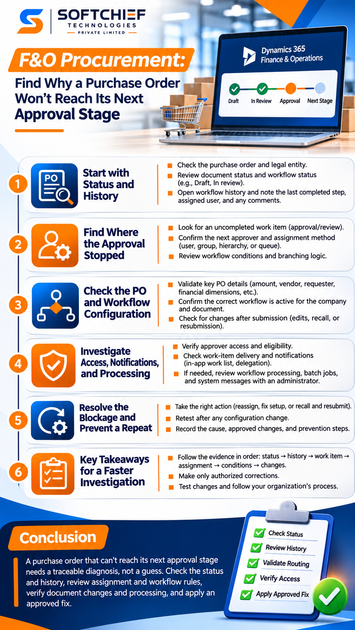
Start with the purchase order’s status and workflow history. Those details help you find the last completed step, then focus your checks on assignment, workflow rules, document changes, or processing.
Menu names, workflow actions, and diagnostics can vary by Dynamics 365 Finance and Operations version and company setup. Follow your organization’s access and change-control rules, and record what you find before changing anything.
Start an F&O Procurement Investigation with Status and History
Confirm the purchase order’s current status
Check the purchase order number and legal entity first, then review both the document status and workflow status. With change management enabled, a purchase order in In review is pending approval; Draft means it hasn’t been submitted. Statuses and available actions depend on the organization’s setup. Microsoft explains the purchase order approval statuses, including how change management affects the process.
Also check recent edits and the submission date. This helps you confirm you’re reviewing the right order and spot changes that may have altered its approval path.
Use workflow history to find the last completed step
Open the workflow history for the purchase order and inspect its latest event. Look for the assigned user or group, the outcome, and any error or comment. Microsoft’s workflow history instructions describe how to view work items and tracking details for a document.
Record the workflow ID and version, the last event, and any open work item before making changes. That evidence gives you a clear starting point if an administrator needs to review the issue.
Identify whether the workflow is waiting or has stopped
A pending work item means someone still needs to act. A rejected, recalled, canceled, or completed workflow has a different state and may need a different response.
Check the status in Finance and Operations rather than relying on an email or alert. A missing notification doesn’t prove that the workflow stopped, and an old notification may not reflect the current state.
Find Where F&O Procurement Approval Stopped
Check for an uncompleted work item
Look for an approval or review task that remains open. Confirm that the assigned person can see it in their in-app work item list and can open the purchase order in the correct company.
Check whether the item was returned, reassigned, or delegated, where those options apply. Procurement workflows can include tasks and approvals assigned to users or groups, as described in Microsoft’s Procurement and sourcing workflow guidance.
Check how the next approver is determined
Review the assignment method on the workflow step. An approval can go to a named user, user group, hierarchy, workflow participant, or queue, depending on configuration.
Confirm that the rule resolves to an active person or group with the right company access. If the rule points to an inactive user or a group with no eligible members, ask the workflow owner or administrator to confirm the approved correction.
Review conditions and branching logic
The workflow may be following a valid branch that differs from the one you expected. Check the conditions on the step and any decision or branch that determines the next action.
Use the configured workflow as the source of truth. For example, a route based on amount or financial dimensions applies only if the workflow’s rules use those fields.
Check the Purchase Order and Workflow Configuration
Validate details used by the workflow
Review the fields that may affect routing, such as legal entity, requester, vendor, amount, financial dimensions, and recent document changes. Don’t assume a field controls approval unless the workflow’s assignment rules or conditions refer to it.
Compare the purchase order’s values with the criteria shown in the configured workflow. A missing or unexpected value may explain why a branch or approver differs from the expected path.
Confirm the correct workflow is active
Check that the purchase order workflow is active for the right company and document context. Also confirm that the submitted order used the expected workflow version.
The workflow history may show the workflow name and version linked to that instance. If the setup changed recently, ask the workflow owner whether the active version matches the intended approval design.
Check for changes after submission
Review whether someone edited, recalled, or resubmitted the purchase order after its first submission. These actions can affect its status or route, depending on the organization’s rules.
For purchase orders under change management, some edits may require the order to return to draft and go through approval again. Microsoft notes that organizations can set reapproval rules for purchase order changes. Follow those rules rather than trying to move the order forward manually.
Investigate Access, Notifications, and Processing
Verify approver access and eligibility
Confirm that the assigned approver has access to Finance and Operations, the relevant legal entity, and the task. If the person can’t open the work item, involve an authorized administrator to review access.
Avoid changing roles or permissions as a quick fix. Access changes should follow your organization’s approval and security process.
Check work-item delivery and notifications
A missing email or alert may be a notification issue, not a workflow issue. Ask the approver to check the in-app work item list and confirm whether the task is present.
If your organization uses delegation or other approved notification settings, check those too. The work item’s actual assignment is more useful than an email alone when you’re diagnosing a stall.
Review workflow processing and system messages
If history shows an error or the next work item was never created, ask an administrator to review workflow processing, relevant batch-job status, and system logs. The processes and diagnostic tools vary by environment and configuration.
Share the purchase order number, legal entity, workflow version, and last recorded event. These details help narrow the review without making unapproved changes to the order.
Resolve the Blockage and Prevent a Repeat
Choose an action that fits the evidence
Match the correction to the cause. That may mean reassigning an existing work item, fixing an approved setup issue, or following the organization’s recall and resubmission process.
Don’t bypass required approvals to clear a queue. A fast workaround can leave the order out of policy or make its history harder to audit.
Retest after a configuration change
If the workflow setup changes, test the affected route with an appropriate case and authorized users. Check that the correct approver receives the task and that the purchase order reaches the intended next stage.
For a live purchase order, follow the approved process before resubmitting or advancing it. Verify its status and history afterward.
Record the cause and prevention steps
Capture the purchase order reference, workflow history findings, root cause, approved changes, and final outcome. This record helps support teams see whether the same assignment or rule issue has happened before.
Use repeat cases to improve workflow ownership, support handoffs, and setup notes. Keep those records aligned with the current configuration.
Key Takeaways for a Faster F&O Procurement Investigation
Follow the evidence in order
Confirm the purchase order and workflow statuses, then trace the last event in workflow history. Next, check the open work item, approver assignment, branch conditions, and any relevant document or setup changes.
Make only authorized corrections
Review processing or access issues with an administrator when needed. Test setup changes, follow the approved resubmission process, and refer to current Microsoft Learn guidance for procurement workflows when checking available features and configuration.
Conclusion
A purchase order that can’t reach its next approval stage needs a traceable diagnosis, not a guess. Start with its status and history, then check assignment, workflow rules, document changes, and system processing.
Record the cause and apply only an approved fix. That gives the order a clear path forward and makes the next investigation faster.