Create record using Entity Form in Dynamics 365 Portal
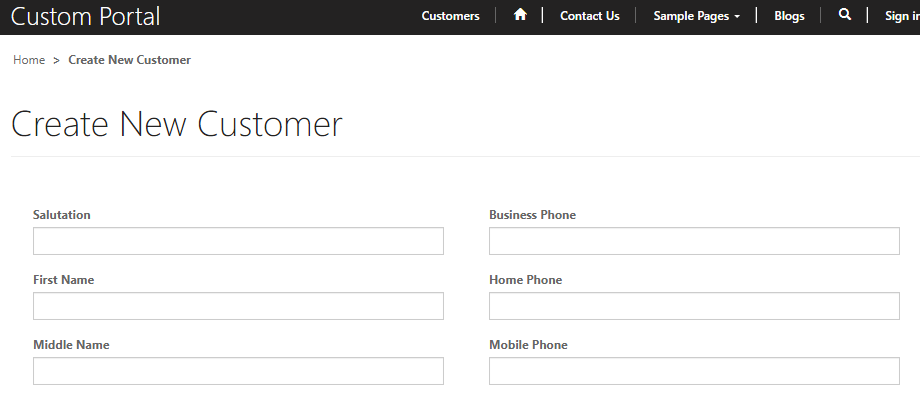
Using entity form we can achieve Create record operation in Portals. lets see how to do.
Step-1: Create an Entity Form in Dynamics 365 Portal App
Open Dynamics 365 CE Portal App and Navigate to Entity Form. Create a New Entity Form with below Values:
- Name : Customer Create Entity Form
- Entity Name : Contact (Select from dropdown)
- Form Name : Portal Contact (Select from dropdown)
- Tab Name : General
- Mode : Insert
- Website : Custom Portal

After providing the information click on Save.
Step-2: Create a Webpage to associate the Entity Form in Dynamics 365 Portal App
Now we have to create a webpage on the portal and associate the Entity Form we have created in step-1. So to do that Navigate to Webpages link and create new webpage with below information.
- Name : Create New Customer
- Website : Custom Portal
- parent Page : Home
- Partial URL : create_new
- Page Template : Full Page
- Publishing State : Published
- Entity Form : Customer Create New Form (Important)

After providing all above information click Save.
Step-3: Update Entity List Create New Page section in Dynamics 365 Portal App
Now its time to update the Entity List Create New page section. Open the Entity List called as “Entity List Contact” and scroll to find a section “Webpage to create” and provide the velues as below:
- Webpage for Create : Create New Customer (Webpage)
- Create Button Lebel : +Add New

Now open the Power Portal App Editor Studio click on “Sync Configuration” and after completion click on “Browse Website” to test.

Then navigate to Customers menu link to load the Customer List. There we can find the +Add new button at top right corner of the list.

On clicking the +Add New button it will open the Entity form in Insert mode.

After filling the Form and clicking on Submit will create the record in Dynamics 365 Contact entity with successful message.

If we go to the List to search we can get the new record in the list.

On clicking on the name we can see details page we have configured in our last article.
Thank you for reading the article.