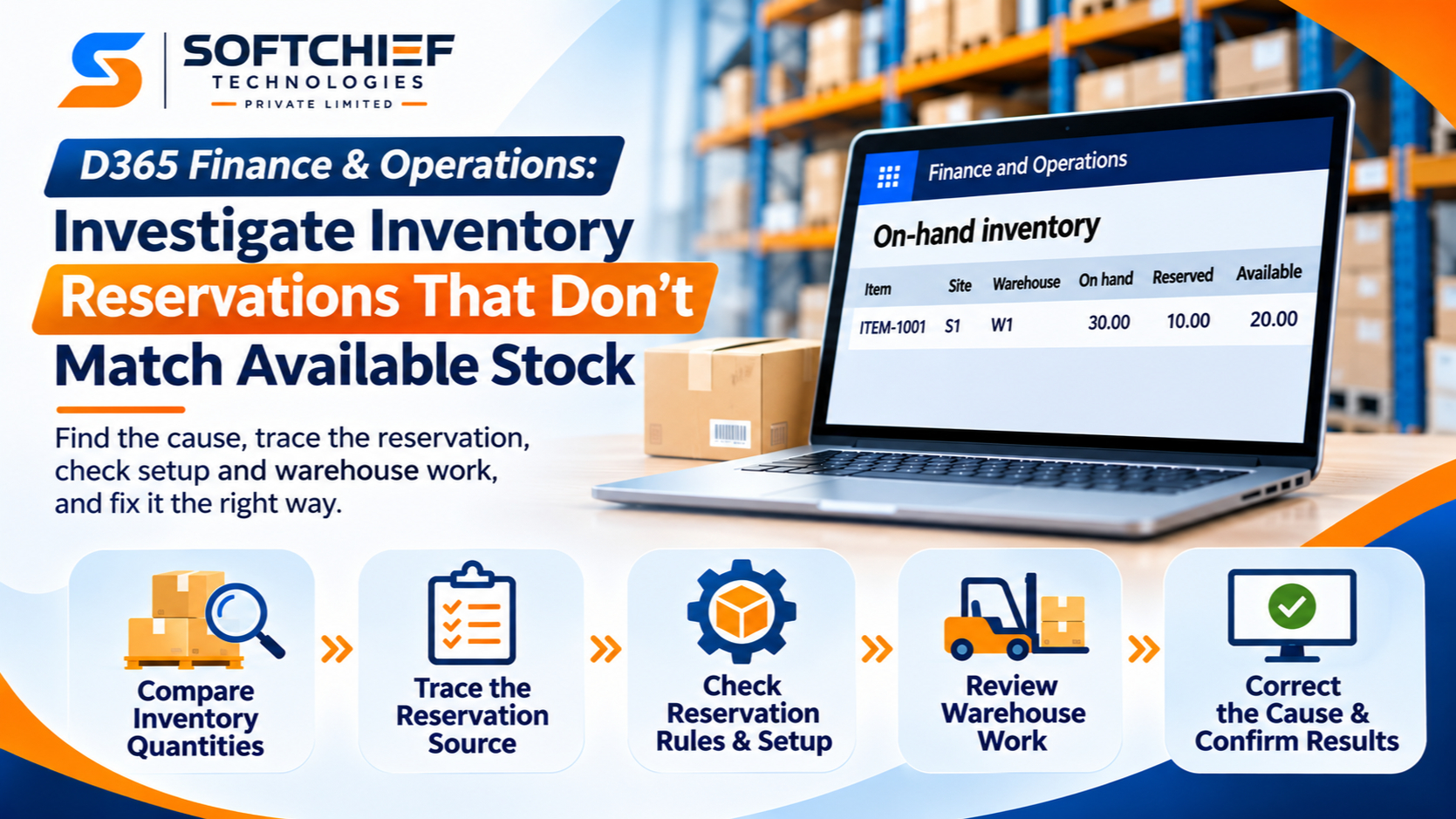
D365 Finance & Operations: Investigate Inventory Reservations That Don’t Match Available Stock
Introduction
A sales line can show stock on hand and still fail reservation, or a reservation can appear larger than the available quantity. In D365 Finance & Operations, “on hand,” “available,” and “reserved” describe different inventory measures, so their totals may not match.
Before changing stock or releasing a reservation, compare the same item, dimensions, inventory status, and reservation type. A warehouse total cannot explain a reservation tied to one batch or location.
Start by checking the on-hand figures, then trace reservation transactions and settings. Next, review warehouse activity and choose a correction that fits the cause. Menu names and screens can vary by application version and configuration.
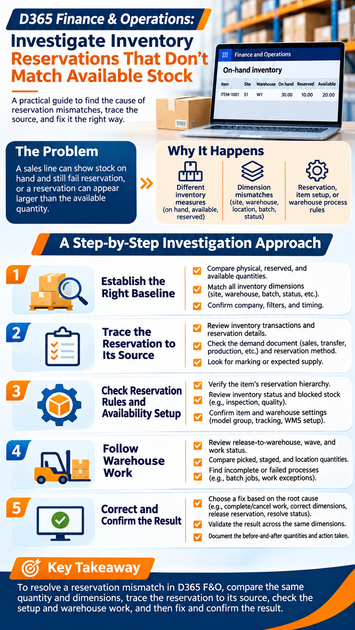
How to investigate inventory reservations that don’t match available stock
An apparent mismatch often comes from comparing different measures or dimension levels. Establish a clear baseline before investigating individual orders or transactions. Record the item, quantity, unit, and filters shown in the inquiry.
Compare physical, reserved, and available quantities
Physical inventory is stock recorded as physically received or produced. Physical reserved is posted stock committed to demand, such as a sales order. Ordered reserved is expected supply reserved for demand but not yet physically available.
Available physical generally shows physical stock less physical reservations, based on the inquiry’s dimensions and rules. For example, 30 units on hand with 10 physically reserved may show 20 available physical. These figures answer different questions, so don’t treat them as interchangeable.
Match every inventory dimension
Compare the item and all relevant dimensions on the on-hand inquiry and reservation. Depending on the product, these may include site, warehouse, location, batch, serial number, inventory status, and license plate.
A total at warehouse level may include stock spread across several locations or batches. A reservation for one batch can’t necessarily use stock from another. Set the inquiry to the same dimension level as the reservation before drawing conclusions.
Confirm the company, filters, and timing
Check the legal entity and review any filters applied to the on-hand view. A site, warehouse, status, or date filter can hide stock that appears in another inquiry. Confirm that both views use the same item and unit of measure.
Compare the figures at a consistent point in time. Receipts, picks, production consumption, and other inventory updates can change quantities while you investigate. If work is active, note when each screen was refreshed.
Trace D365 Finance & Operations reservations to source transactions
Once the figures are comparable, find the transaction or demand that created the reservation. The aim is to confirm which order holds the quantity and which supply or dimensions it uses. A summary total alone won’t show why stock is committed.
Review inventory transactions and reservation details
Open the item’s related inventory transactions or reservation details, using the inquiry available in your version. Look for the linked demand or supply record, quantity, dimensions, and transaction status. This helps distinguish posted physical activity from orders still in process.
Check whether the transaction is physically reserved, ordered, or at another stage. A receipt that remains expected is not the same as stock already on hand. Likewise, a reservation may be tied to an order even if warehouse work has not finished.
Check the demand document and reservation method
Review the relevant sales order, transfer order, production order, or other demand document. Compare its line quantity and inventory dimensions with the stock in question. A mismatch in warehouse, batch, or status may explain why the line cannot use the visible stock.
Check whether the reservation was automatic or manual, and whether it was made for the full quantity. Also confirm that the order line hasn’t changed since the reservation was created. The transaction record should align with the current demand.
Look for marking or expected supply
Demand may be marked against a specific supply transaction, such as a purchase order or production order. It may also be reserved against a receipt that has not arrived. In either case, the demand can be committed before the supply is physically available in the warehouse.
Review the marked links and expected receipt details before treating the reservation as stale. If supply is delayed, the order may have no usable stock yet, even though the reservation looks complete. Confirm the supply’s status and expected dimensions.
Check reservation hierarchy and inventory availability rules
Item setup affects which stock can be reserved and when. A quantity may look available at one dimension level but fail a reservation at another. Check the actual product and warehouse settings rather than assuming all items reserve the same way.
Verify the item’s reservation hierarchy
For warehouse-managed items, review the reservation hierarchy assigned to the product. It defines which dimensions the system uses during reservation and which are assigned later in warehouse work. The exact order depends on the setup.
A reservation at a higher level, such as site or warehouse, may not yet identify a location or license plate. That can be expected before warehouse processing assigns those dimensions. Compare the order’s reservation stage with the hierarchy before changing it.
Review inventory status and blocked stock
Check the inventory status on the stock and whether that status allows the intended transaction. Stock marked for inspection or another restricted use may appear on hand but remain unavailable for reservation. Also look for inventory blocking or open quality orders.
Compare the status on the order, reservation, and physical stock. If a control is blocking use, follow the approved process to resolve it. Changing a status without confirming quality or business rules can create a larger issue.
Confirm item and warehouse settings
Review the item model group, storage dimension group, tracking dimension group, and warehouse management setup. These settings define which dimensions are tracked and how inventory is handled at each stage. A batch-controlled item, for example, has different reservation needs from an item without batch tracking.
Check that the item’s setup matches the warehouse process in use. If configuration recently changed, review when it took effect and which open transactions may still use earlier details. Don’t change setup to fix a single order without assessing other open work.
Follow warehouse work before changing reservations
Inventory reservation and warehouse work are related, but they show different stages. Work may allocate, pick, or move stock while the order still appears unfinished elsewhere. Review execution status before deciding that a reservation is wrong.
Review release, wave, and work status
For warehouse-managed orders, check release-to-warehouse, wave, and work status. Determine whether work is open, in progress, completed, canceled, or blocked. Then confirm whether the reservation has moved to the expected execution stage.
An order that hasn’t reached picking may still have a valid reservation. A canceled or failed wave may leave the process in a different state than expected. Use the order and work records together to understand what has happened.
Compare picked, staged, and location quantities
Compare dimensions on the order with those on warehouse work and related inventory transactions. Pay close attention to location, license plate, batch, and inventory status. A quantity picked to a staging location may no longer appear available at its original location.
Check whether the work quantity matches the reservation quantity. If they differ, look for partial picks, short picks, or changes to the work. Confirm the stock’s current location before releasing or recreating a reservation.
Find incomplete or failed processes
Review work exceptions, relevant batch-job history, and process status where available. A failed task or delayed update may explain why the order and inventory inquiry show different stages. Check the related records before assuming a reservation is stale.
If a warehouse process is still active, let the approved process complete or cancel it. Avoid starting a second release or reservation while the first process remains unresolved. That can make the inventory state harder to trace.
Correct the cause and confirm the inventory result
Choose a correction based on the transaction state and business controls. The goal is to fix the order, status, or warehouse process that caused the mismatch, not to force totals to agree. An inventory adjustment should not be a shortcut for a reservation issue.
Choose a correction that fits the cause
Depending on the findings, you may need to complete or cancel warehouse work, correct an order line dimension, release an unintended reservation, or resolve a blocking status. A transaction may also need correction through its normal business process. Follow the organization’s approval and audit rules.
Don’t edit inventory transaction records directly or adjust on-hand stock just to match a screen total. First confirm which document owns the quantity and whether another process is still using it. When the state is unclear, involve the inventory or warehouse process owner.
Validate the result across the same dimensions
After the correction, refresh the relevant inquiries. Compare physical, reserved, and available quantities using the same item, company, dimensions, and filters as the original check. Then confirm that the source order and warehouse work show the intended status.
Record the before-and-after quantities, source document, dimensions, and action taken. A clear record supports audit review and helps the next person repeat the investigation. For version-specific details, consult Microsoft Learn guidance on inventory on-hand, reservation hierarchy, inventory transactions, and warehouse work in Dynamics 365 Supply Chain Management.
Conclusion
A D365 Finance & Operations reservation mismatch usually becomes clear when you compare the same quantity type and inventory dimensions, then trace the reservation to its source. Review item rules, inventory status, and warehouse work before changing stock.
Use that sequence each time: capture the figures, trace the transaction, check the reservation setup, and confirm warehouse execution. Then document the correction and verify the result across the same dimensions.