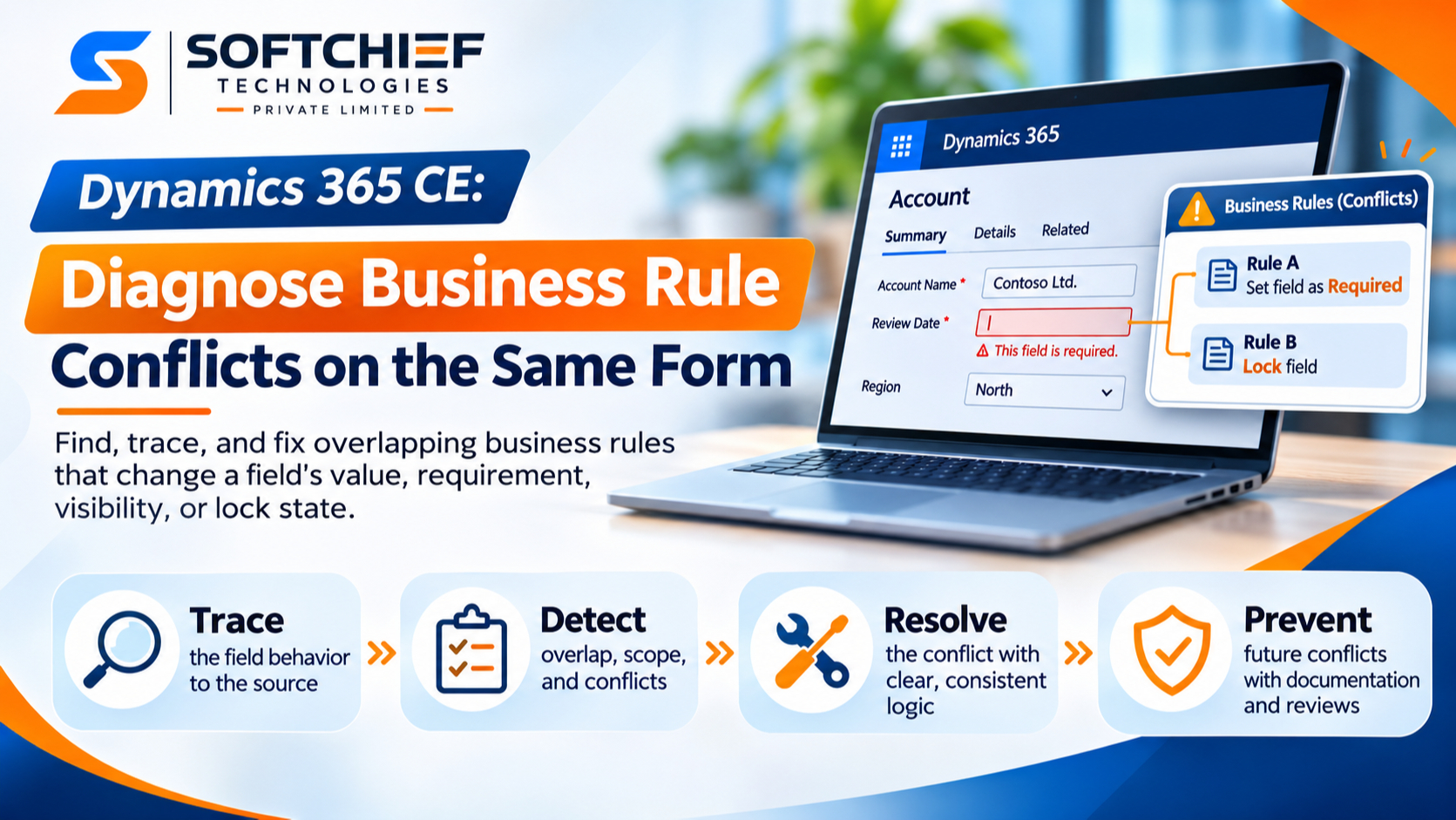
Dynamics 365 CE: Diagnose Business Rule Conflicts on the Same Form
Introduction
A field on a Dynamics 365 CE form becomes required, disappears, locks, or changes value without warning. When several business rules affect that field, it can be hard to tell which one caused the change. Often, no rule is broken; overlapping conditions and actions are producing competing results.
This can confuse users and lead to incomplete or unreliable data. To find the cause, trace the field’s behavior back to each rule that affects it, then check the rule’s scope and other form logic.
The steps below help you spot overlap, isolate the cause, resolve the conflict, and prevent it from returning. For current details on supported actions and scope, consult Microsoft Learn’s business rules documentation.
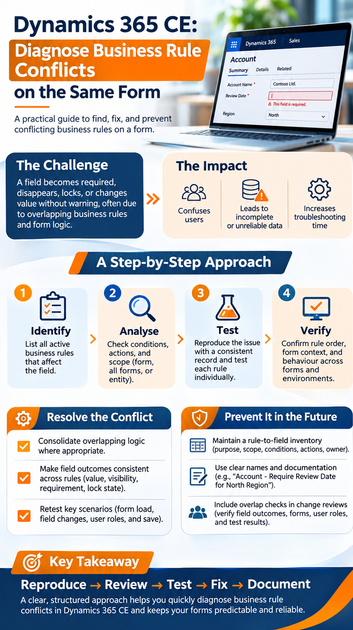
How Dynamics 365 CE business rule conflicts affect form behavior
A form’s behavior depends on the rules whose conditions match the record, the actions those rules take, and where each rule applies. Other custom logic can affect the same fields, too. That’s why one record may behave differently from another, or from the same record on a different form.
Identify actions that can conflict
Rules can set a field’s value or requirement level, lock or unlock it, and show or hide it. If two active rules assign different values, or one makes a field required while another makes it optional, the result can be confusing.
A field can also be hidden by one rule and shown by another. Review every action that affects the field, not only the action that matches the symptom you first noticed.
Check for shared conditions, fields, and scope
Rules created for separate business cases can still run for the same record if their conditions overlap. For example, one rule might apply to all active accounts while another applies to accounts in a specific region. A regional active account could meet both conditions.
Check whether each rule applies to a specific form, all forms, or the table. Confirm that its scope matches where users see the behavior.
Separate business rules from other form logic
JavaScript form event handlers can change a field’s value, visibility, or state. Other customizations, such as a custom control, may also affect what users see. So an apparent business rule conflict may have another cause.
Check the form’s load and field-change handlers as well as its active business rules. Look for any component that changes the affected field or reacts to the same condition.
Trace Dynamics 365 CE business rule conflicts to their source
A consistent reproduction makes the investigation faster. Start with the same record, form, and user context, then track which rules can affect the field.
Reproduce the issue with a consistent record and user
Record the table, form name, field values, user role, and steps that trigger the issue. Note whether it happens when the form loads, after a field changes, or after saving. Timing can help you tell a form event from an issue that appears after a save.
Use a test record in a non-production environment where possible. Keep the values and steps the same each time, so you can compare results after each change.
Inventory every active rule that touches the field
Review active rules for the table and form. For each one, note its scope, conditions, actions, and affected fields. A short comparison makes overlap easier to spot:
| Rule | Scope | Condition | Action on the field |
|---|---|---|---|
| Account status control | All forms | Status is Active | Set field as required |
| Regional review | Specific form | Region is North | Lock field |
| New account setup | Entity | Account type is New | Set field value |
Treat the rows as an example, then fill in your own rule details. Include rules that affect a field’s value, visibility, requirement, or lock state.
Test conditions and actions one rule at a time
Compare the record’s current values with each rule’s conditions. Review both the true and false branches, since actions in either branch can change the field’s state.
In a safe environment, change one input at a time and observe the result. If the field changes only when two conditions are met, test each rule on its own and then test them together.
Verify rule scope, order, and form context
Configuration details often explain why a rule seems to behave differently than expected. Confirm the settings in the rule designer and check Microsoft Learn for current details about how business rules work in your environment.
Confirm each rule’s scope matches the affected form
Check whether each rule is limited to one form, applies to all forms, or uses entity scope. A rule with a form-specific scope may not apply when a user opens another form. A broader scope may affect forms beyond the one where you first noticed the issue.
Test the same record on the form where the problem occurs. If users can open other forms for the same table, check those forms too.
Review configured order and rule dependencies
Inspect the configured order for rules that affect the same field. Record any dependencies, such as one rule setting a value that another rule uses in its condition. Verify how order is handled in your current Dynamics 365 environment rather than relying on assumptions.
Changing order may help explain a result, but it shouldn’t replace fixing contradictory actions. If two rules assign incompatible states, make their conditions or outcomes clear.
Compare behavior across forms and environments
Open the same record on the intended form and, when useful, on another form. If the field behaves differently, compare the rules that apply to each form and check for form scripts or other customizations.
Also compare the active solution versions in test and production. A rule that was changed, deactivated, or missed during deployment can explain why the same steps produce different results.
Resolve conflicts without creating new form problems
Once you know which rules affect the field, make the smallest change that gives users a clear result. Test that change before moving it to production.
Consolidate overlapping logic where appropriate
If several rules control the same outcome for related cases, consider combining their conditions into one rule. Keep separate rules when they represent distinct processes, but make their conditions mutually exclusive where possible.
Document why each rule exists. A short note about its business purpose can help the next admin avoid adding a rule that repeats or overrides it.
Make field outcomes consistent across rules
Agree on the expected value, visibility, requirement, and lock state for each business scenario. Then check that all rules affecting the field support those outcomes.
Review both true and false branches. An action on a false branch can undo a state set by another rule, so make sure each path has an intentional result.
Retest key scenarios after each change
Test relevant record states, field changes, forms, user roles, and save behavior. Check that the field starts in the expected state on load and stays correct after users change related fields.
Make one change at a time in a non-production environment, then retest the full scenario. Move the change to production only after the results match the business need.
Prevent future Dynamics 365 CE business rule conflicts
A small amount of upkeep can prevent repeated investigations. Keep a clear record of what each rule controls and include overlap checks in change reviews.
Maintain a rule-to-field inventory
Track each rule’s purpose, scope, conditions, actions, affected fields, owner, and last review date. This gives admins one place to check before adding new logic.
Update the inventory when a rule changes or a field gains a new use. It can also help identify rules that no longer serve an active business need.
Use clear names and documentation
Choose rule names that describe the process and outcome, such as “Account – Require Review Date for North Region.” Avoid names that only describe a field, since they don’t explain why the rule exists.
Add a brief note about important dependencies and form scope. Check Microsoft Learn when you need to confirm current business rule features or limits.
Include overlap checks in change reviews
Before approving a new rule, ask whether another rule, form script, or customization already controls the same field. A short review should confirm the field’s expected outcomes, check the affected forms and user roles, and record test results.
Keep those checks with the change record. That gives the next reviewer a clear view of what was tested and which rules could be affected.
Conclusion
To diagnose Dynamics 365 CE business rule conflicts, reproduce the behavior, list every rule that touches the field, and verify each rule’s conditions and scope. Test changes one at a time, then retest the forms, users, and record states that matter.
Clear ownership and documentation make future changes safer. Before activating your next rule, check the field inventory and test for overlap.