Dataverse Performance Planning: Build a Faster, Scalable Power Platform Environment
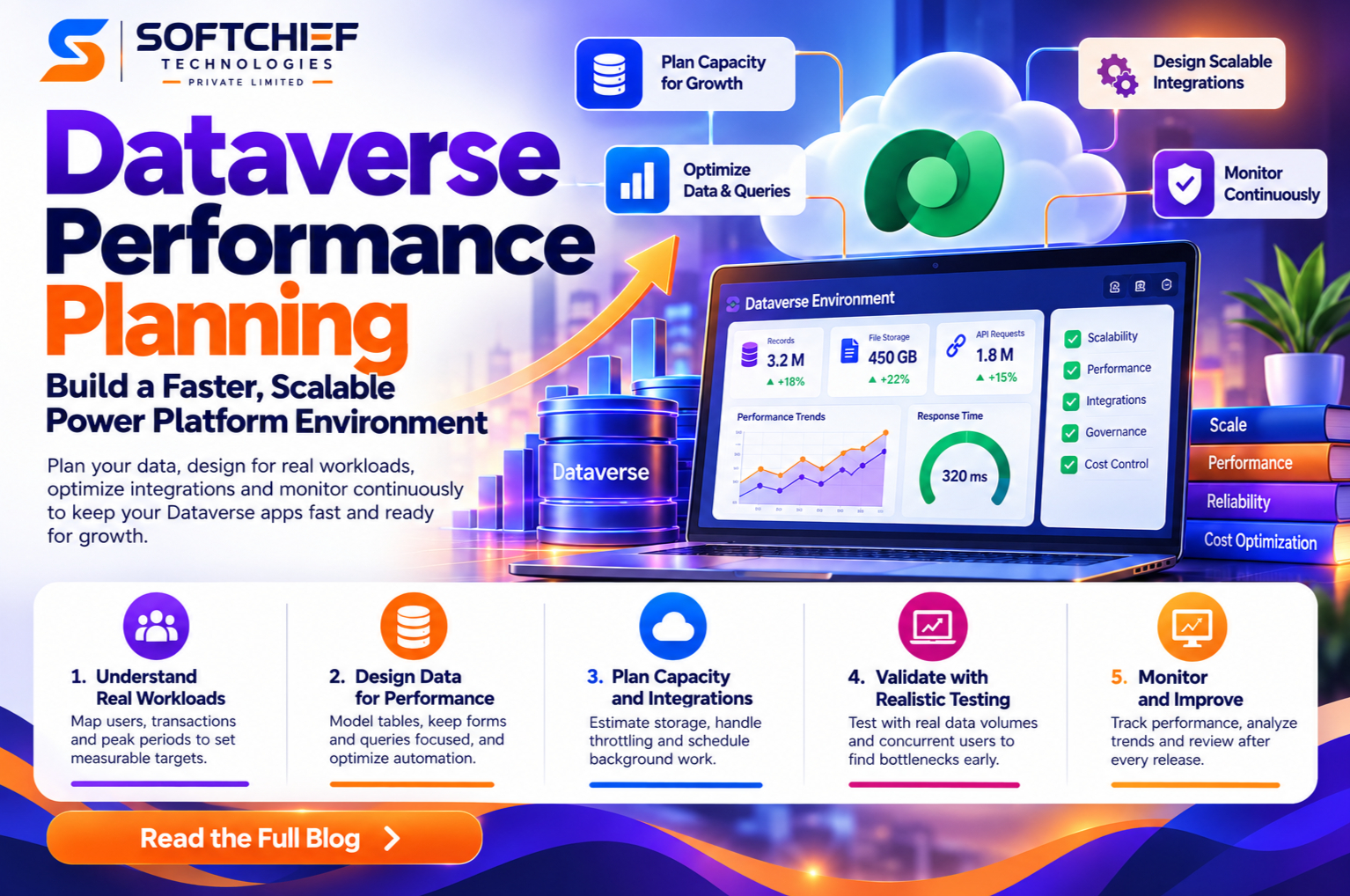
Introduction
A Dataverse app can pass acceptance testing and still slow down when more users, records, flows, and integrations arrive. Dataverse performance planning helps you spot that risk early and set a clear way to test and track results. The work starts with a realistic workload, then connects app and data design to capacity, testing, and ongoing monitoring.
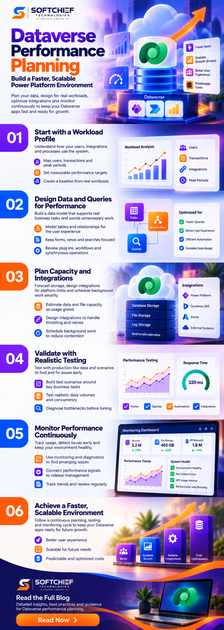
Start Dataverse performance planning with a workload profile
Performance depends on who uses the system, what they do, and when they do it. A workload profile turns those business needs into a useful basis for design and testing.
Map users, transactions, and peak periods
List interactive users, administrators, integrations, and background processes. For each group, record common actions, expected frequency, and busy periods. A sales team may create leads throughout the day, while a nightly integration updates many account records at once.
Ask process owners to confirm these patterns. If an existing system is available, review its transaction volumes and slow operations to check your assumptions. For a new app, mark forecasts as estimates and update them after launch.
Set measurable performance targets
Choose a small set of important user tasks: opening a record, saving a form, searching, or completing a workflow. Set a response-time target for each task and decide how often a task can fail before it disrupts work. For example, define an agreed time limit for opening a common record under normal and peak load.
Keep user-facing targets separate from platform availability commitments. Availability describes whether a service can be reached; it doesn’t promise that every app action will finish within your chosen time.
Create a baseline from real workloads
Record current transaction counts, data sizes, and slow steps when you can. Capture conditions too, such as the user role, time of day, and whether integrations were running. That context makes later comparisons more useful.
For a new implementation, record forecast volumes and the assumptions behind them. After launch, compare those estimates with observed use and revise the workload profile.
Design Dataverse data and queries to avoid unnecessary work
A schema and its queries shape what Dataverse needs to retrieve and process. Design for the business tasks people perform, then test how that design behaves with realistic data.
Model tables and relationships for the user experience
Use relationships that reflect how work happens. For example, if staff need to review several contacts from an account, model that relationship directly. Add fields when they support a process, report, or rule, rather than adding them in case they might be useful later.
Consider whether data must be required and whether a separate related record fits the task better. More tables or fields don’t automatically cause poor performance, but extra complexity can increase the work a form, query, or automation must do.
Keep forms, views, and searches focused
Show the fields users need for the task at hand. A form that loads many fields and related records can make a common action harder to use. Review view filters and sorting as data grows, and avoid returning large result sets when users need only a focused group of records.
For custom queries, request only the columns the app needs. Test common searches against realistic data, since a broad query may behave differently in a busy production environment than in a small test system.
Review plug-ins, workflows, and synchronous operations
Review custom logic that runs during a user’s save or update. Ask whether each action must finish before Dataverse returns a response. Keep essential checks in that path, but move nonessential work to asynchronous processing when the design allows.
Microsoft’s Dataverse asynchronous service documentation explains that long-running operations can run apart from the main core operation. This can improve overall performance and scalability, though queued work may finish later. Test both the user response and the time-sensitive business outcome.
Plan capacity and integrations around platform behavior
Storage forecasts and response-time goals are related to operations, but they measure different things. Plan for each, and check Microsoft’s current service guidance as limits and behavior can change.
Estimate data and file capacity as usage grows
Estimate database, file, and log storage separately. Include expected record growth, attachments, images, audit needs, retention rules, and system-generated data. Microsoft’s Dataverse capacity guidance describes these storage types and the capacity views in the Power Platform admin center.
Use growth trends to estimate future needs, then review actual consumption over time. Storage capacity planning helps prevent capacity surprises; it doesn’t provide a direct response-time target. Treat app speed as a separate measure.
Design integrations to handle throttling and retries
High-volume integrations can trigger Dataverse service protection limits. Microsoft documents limits tied to request volume, combined execution time, and concurrent requests in its service protection API guidance. Those limits can change, so don’t design around a fixed request rate.
Build clients to handle HTTP 429 responses, honor the Retry-After instruction, and pause before retrying. Use backoff rather than sending repeated requests while the service is busy. Also control concurrency and test bulk work with the same integration patterns planned for production.
Schedule background work to reduce contention
Inventory imports, synchronizations, bulk updates, and scheduled flows. Note when each runs, how long it takes, and which records it touches. Heavy work during a busy service period can affect key user tasks, so coordinate schedules where possible.
Don’t assume that moving a task to a background process removes its impact. Test background jobs alongside normal user activity and watch for queues or delayed results.
Validate performance with production-like testing
One quick check in a lightly populated environment won’t show how an app behaves at scale. Use repeatable tests, realistic data, and clear success criteria before launch and after major changes.
Build test scenarios around key business tasks
Pick high-value tasks and test each from start to finish. Include the form, query, automation, and integration steps involved, not just the screen users see. Test with realistic security roles, since permissions can affect what users can retrieve.
Run typical and peak scenarios when business needs call for both. Record the test conditions and compare each result with the response-time and reliability targets you set.
Test realistic data volumes and concurrency
An empty environment can hide slow queries and form behavior. Populate test environments with data that reflects expected record counts and useful patterns, such as records with many related items. Follow your organization’s privacy rules when creating or copying test data.
Add concurrent users and integrations where feasible. The goal is to learn how the whole workload behaves together, not to treat a single user’s test as proof of peak performance.
Diagnose bottlenecks before tuning
Compare results with targets, then isolate the slow step. Check app behavior, query scope, plug-in work, and integration timing. Change one factor at a time and record what changed, so the team can tell whether a fix helped.
Avoid applying a broad redesign based on one slow run. Repeat the same scenario under similar conditions and confirm that the result holds.
Monitor Dataverse performance as workloads change
Performance planning continues after launch. Data grows, users change habits, and new app features can affect tasks that once worked well.
Use monitoring and diagnostics to find emerging issues
Combine user reports with platform and operational signals. Track recurring slow tasks, failed requests, throttling responses, integration errors, and delayed background work. The Power Platform admin center capacity views help teams track storage use by environment and table; use current Microsoft guidance to check available analytics and troubleshooting tools.
Look for patterns rather than reacting to one report. A task that slows down at the same time each day may point to a scheduled workload or peak in user activity.
Connect performance signals to release management
Include performance checks in testing for schema changes, new automation, app updates, and integration changes. Re-run the same key tasks before and after each release, using the same roles and data conditions where possible.
Keep a simple record of test results, changes, and known issues. This makes regressions easier to spot and gives teams a clear reason to pause or revise a change.
Learn from documented deployments, not invented benchmarks
Published customer stories can show how an organization approached a specific challenge, but their results depend on their own data, design, and workload. Don’t treat one deployment’s outcome as a universal Dataverse benchmark.
Use organization-approved telemetry to guide your own decisions. When you share a result, include the environment and conditions that produced it.
Conclusion
Strong Dataverse performance planning starts with measurable expectations for real user tasks. Focus data, forms, and queries on the work people need to do; forecast storage separately from response time; and design integrations to handle throttling. Then test with representative data and concurrent activity, and keep checking after launch.
Start by documenting your most important user tasks, their performance targets, and how your team will verify them. That plan gives every design choice, test, and release a clear standard to meet.