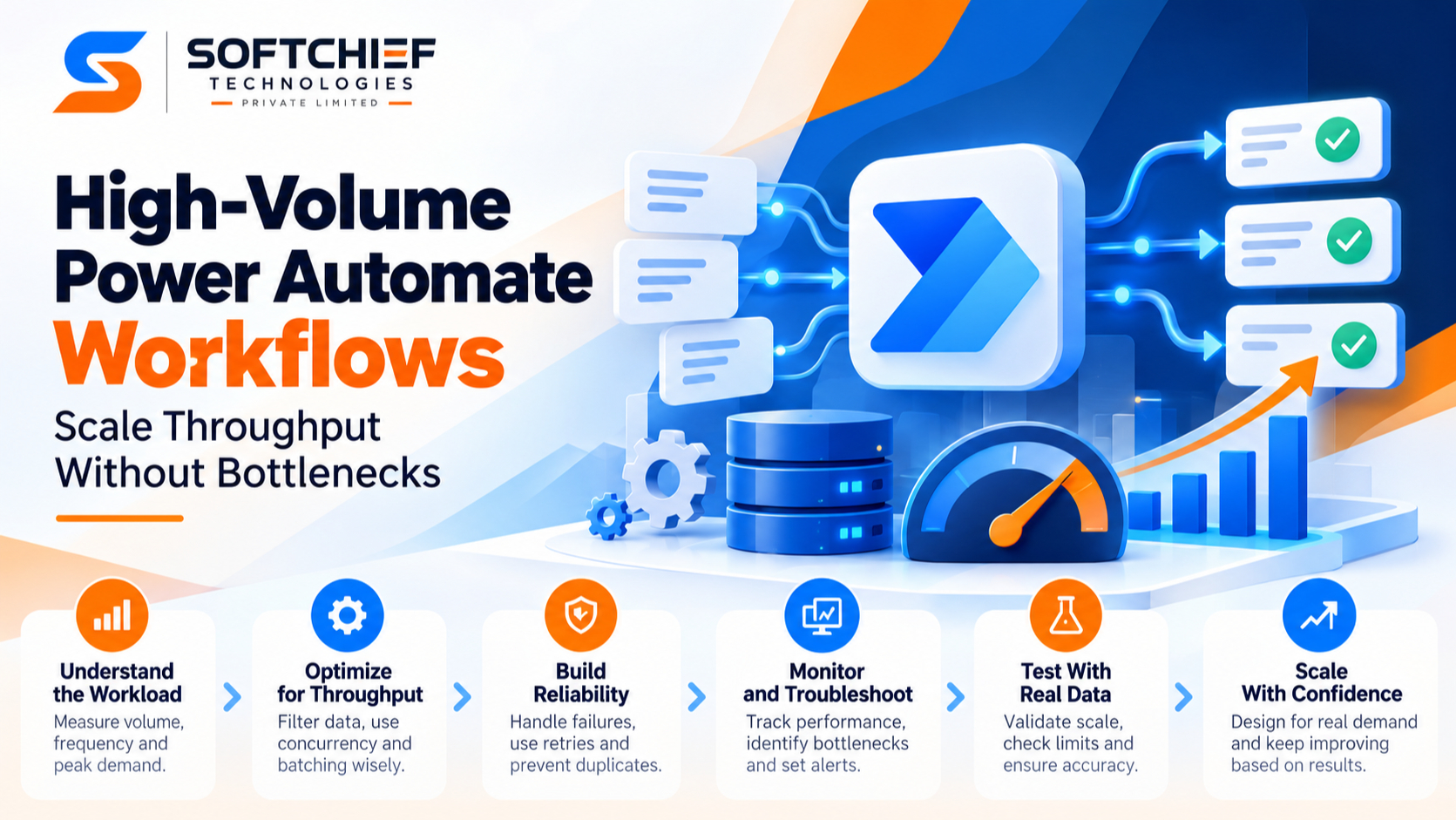
High-Volume Power Automate Workflows: Scale Throughput Without Bottlenecks
Introduction
A flow that handles ten records in seconds may struggle with ten thousand. As volume grows, runs can slow down, connectors can throttle requests, and a single bad record can disrupt a whole batch. High-volume Power Automate workflows need a design based on real demand, with safe recovery and clear ways to spot problems.
“High volume” can mean frequent triggers, large batches, many runs at once, or repeated calls to the same service. Each pattern creates different pressure points. Start by measuring the work, then tune the flow to move only the data it needs and handle failures without losing track of items.
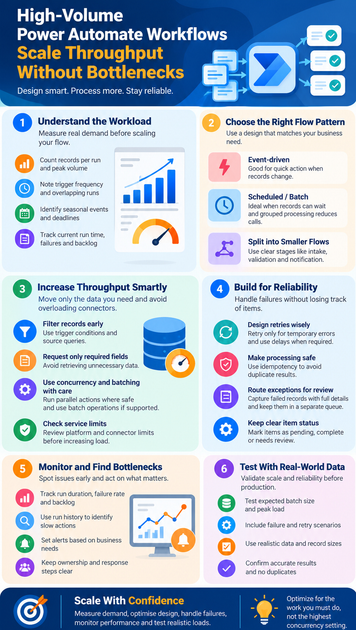
Design High-Volume Power Automate Workflows Around the Workload
A high-volume process isn’t automatically a poorly built one. A well-designed flow may handle large workloads reliably, while a small flow can waste requests by starting too often or repeating needless actions. Before changing the design, write down what the flow must process and how quickly the work must finish.
Measure volume, frequency, and peak demand
Count the records in a typical run and at peak times. Note how often the trigger fires, how many runs may overlap, and whether month-end, seasonal events, or other deadlines cause spikes. A flow that handles a steady stream has different needs from one that processes a large daily import.
Record current run time, failure rates, and the longest acceptable completion window. These baselines help you see whether a change improves throughput or only shifts the delay elsewhere. Include the backlog too: a flow can show few failures while unprocessed items pile up.
Choose the right flow pattern
Event-driven flows work well when an item needs action soon after it changes. Scheduled or batch-oriented flows can be a better fit when records can wait and grouped processing reduces repeated calls. For example, a nightly flow that selects only new orders may be easier to manage than a separate run for every minor update.
One large flow may become hard to test and maintain as it gains branches and special cases. Divide work into smaller flows when each part has a clear purpose, such as intake, validation, and notification. Keep dependencies clear so that splitting the design doesn’t create extra calls or make failures harder to trace.
Map dependencies before raising throughput
List every connector, data source, external service, and approval step the flow uses. An approval that waits for a person can set the total completion time, even if data actions run quickly. A connector with a tight request limit may become the true bottleneck.
Mark which actions must happen in sequence and which can run independently. For instance, saving a record may need to finish before a confirmation email goes out, while two unrelated updates could run in parallel. This map helps you focus tuning on the slow or constrained steps.
Increase Throughput Without Overloading Connectors
More flow runs don’t always mean more completed work. If each run retrieves excess data or calls a service too quickly, added activity can increase throttling and retries. Reduce unnecessary work before raising concurrency.
Filter records before processing
Use trigger conditions to prevent irrelevant changes from starting a run. Where supported, filter records at the source with a query rather than retrieving a broad set and checking each item inside the flow. This saves action calls and avoids processing data that cannot affect the outcome.
Request only the fields the flow needs. A process that checks an order status and updates one field rarely needs to retrieve every column and related record. Microsoft’s guidance on Power Automate limits explains that triggers, actions, retries, and loop iterations can all add to request use.
Use concurrency and batching with care
Parallel actions can shorten elapsed time when they have no dependency on each other. Parallel loop processing can also help, but too many simultaneous calls may trigger connector throttling or create race conditions. Two runs updating the same item, for example, can overwrite each other’s changes.
Batching can reduce the number of separate data operations when a connector supports it. Check the connector’s own documentation and test how it handles batch size, errors, and partial results. Power Automate’s limits and configuration reference covers platform constraints, but connector-specific behavior can add other limits.
Check service limits before scaling
Request quotas, connector rate limits, payload sizes, and run settings vary by license, connector, and service. Microsoft’s documentation can change, so check the current limits for your plan and each connector before increasing load. Don’t rely on old screenshots or figures copied into a design document.
Keep platform request limits separate from connector throttling. A flow may have request capacity left but still receive a “too many requests” response from one service. More license capacity won’t necessarily raise that connector’s limit.
Build Reliable Workflows That Recover From Failures
At high volume, occasional errors are part of the operating picture. The key is to retry temporary problems, avoid repeating consequential actions, and keep failed records available for review. A flow should make it clear what completed and what still needs work.
Design retries around transient errors
Retry policies can help when a service has a brief outage or returns a temporary rate-limit response. They can’t fix invalid input, a missing permission, or a record that violates a rule. Repeating those actions may waste requests and delay other work.
Review the error type before setting retries. Use a delay where the service asks the flow to wait, and avoid retries for errors that require a person to correct data or access. Retries count toward request use, so unnecessary attempts can add pressure during a busy period.
Make repeated processing safe
Idempotency means the same item can be processed again without causing an unwanted duplicate result. Use a stable record ID or transaction key, then check whether the intended action has already happened. This matters when a trigger repeats, a run is replayed, or an action succeeds but the flow fails before recording that success.
For example, before creating an invoice entry, look for an existing entry with the same source ID. If one exists, update it or mark the item as complete instead of creating a second entry. Apply the same care to approvals, payments, and messages that should not be sent twice.
Route exceptions for review and recovery
Capture the failed item’s ID, run details, action name, and error message in a place the support team can access. Keep that record separate from the main processing path so one invalid item doesn’t stop an entire batch. A recovery flow or review queue can handle corrections and safe replay.
Set a clear status for each item, such as pending, complete, or needs review. That makes it easier to find work that was skipped or interrupted. Avoid storing sensitive data in logs unless your team’s access and retention rules allow it.
Make High-Volume Power Automate Workflows Easier to Monitor
Monitoring helps teams catch slowdowns before a backlog becomes a business problem. A useful view connects flow activity to work outcomes: how long records take, whether they finish, and how many remain pending. Raw run counts alone don’t show whether the process is healthy.
Track performance and failure patterns
Watch run duration, failure rate, retry count, and the size or age of the backlog. Set alert thresholds around business needs. For a process that must finish before staff start work, a growing queue may matter more than a small rise in total runs.
Look for changes over time. A spike in retries may point to connector throttling, while longer runs with no increase in errors can signal slower data queries or an external service. Review alerts regularly so the team responds to meaningful changes rather than routine variation.
Use run history to find bottlenecks
Inspect run details to see which actions take the longest and where errors repeat. Compare connector responses across successful and failed runs. If a flow spends most of its time waiting for one service, changing unrelated steps won’t improve completion time.
Measure the same workload before and after each change. This helps show whether a new filter, batch size, or concurrency setting improved the result. Keep changes focused so you can tell which adjustment made a difference.
Keep ownership and response steps clear
Document the flow’s owner, connections, data sources, and business purpose. Use suitable environments and access controls, and make sure more than one responsible person can support a critical process. A flow tied to one person’s account can become difficult to maintain when that person changes roles.
Write down how to pause the flow, inspect failed runs, and replay work safely. Include escalation steps for connector outages or data issues. Clear procedures reduce guesswork during incidents and help prevent duplicate processing.
Validate Scale With Testing and Real-World Evidence
A successful test with a few records doesn’t prove a flow can handle a peak workload. Test the expected batch size, overlapping runs, realistic data, and common failure cases before relying on the design in production. Check both processing time and the accuracy of the final records.
Test realistic workloads before launch
Build a test plan around normal demand and known peaks. Confirm that the flow finishes within the required window, processes every eligible item, and leaves invalid items in a review path. Include retries, duplicate triggers, and temporary service failures.
Test changes in a safe environment with data that reflects real record sizes and relationships. Confirm that parallel runs don’t overwrite updates or duplicate side effects. Retest after major connector, licensing, or flow changes.
Learn from documented implementations
Published customer stories can show what Power Automate has handled in practice, but each result depends on its own systems and design. A Microsoft customer story collection describes US Acute Care Solutions processing 20 million medical records annually with Power Automate. That example shows the scale of a documented implementation; it doesn’t predict how another organization’s connectors, data, or license will perform.
Use case studies to ask better design questions: how is work split, which systems are involved, and how are errors managed? Then validate those choices against your own demand and platform limits. Your test results should guide your scaling plan.
Scale Power Automate Workflows With Confidence
Reliable high-volume Power Automate workflows start with measured demand, selective data retrieval, and careful use of concurrency. They also need safe retries, duplicate protection, useful monitoring, and clear recovery steps. Check current limits for your license and connectors, then test realistic peak loads before increasing production traffic.
The practical takeaway is simple: optimize for the work your flow must do, not for the highest concurrency setting available. Measure first, change one thing at a time, and keep testing as the workload grows.