Power Pages Record Access for External Users Across Multiple Customer Accounts
Introduction
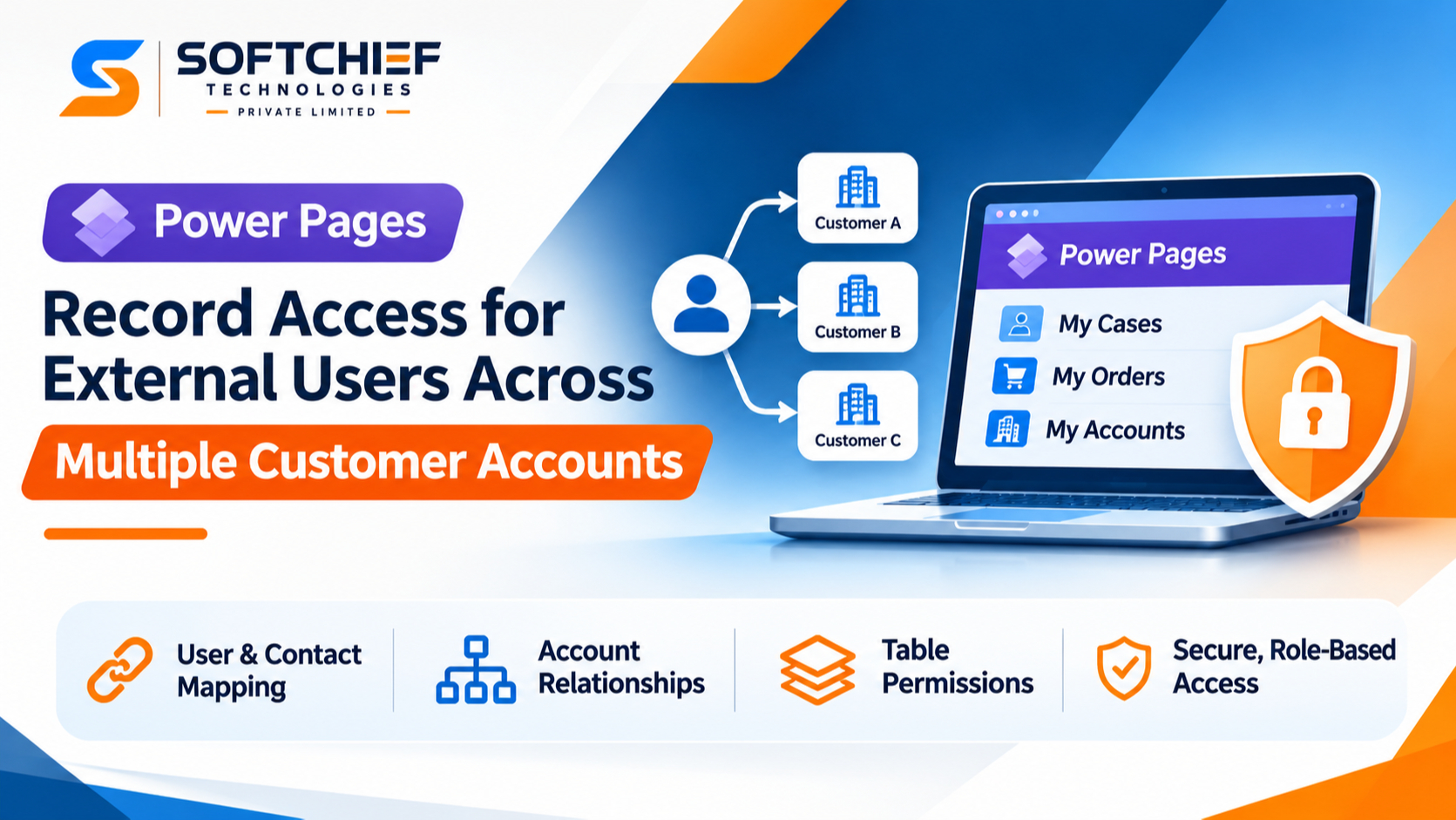
A portal user who can see another customer’s case or order may expose sensitive business information. But rules that are too strict can keep a user from doing their job. Good Power Pages record access design protects customer data while giving each external user the records they’re approved to use.
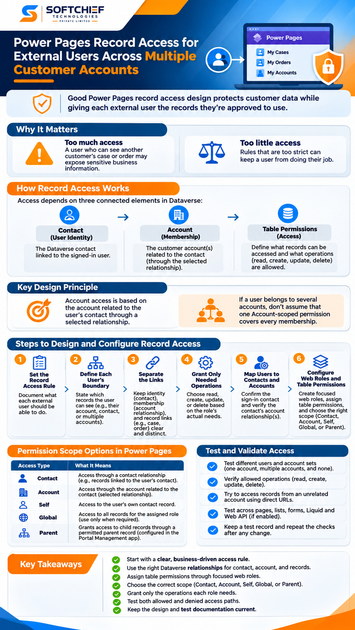
Access depends on how a signed-in user maps to a Dataverse contact, how that contact relates to customer accounts, and which table permissions are assigned through web roles. Those links work together, but each has a different job.
The key design detail: Account access is based on the account related to the user’s contact through a selected relationship. If a user belongs to several accounts, don’t assume that one Account-scoped permission covers every membership. Define the data model and test the access path before launch.
Set the Power Pages record access rule first
Before configuring permissions, write down what each external user should be able to do. For example, should a supplier read and update its own orders, or should a partner contact see records for several customer accounts? A clear rule gives you a basis for choosing relationships, roles, and privileges.
Define each user’s record boundary
State the rule in plain language. A user might see records linked to their employer’s account, records tied to their own contact, or records for every account they’re approved to represent. Avoid broad rules such as “partners can see partner data” unless you can identify the Dataverse relationship that defines “partner data.”
Also decide whether access follows account membership, record ownership, or another link. Those rules can lead to different results, even for the same user.
Separate identity, membership, and record links
Power Pages uses Dataverse contact records to associate authenticated site users. The contact is the user’s site identity; its account relationship and other membership links help describe that person’s business ties. A protected case, order, or custom record has its own relationship to a contact or account.
Don’t treat those links as interchangeable. A contact’s main account, a separate account-membership record, and an order’s customer account may each serve a different purpose.
Grant only needed operations
Decide separately whether users need to read, create, update, or delete each table’s records. A user who tracks orders may need read access, while a support contact may also need to add comments or update a case. Grant only the operations each role needs.
Map external users to Dataverse contacts and accounts
Power Pages permissions rely on the Dataverse relationships in the site’s data model. Check those relationships before assigning permissions, especially if users can represent more than one account.
Confirm the sign-in contact
Power Pages links authenticated site users to Dataverse contacts. Review how new users are registered or invited, then confirm that each test login resolves to the intended contact. Check for duplicate or incorrectly linked contacts before you test record access.
Microsoft’s Power Pages authentication overview explains how authenticated users are associated with Dataverse contacts. Make the contact link part of your onboarding checks, not an assumption.
Check the contact’s account relationship
Account access uses the account related to the signed-in user through the relationship selected for the table permission. Confirm that this relationship reflects the access rule you wrote. If your organization stores additional memberships in a separate table or many-to-many relationship, the contact’s main account may not capture them.
That distinction matters when one person works with multiple customers. A permission based on one account relationship should not be assumed to include every account listed elsewhere.
Trace the path to each protected table
Map the path from user to record for every table you plan to expose. For example, a contact may relate to an account, and that account may relate to orders. Cases might instead link directly to a contact or to an account.
Check that the chosen relationship matches the business rule. If records have inconsistent links, some authorized users may lose access, while others may see records outside their scope.
Configure Power Pages table permissions and web roles
Table permissions control access to Dataverse records, while web roles connect those permissions to site users. Microsoft’s Power Pages table permissions documentation describes the available access types and setup. Review the current guidance as you configure your site.
Assign permissions to the right web roles
Create a focused web role for each audience, such as customer contacts or supplier users. Assign each table permission only to roles that need it, and document the tables and operations each role receives. Users can have more than one web role, so their access may add up across roles.
Microsoft notes that authenticated users are assigned to the Authenticated Users web role. Don’t place sensitive table permissions on that broad role unless every signed-in user should receive them.
Choose a scope that matches the relationship
Contact scope limits access through a contact relationship. Account scope uses the account related to the signed-in contact through the selected relationship. Self scope applies to the user’s own contact record, while Global scope applies to all records for the assigned role.
Parent permissions let you connect child table access to a permitted parent record. The Parent access type is configured through the Portal Management app; in design studio, you can add child permissions to an existing permission. Use the scope that fits the relationship path, and don’t use Global access to bypass a difficult data model.
Check every data access route
Hiding a page, list, or form doesn’t secure the records by itself. Table permissions protect data accessed through Power Pages lists, forms, Liquid, and the Web API. Page permissions control who can view page content, so they complement, rather than replace, table permissions.
If your site uses the Power Pages Web API, check its table permissions too. Microsoft states that Web API requests follow the table permissions granted through the user’s web role.
Design Power Pages record access for multiple accounts
Multi-account access needs an explicit authorization path. First check whether the standard Account scope matches your contact-to-account data. If it doesn’t, choose a supported relationship design before exposing records.
Validate the standard Account scope
Test a contact linked to one account and a contact with several account memberships. Confirm which relationship the permission uses and which records each user can retrieve. Don’t infer access from a list shown in a form or from a field that records membership.
If the account relationship used by the permission reflects only one account, it may not meet a rule that grants access across several memberships. Change the model or permission path rather than widening access to all records.
Review relationship-based permission paths
A Parent and child permission setup may fit when the protected records connect through the permitted parent record using the required Dataverse relationships. Review each link in that path in the target environment. Don’t assume a many-to-many membership automatically grants access.
Check the table relationships, the parent permission, the child permission, and the roles assigned to them. Microsoft’s table permission guidance also notes that polymorphic lookups aren’t supported for parent-child permissions.
Plan a separate design for complex membership
For users with a changing set of approved accounts, ask a solution architect to review the data model. One option may be a membership table and a supported permission path through that table. The design must enforce access on the server, not only filter what the page displays.
Custom membership data or client-side filtering alone doesn’t secure records. Test any custom authorization approach through forms, lists, Liquid, direct record URLs, and Web API requests where enabled.
Test access boundaries before launch and after changes
A good test proves both that users can do their work and that they can’t reach unrelated records. Use test accounts with realistic contact, account, and record relationships. Keep the results so the team can repeat the checks later.
Test different users and account sets
Include a user linked to one account, a user with several account memberships, and a user with no applicable membership. For each user, test every protected table and each allowed operation. Include cases where records link to a contact, an account, or another parent table.
Verify allowed and denied access
Confirm that each user can complete approved tasks. Then try to retrieve a record from an unrelated account by using its direct URL or an available data route. A page that hides the record in its list doesn’t prove the record itself is protected.
Keep the design and test record current
Document the web roles, table permissions, relationship assumptions, and test results. Repeat the tests after changes to contacts, account links, Dataverse tables, roles, or site components. Include negative tests in release checks so a permission change doesn’t quietly expose another customer’s data.
Keep customer records isolated with clear, testable rules
Secure multi-account access starts with the right contact and record relationships. Web roles assign permissions to users, and table permissions control which Dataverse records those roles can reach. Account scope follows its selected account relationship; it shouldn’t be treated as automatic support for every separate account membership.
Before launch, confirm the sign-in contact, write down the access rule, select a supported relationship path, and grant only needed operations. Test both allowed and denied access, including direct record requests. Document the results and repeat the checks whenever the data model or site security changes.