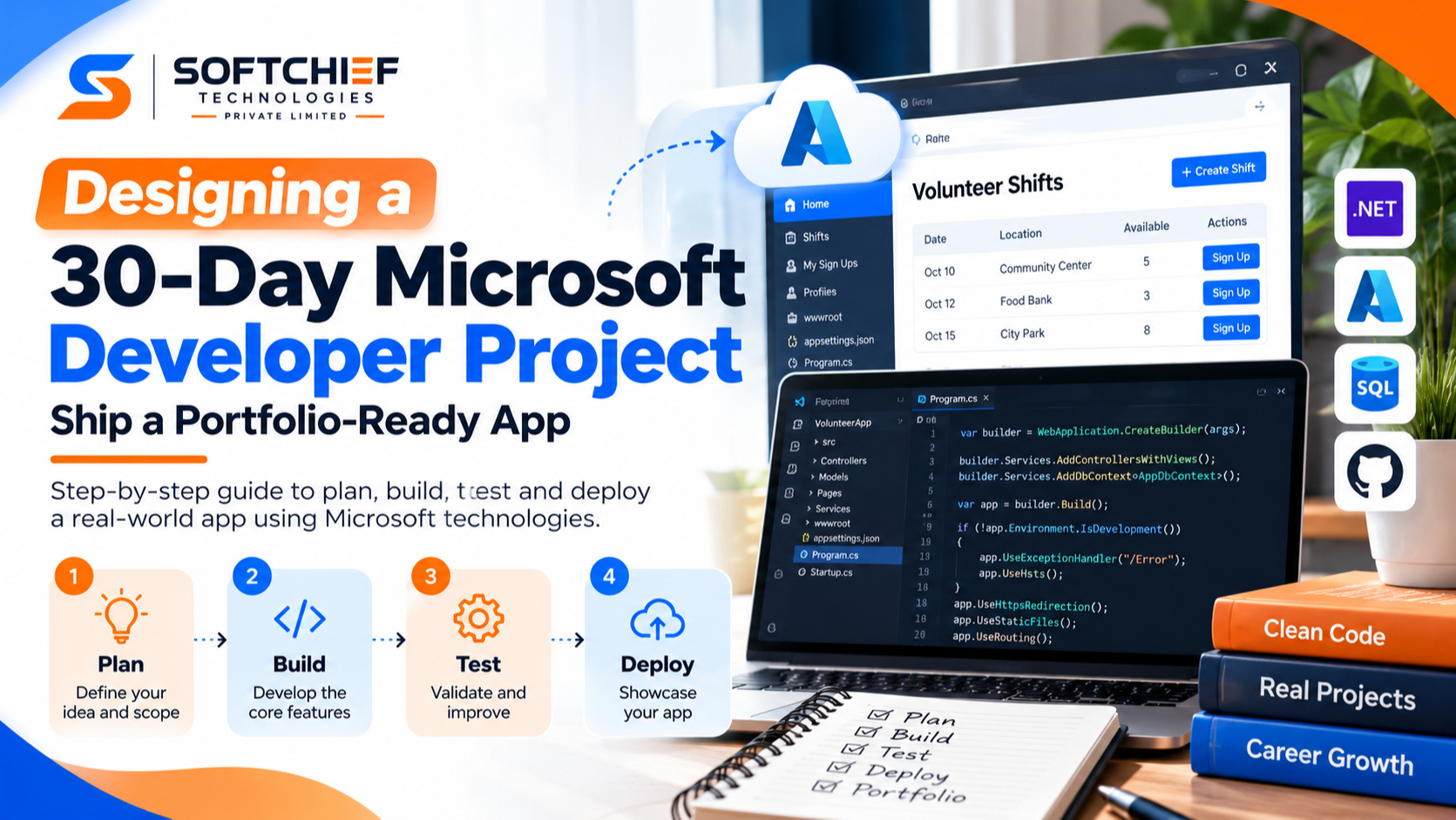
Designing a 30-Day Microsoft Developer Project: Ship a Portfolio-Ready App
Introduction
A promising idea can turn into a half-built app fast. Designing a 30-day Microsoft developer project gives you a clear deadline and a practical goal: finish one working app, not a platform built for thousands of users.
A focused project can sharpen your coding skills and give you a portfolio piece you can explain. It also shows the full development process, including planning, testing, and deploying an app.
The path is straightforward: choose a small problem, pick a Microsoft stack that fits, and plan the month in weekly milestones. Then test the main workflows, deploy the app, and make the result easy to review.
Choose a scope for your 30-day Microsoft developer project
The best project solves one clear problem for one type of user. Before you pick features or tools, decide what someone should be able to do when the first version is ready. That outcome helps you keep the work small enough to finish.
Start with one user problem and one clear outcome
Write a one-sentence brief that names the user, the problem, and the result. For example: “A volunteer coordinator can post shifts and let people sign up.” That gives you a way to judge every feature idea: does it help deliver that result?
Keep the first version focused on one main task. A user might create a shift, view open shifts, and sign up. That is a complete workflow you can build and show without adding a full scheduling system.
Draw a firm line between MVP features and future ideas
Your minimum viable product, or MVP, includes only what the user needs to complete the main task. For a shift app, that might mean a form to add shifts, a list of open shifts, and a sign-up action. Skip advanced reports and reminders at first.
Write extra ideas in a “later” list instead of adding them to the build plan. This keeps new requests from taking time away from testing and release. You can still return to the list after the app is live.
Choose a project that demonstrates relevant developer skills
Pick skills that match your next goal. If you want to show API work, build a small app that sends and receives data through an API. If you want to show UI skills, focus on clear screens and useful feedback.
A portfolio project should be easy to describe in a few lines. Note the user problem, the main technical choice, and one tradeoff you made. That gives reviewers a clear way to understand your work.
Pick a Microsoft stack that fits the app
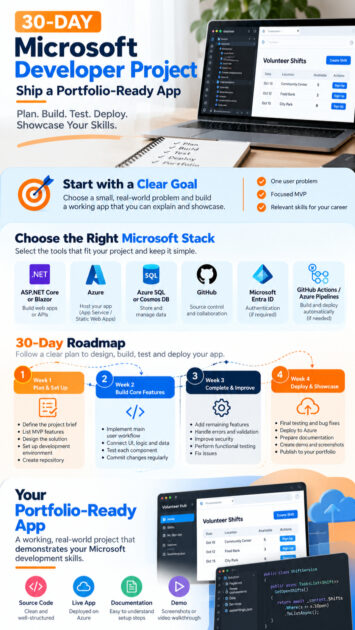
Choose a small group of tools that work well together. You don’t need to use every Microsoft product to make the project count. Check the current product docs, account needs, and prices before you commit to a cloud service.
Match the app’s needs to a .NET and frontend approach
ASP.NET Core works well for web APIs and server-rendered apps. Blazor lets you build a web interface with .NET, while a JavaScript frontend can call a .NET API. Choose the setup you already know, or the one you can learn without putting the deadline at risk.
Keep the number of moving parts low. A single Blazor app may be enough for a task tracker, while a separate frontend and API can suit a project meant to show API design. The ASP.NET web app quickstart for Azure App Service shows a .NET 10 app being created and deployed.
Select Azure hosting and data services deliberately
Azure App Service can host a web app or API. Azure Static Web Apps fits static frontends and can connect to APIs, including managed Azure Functions. Its overview and feature list describe its build and deployment flow with GitHub or Azure DevOps.
Pick the data store based on how your app uses data. Azure SQL fits data with clear links between records; Cosmos DB may fit a document-based model. Check the Static Web Apps plan details and Azure pricing before you create resources, since plan limits and charges can affect your choice.
Add source control, automation, and identity only where they help
Use GitHub to store your code and track changes. GitHub Actions or Azure Pipelines can build and deploy the app when you push updates, but a manual deploy is fine while you’re learning. Add automation when it saves time or helps you catch errors.
Add Microsoft Entra ID only if users need sign-in or role-based access. A public demo with no private data may not need accounts at all. When authentication is part of the project, follow the current ASP.NET Core Microsoft Entra ID tutorials.
Plan a 30-Day Microsoft Developer Project in four weeks
Set a visible goal for each week and check progress before moving on. The schedule below leaves room for testing and deployment instead of using every day to add features. Keep tasks small enough to finish and review.
Use the first week to define, design, and set up
Write the project brief and MVP feature list, then sketch the main screens or user flow. Set up your repository and development tools, and make sure the starter app runs on your machine. By day seven, you should have a working base and a short, ordered backlog.
Build the core workflow before adding polish
Use the middle of the month to build the main user task. Connect the interface to the app logic and data, then test each small piece as you go. Make frequent commits so it’s easy to review changes and spot problems early.
Keep the task list narrow. If the core workflow is incomplete, postpone visual polish and extra features. A plain but working sign-up flow is more useful than several attractive screens that don’t connect.
Protect the final week for quality and release
Reserve the last week for bug fixes, key user-flow checks, deployment, and documentation. Leave a few days of slack for setup problems or cloud configuration. Avoid starting a large feature when the release window is close.
Build the features that make the project work end to end
A useful app connects its screens, code, data, and hosting into one working experience. Focus on completing a few connected actions instead of building many features that do not work together. Small testable changes make it easier to find faults.
Implement the primary user journey first
Build the central task from the user’s first action through the expected result. In a shift app, that could mean adding a shift, showing it in a list, and letting a volunteer claim it. Test each part before adding the next one.
Work in short cycles: change one small feature, run the app, and check what happens. This helps catch issues while the code is still easy to understand. It also gives you steady progress to review against the project brief.
Make data, errors, and security part of the feature work
Check user input before saving it, and show a useful message when something goes wrong. Test cases such as missing fields, invalid values, and unavailable data. These details make the app easier to use and safer to run.
Keep passwords, keys, and connection details out of source files. Use the settings and secret storage supported by your chosen framework and Azure service. Follow current Microsoft docs rather than copying configuration from an unrelated sample.
Keep the architecture understandable and proportionate
Use a simple structure that fits the app. One web project and one database may be enough; extra services create more setup and more chances for delay. Add a layer or service only when it solves a real problem in your design.
Use current Microsoft Learn tutorials and Microsoft sample repositories for implementation help. Check that an example matches your framework and version before adapting it. A small design you can explain is stronger than a complex one you cannot support.
Test, deploy, and present your 30-day Microsoft developer project
A finished portfolio app should be easy to open, understand, and assess. Test the main workflows before release, then document what the app does and how to run it. The live version and its source code should tell the same story.
Test the most important workflows before release
Check each core user flow from start to finish. Try valid and invalid input, empty states, and failure cases such as a lost network connection. Test the browsers and screen sizes your project is meant to support.
Add automated tests where they fit, especially for key app logic. Manual checks still matter because they show how the whole app behaves. Fix blockers first, then record smaller known limits in the README.
Deploy the app and document how it works
Deploy to the Azure service you chose and open the live app to verify it works outside your computer. Microsoft’s App Service deployment quickstart covers a .NET app, while the Static Web Apps overview explains its repository-based deployment flow.
Write a README with the app’s purpose, key features, stack, setup steps, and known limits. Include any configuration a new developer needs, but never publish secret values. Add a clear note if a service or feature is not part of the demo.
Make the finished work easy to review
Add screenshots or a short screen recording so people can see the main workflow quickly. Keep folders and file names clear, and explain any key design choice in plain language. If you used a Microsoft sample as a reference, name it and explain what you changed.
A reviewer should be able to find the live app, source code, and setup notes without searching through unrelated files. Explain one tradeoff, such as choosing a single app over a separate API and frontend. That shows your choices were deliberate.
Conclusion: Finish an app you can explain
A successful 30-day Microsoft developer project has a small scope, a fitting stack, and one complete user workflow. Plan the work by week, test the app as you build it, and save time to deploy and document the result.
The finished app doesn’t need every feature on your later list. It needs to run, solve its stated problem, and give you a clear story to tell. Write your one-sentence project brief today, then build the smallest version you can ship.