Dynamics 365 CE Form Validation: Guide Users Without Blocking Valid Work
Introduction
A validation message can protect data, but a save blocked by the wrong rule can stop a valid task in its tracks. In Dynamics 365 CE, now commonly built as model-driven apps on Microsoft Dataverse, validation can offer a gentle prompt or prevent a record from saving. The right choice depends on what could happen if the data is missing or incorrect.
Design each rule around its impact. Clear guidance helps users fix mistakes, while firm controls protect important business and compliance needs. A good validation plan also makes room for legitimate drafts, handoffs, and approved exceptions.
Set the severity before choosing Dynamics 365 CE form validation
Decide what the rule protects
Start by asking what a wrong or missing value could cause. A blank phone number may be worth a reminder; an invalid account status that triggers a billing process may need a firm check. Consider the effect on customers, staff, reporting, compliance, and systems that use the data.
This step keeps data quality goals separate from rules that carry real risk. If a value would be useful but isn’t needed to finish the current task, a warning may fit better than a hard stop.
Match the rule to its impact
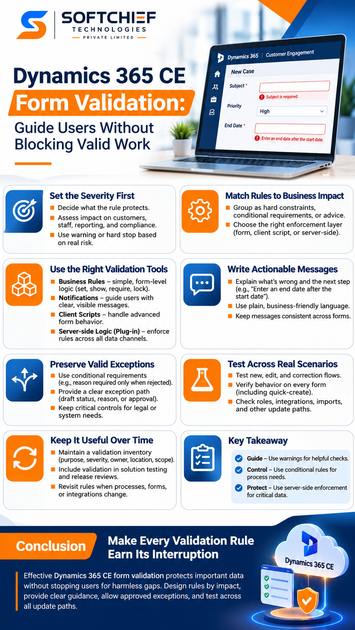
Group requirements as hard constraints, conditional requirements, or helpful advice. Hard constraints protect a process or obligation that cannot safely proceed with bad data. Conditional requirements apply only when certain fields or process stages make them relevant. Advisory guidance flags a possible issue but lets the user save.
Then choose where to enforce each rule. Form behavior and client-side checks can make entry easier, but they only cover the relevant app experience. For a rule that must apply to records created through other channels, use a server-side control as well.
Choose Dynamics 365 CE form validation tools by user impact
Use business rules for straightforward form logic
Business rules can set or clear values, show errors, lock fields, change visibility, or set a field as required. They work well for clear conditions, such as requiring a reason when a case is marked as escalated. Microsoft’s Dataverse business rules documentation explains available actions and rule scope.
Check the scope before activating a rule. A rule can target a specific form or apply more broadly, and some actions only affect model-driven app forms. Test it on every form where users may edit the record.
Use notifications for guidance, not silent roadblocks
A control-level notification can point to the field that needs attention. A form-level notification can explain a broader issue, such as a missing approval step. In the model-driven app form notification reference, Microsoft notes that form notifications remain until cleared, and newer messages appear above older ones.
Choose the notification level to match the message. A warning can suggest a useful next step without implying that saving is impossible. Test the actual save behavior for each validation method; a message on screen doesn’t always mean the record is blocked.
Use client scripts and server-side logic for different jobs
JavaScript with the supported Client API can handle form interactions that business rules can’t express. Microsoft recommends using formContext to work with the current form or its controls in client scripts. Keep scripts focused on the form experience, and avoid relying on a client-only check for important data integrity.
For rules that must hold beyond a form, use Dataverse server-side logic, such as a plug-in. Microsoft’s Dataverse event framework documentation explains how plug-ins respond to data events, while its form troubleshooting guidance recommends server-side validation when data integrity must be enforced across update paths.
Write Dynamics 365 CE validation messages users can act on
Explain the issue and the next step
A message should name the field or condition, state what’s missing or incorrect, and tell the user how to fix it. “Invalid value” leaves too much guesswork. “Enter an end date after the start date” gives the user a clear correction.
Use plain language that reflects the rule’s real purpose. If a value is needed only before a case moves to a later stage, say so. Don’t describe a temporary requirement as if the user can never save without it.
Put feedback where users can find it
Place field-specific feedback near the field, and use a form-level message when the issue affects the whole record or process. Keep messages consistent across forms so users don’t have to learn different wording for the same rule. Make sure the text, not color or an icon alone, explains the problem.
Also check how users can reach the message with a keyboard or assistive technology. After a correction, confirm that the message clears or updates. A warning that remains after the user fixes the issue can make the form feel unreliable.
Preserve valid exceptions without weakening data quality
Make conditional requirements explicit
Some fields matter only when another value is set. For example, a decline reason may be required when an application is rejected, but not while it remains under review. Express that condition in a business rule or other suitable logic, then test both sides of it.
Check when the requirement takes effect. A rule that appears too early can block legitimate work; one that appears too late may allow a record to advance without needed information.
Give approved exceptions a clear path
Records may begin as drafts or move between people before all details are known. A process may also permit an exception with review. Model those cases with an approved status, a reason field, or an escalation route, rather than making users work around the form.
Keep non-negotiable controls in place. If a rule protects a legal duty or a critical system, an exception path should record approval and context, not silently bypass the check.
Test Dynamics 365 CE form validation across every update path
Test the full task, including corrections
Check new and existing records, edits that trigger conditional rules, and attempts to save before and after fixing an issue. Confirm that users can understand the message, make the correction, and continue. Include cases where they change the field that controls whether another field is required.
Test more than the first save. A rule may behave differently when a record moves to another stage, returns for edits, or is reopened after an earlier save.
Check forms, roles, and other data channels
Test every relevant form, including quick-create forms, and account for differences in user roles. Also test integrations, imports, and other supported ways records are created or updated. A client-side check may not run when data changes outside the form, which is why critical rules need an appropriate server-side control.
Use support feedback, data reviews, and observed workarounds to spot friction. If a rule causes problems, change one at a time and retest the processes that depend on it.
Keep validation useful as processes evolve
Track each rule and review changes
Keep a validation inventory with each rule’s purpose, severity, owner, implementation location, affected forms or processes, and test coverage. That record makes duplicate rules and conflicting messages easier to find. It also helps teams understand why a hard stop exists before changing it.
Include validation in solution testing and release reviews. When a field, form, business rule, or integration changes, check both sides: the rule should block the risky case, and users should still be able to complete valid work.
Conclusion: Make every validation rule earn its interruption
Effective Dynamics 365 CE form validation protects important data without stopping users for harmless gaps. Use clear warnings for guidance, conditional rules for process-specific needs, and server-side enforcement when a requirement must hold across data-entry channels. Test exceptions and correction paths as carefully as the rule itself.
Start with one high-friction form. Classify each rule by severity, review its message and implementation layer, and confirm that approved exceptions have a clear path. A short review can reveal which controls protect the work and which ones get in its way.