Troubleshooting Power Platform Deployment: Find and Fix Release Failures Faster
Introduction
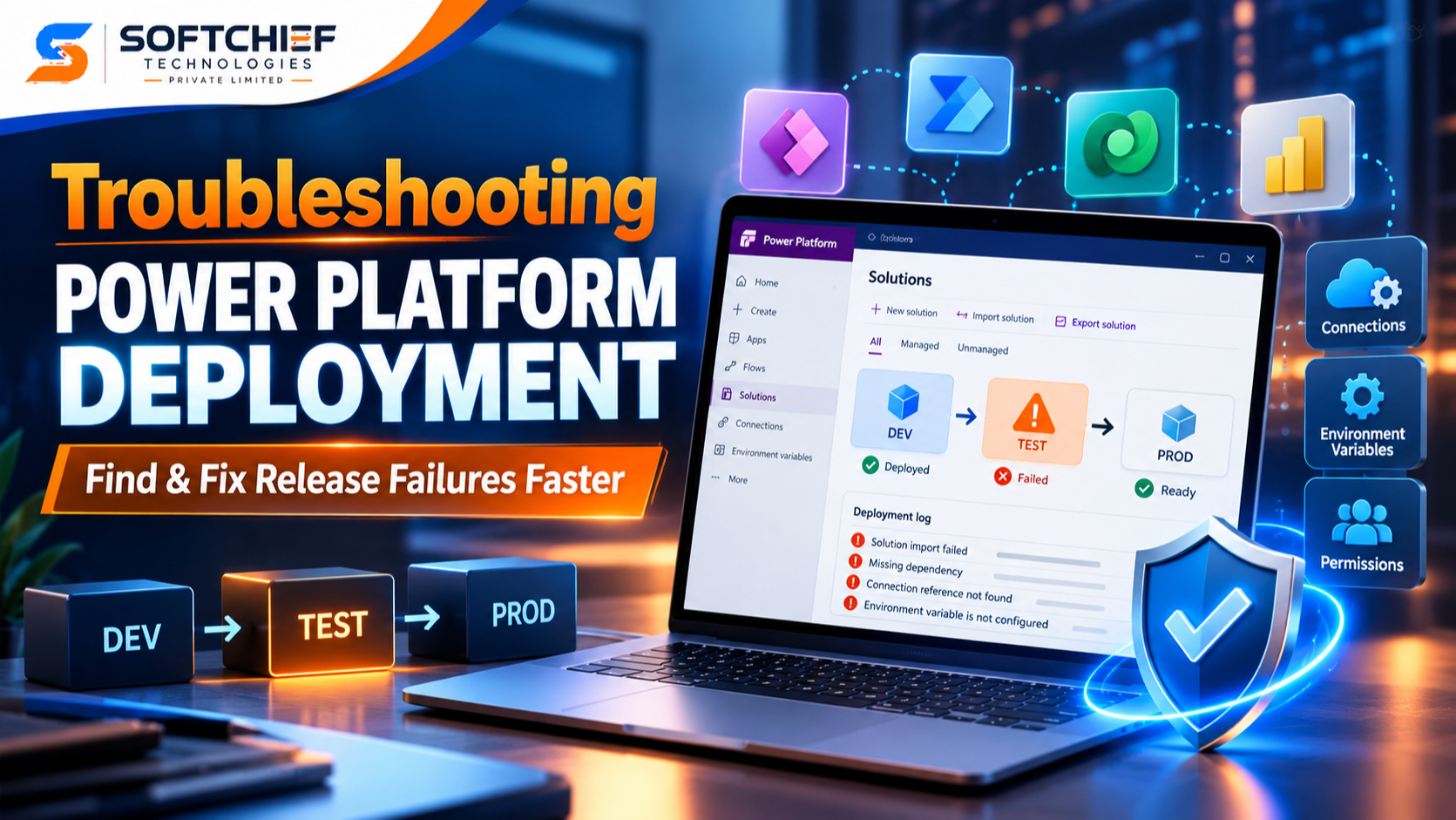
A Power Platform deployment can fail during solution import, connection setup, flow activation, or environment configuration. Find the failed stage and save the full error before changing the solution.
This guide helps makers and admins trace issues across Power Apps, Power Automate, Dataverse, and deployment pipelines. It focuses on safe, repeatable checks instead of quick edits that can hide the cause.
The fix depends on your deployment method, solution contents, and target environment. Use the error details alongside Microsoft Learn guidance for the import or pipeline method you’re using.
Troubleshooting Power Platform deployment starts with the failure stage
A deployment has several parts, and each points to different causes. A failed export may involve the source solution, while a failed import may point to package contents or the target environment. A completed import can still leave connections unset or flows inactive.
Use deployment history and error details
For a manual import, open the solution’s history or download the import log from the notification. The Microsoft solution import documentation explains that the log contains details about failed imports and that solution history tracks operations.
For a pipeline run, record its status, time, solution version, and target stage. Save the full error message and any correlation or operation ID shown. These details help an admin compare the run with related platform activity.
Separate package problems from environment problems
Check whether the same package fails in another suitable environment. If it fails in both, inspect the solution and its dependencies first. If it fails only in one target, compare that environment’s installed apps, permissions, connections, and settings.
A second environment is a useful comparison, not proof that the environments match. Differences in Dataverse or app versions can change which components are available.
Reproduce the issue with one change at a time
Record the package version, source, target, deployment method, and settings before you retry. Change one item per test, such as adding a missing dependency or selecting a valid connection. Avoid repeated retries with multiple edits; they can make it harder to identify what fixed the issue.
Fix Power Platform deployment import failures and missing dependencies
An import can fail when a solution refers to a component that the target environment doesn’t have. The missing item might belong to another solution or a Microsoft app. Check the import log and dependency list before editing the package.
Check required components and deployment order
Review each reported dependency and confirm that the target has the required table, column, app, flow, or other component. If another managed solution provides it, install or update that solution first. Then retry the dependent solution.
Microsoft’s guidance on missing dependencies during solution import groups missing items by source, including applications, managed solutions, and unmanaged components. That distinction helps you choose whether to update an app, import another solution, or add a component to your package.
Review managed and unmanaged changes
Managed solutions are generally used for nondevelopment environments; unmanaged solutions are commonly used during development. Existing customizations and solution layers can affect what an update changes or overrides. Before choosing an update or upgrade path, check Microsoft’s solution lifecycle guidance for the behavior you need.
Don’t edit a managed component directly in the target to work around an import error. Microsoft warns that unmanaged changes layered over managed components can block expected updates or create differences between environments. Make the change in the source solution, then deploy it through your normal release path.
Run solution checks before export
Use Microsoft Solution Checker where it fits your process. Review its findings and fix relevant issues before export. A clean check can help spot problems, but it can’t guarantee a successful import because target settings and dependencies still matter.
Fix connection references, environment variables, and flow activation
A solution may import successfully but still fail when users open an app or a flow runs. This often happens because the target environment needs its own connections and configuration. Treat import completion and working functionality as separate checks.
Map connection references to valid connections
For every connection reference, confirm that the target environment has a matching connection selected. Check that the connection is authorized and that the account or service identity can access the required data. A connection that exists but lacks access can still cause an app or flow to fail.
Power Platform pipelines can deploy solutions with target settings such as connections, connection references, and environment variables. Their setup is described in Microsoft’s overview of Power Platform pipelines. Confirm the selected connection in the deployment stage or import settings, rather than assuming the source connection carries over.
Verify environment variable values and related resources
Review required environment variables in the target. Check URLs, IDs, and other values that differ between development, test, and production. Also confirm that each value points to a resource the target environment can reach.
Keep passwords, tokens, and other secrets out of error notes and shared deployment records. If a value is missing or incorrect, update it through the approved configuration process, then test the app or flow that uses it.
Diagnose flows that stay off or fail after import
Check whether the flow is on, its connections are valid, and its trigger is set up as expected. Review the flow’s run history for the first failed action. Also confirm that the owner or run-only users have the access and licensing required for the flow’s connectors and tasks.
An import can finish without proving that every flow works. Test a real trigger and confirm that the flow reaches its expected result.
Check permissions, capacity, and environment settings
A valid solution package can still fail when the target environment isn’t ready. Review the identity used to deploy and the access needed to use the finished app or flow. These are separate checks.
Confirm deployment identities and security roles
Check whether the deployment account or service principal has permission to import the solution and create its components. Include any relevant roles or access limits in the review. Don’t assume that permission to deploy also grants app users access to the deployed resources.
If a user can’t open an app after deployment, check that user’s role and sharing separately. This helps distinguish a release issue from an access issue.
Check Dataverse and environment readiness
Confirm that the target has Dataverse and any required apps, features, or components in place. Review available capacity and environment settings if the deployment or workload depends on them. Compare these details with a known working environment when possible.
Review tenant policies and connector limits
If a flow or app can’t use a connector, check whether the connector is available and allowed under tenant or data loss prevention policies. An admin can review the relevant Power Platform admin settings and policy details. Verify the restriction before changing the solution.
Prevent recurring Power Platform deployment failures
A consistent release process makes failures easier to trace and reduces avoidable differences between environments. Keep solution packaging, configuration, and validation steps steady across releases. Record enough detail to compare one deployment with the next.
Standardize solution and pipeline practices
Use a consistent naming and versioning approach, and keep publisher details aligned across solutions. Follow a defined deployment path, such as development, test, and production, rather than skipping stages. If you use pipelines, document the stage settings and approval steps.
Microsoft notes that pipelines prevalidate deployments against the target and prompt for connections and environment variables when needed. Review those prompts carefully; a successful pipeline run still needs post-deployment tests.
Add checks before and after deployment
Before release, confirm dependencies, run relevant solution checks, and review connection references and environment variable values. Make sure the deployment identity has the required access. After release, open critical apps and test key flow paths with a suitable account.
These checks catch different problems. A package check won’t confirm that a production connection works, and an import status won’t confirm that users can complete a task.
Keep a useful deployment record
For each release, record the solution version, source and target environments, deployment identity, and configuration changes. Save the error text and operation ID when a run fails, along with the steps that resolved it. Never include secrets in the record.
This history helps you spot patterns, such as a dependency that is often missing or a target environment with a different setup. It also gives the next admin a clear starting point.
Keep Power Platform deployments reliable with a clear troubleshooting sequence
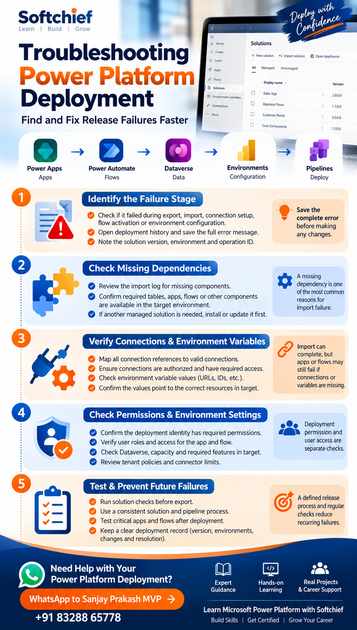
Start by identifying the failed stage and preserving its full error. Then check dependencies, target connections, environment variable values, permissions, and policies. Finish by testing the apps and flows that users rely on.
For the next release, review the logs, confirm every dependency, configure target connections, and run post-deployment tests. Use Microsoft Learn documentation for the specific deployment method and error you encounter.